

If you encounter the error message “Error 1935: An error occurred during the installation of assembly component” while installing software via an .msi package, don’t worry — you’re not alone. This error often stems from issues with system files, the .NET Framework, or Windows installation services. Here’s how to fix it step-by-step.
Why This Error Happens
Error 1935 occurs due to multiple possible causes:
- Corrupt or missing .NET Framework components
- Windows Installer (msiexec) conflicts or disabled services
- Resource/log file corruption in the Windows file system
- Outdated or missing Visual C++ redistributables
- Interference from registry conflicts or orphaned entries
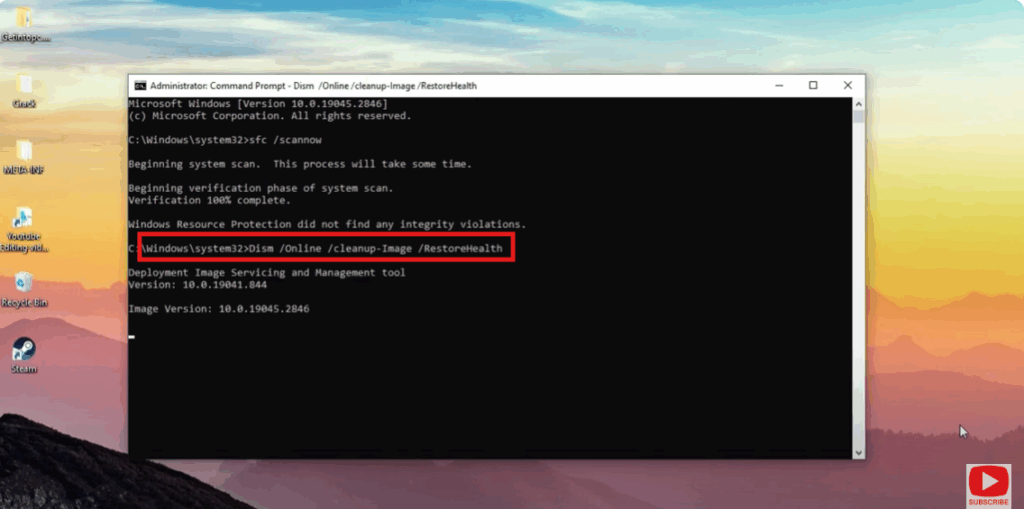
Fix #1: Run System Repair Tools (SFC & DISM)
Start with system file integrity checks:
- Open Command Prompt as an administrator.
- Run:
sfc /scannow DISM /Online /Cleanup-Image /RestoreHealth - Reboot your system and retry the installation.
Fix #2: Repair Visual C++ Redistributables
Issues with the Visual C++ runtime often trigger this error. Fix them as follows:
- Navigate to Settings → Apps → Installed Applications.
- Find all Microsoft Visual C++ Redistributable entries.
- Select each, choose Modify, then click Repair.
Fix #3: Enable the Windows Modules Installer Service
This service (TrustedInstaller) is vital for assembly installations:
- Press Win + R, type
services.msc, and press Enter. - Find Windows Modules Installer, right-click → Properties.
- Set Startup Type to Manual, and click Start.
- Try the install again.
Fix #4: Clear the File System Transaction Log
The file system transaction log can become corrupted and block assembly installs:
- Run Command Prompt as Administrator.
- Execute:
fsutil resource setautoreset true C: - Restart your PC and retry installation.
Fix #5: Repair or Reinstall .NET Framework
A damaged .NET Framework often causes assembly errors:
- Open Control Panel → Programs and Features → Turn Windows features on or off.
- Disable and re-enable .NET Framework 3.5, then restart.
- If unavailable, use the .NET Framework Repair Tool or do a clean reinstallation.
Fix #6: Run Installer as Administrator in Compatibility Mode
Permission or compatibility issues can block installation:
- Right-click the installer → select Properties.
- Go to the Compatibility tab.
- Enable Run this program in compatibility mode (e.g., Windows 10).
- Check Run as administrator.
- Try installing again.
Fix #7: Delete the APPMODEL Registry Key (Office-Specific)
If installing Microsoft Office and facing this error:
- Open Registry Editor (
regedit). - Navigate to:
HKEY_LOCAL_MACHINE\SOFTWARE\MICROSOFT\APPMODEL - Right-click and delete the key. Confirm and restart your computer.
- Retry the installation.
Final Thoughts
Error 1935 can be resolved effectively with the right steps. Start with system file fixes (SFC/DISM), then move to runtime repairs and permissions. For Office, try the registry clean-up. If issues persist, consider clean-booting your system, temporarily disabling antivirus, or seeking support from the software publisher.






