
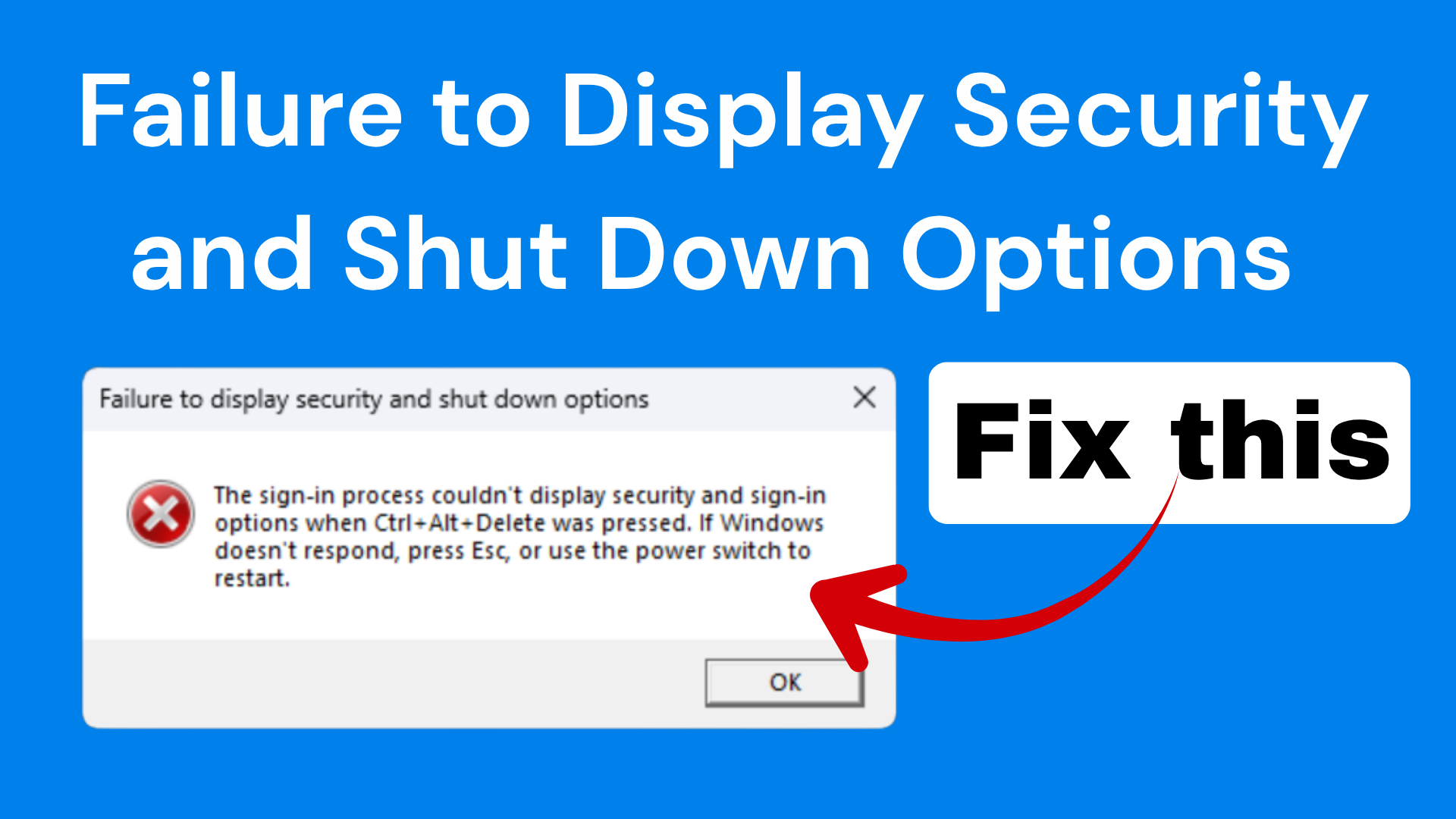
If you see the message “Failure to display security and shut down options” on your Windows 11 or 10 computer, it can be frustrating, especially when you’re trying to restart or shut down your system. This problem usually happens due to corrupted system files, missing permissions, group policy restrictions, or issues with Windows Explorer and user account settings. The good news is that you can easily fix it using built‑in tools like Command Prompt, Registry Editor, or Local Security Policy settings. In this blog, you’ll learn simple step‑by‑step methods to restore your shutdown, restart, and security options in Windows.
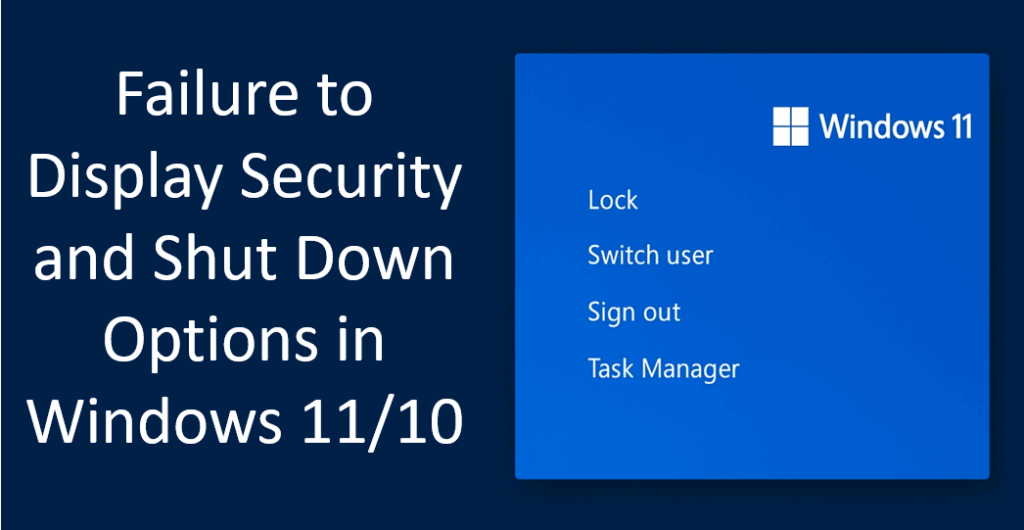
🔧 Steps to Restore Security & Shutdown Options
The video shows that this problem is typically due to Group Policy or Registry settings that disable those options. Here’s how to fix it:
1. Use Group Policy Editor (for Windows Pro / Enterprise)
- Press Win + R, type
gpedit.msc, and press Enter to open Local Group Policy Editor. - Navigate to:
User Configuration → Administrative Templates → Start Menu and Taskbar - In that location, find the policy setting named “Remove Logoff on the Start Menu” (or similar)
- If that policy is Enabled, disable it (or set to Not Configured).
- Also look for “Remove and Prevent Access to the Shut Down, Restart, Sleep, and Hibernate commands”
- If this is enabled, disable it or set it to Not Configured.
- After changing these policies, close the editor.
2. Adjust the Registry (if Group Policy is unavailable or doesn’t fix it)
- Press Win + R, type
regedit, and press Enter to open Registry Editor. - Navigate to:
HKEY_CURRENT_USER\Software\Microsoft\Windows\CurrentVersion\Policies\Explorer - In the right pane, look for values like
NoLogofforNoClose- If
NoLogoffexists and is set to1, double click and change it to0 - If
NoCloseexists and is set to1, change to0
- If
- Also check:
HKEY_LOCAL_MACHINE\Software\Microsoft\Windows\CurrentVersion\Policies\Explorerfor similarNoCloseorNoLogoffvalues, and set them to0if present. - Close Registry Editor when done.
3. Reboot the Computer
Once restarted, test Ctrl + Alt + Del, Start menu power options, and user account switch to confirm the missing options are restored.
After making policy or registry changes, restart your PC.






