

Want to upgrade your computer’s performance by adding more RAM but not sure if there’s space for it? Don’t worry—you can easily check for free memory slots on your Windows 10 or 11 PC without opening the case. Knowing how many RAM slots are available helps you decide whether you can add more memory or need to replace the existing ones. In this blog, we’ll show you simple ways to find free RAM slots using built-in tools like Task Manager and Command Prompt. Let’s find out what your PC can handle!

🛠 Methods to Check Free Memory Slots
Here are the methods shown in the video:
Method 1: Use Windows Task Manager → Performance Tab
- Right-click the Taskbar and select Task Manager, or press Ctrl + Shift + Esc.
- In Task Manager, go to the Performance tab.
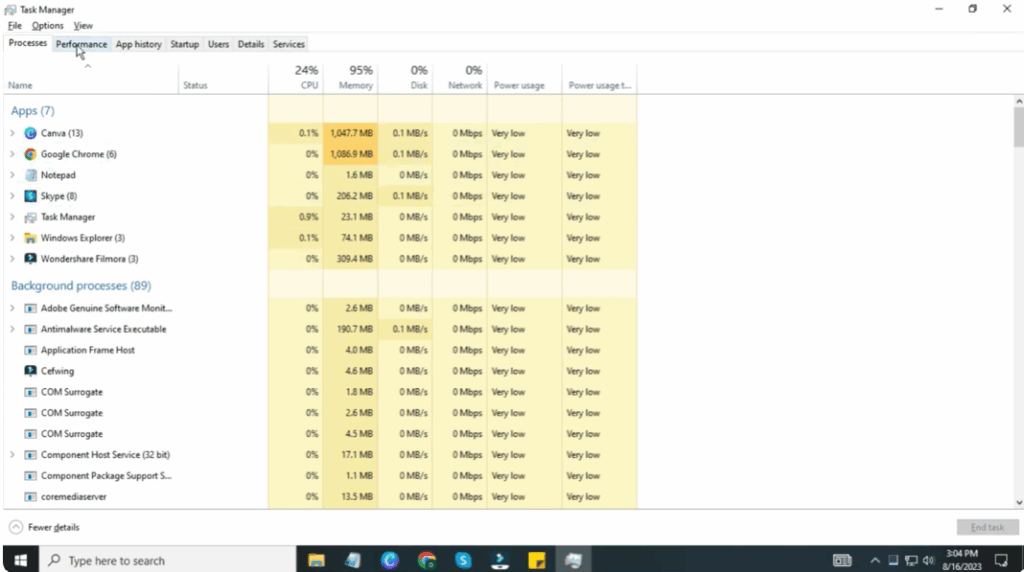
- Click on Memory in the left pane.
- In the Memory view, look for a line (usually near the bottom) that says “Slots used” (or “Slots used: x of y”).
- For example, it might show “1 of 2” or “2 of 4,” indicating how many slots are occupied vs total slots.
- From that, you can deduce how many free slots remain (Total slots minus used slots = free slots).
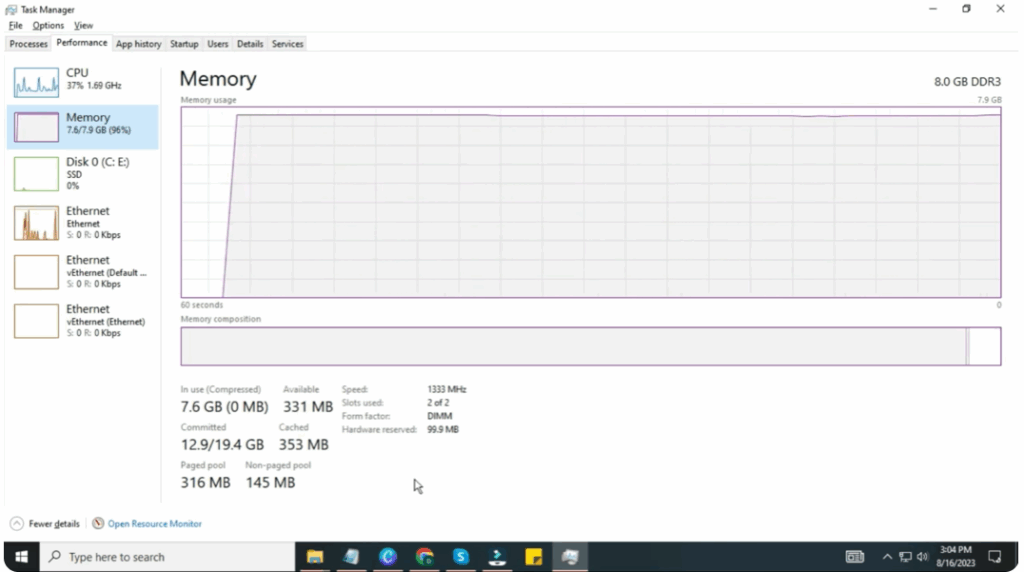
This method is quick and works well if Windows detects your memory configuration properly.






