
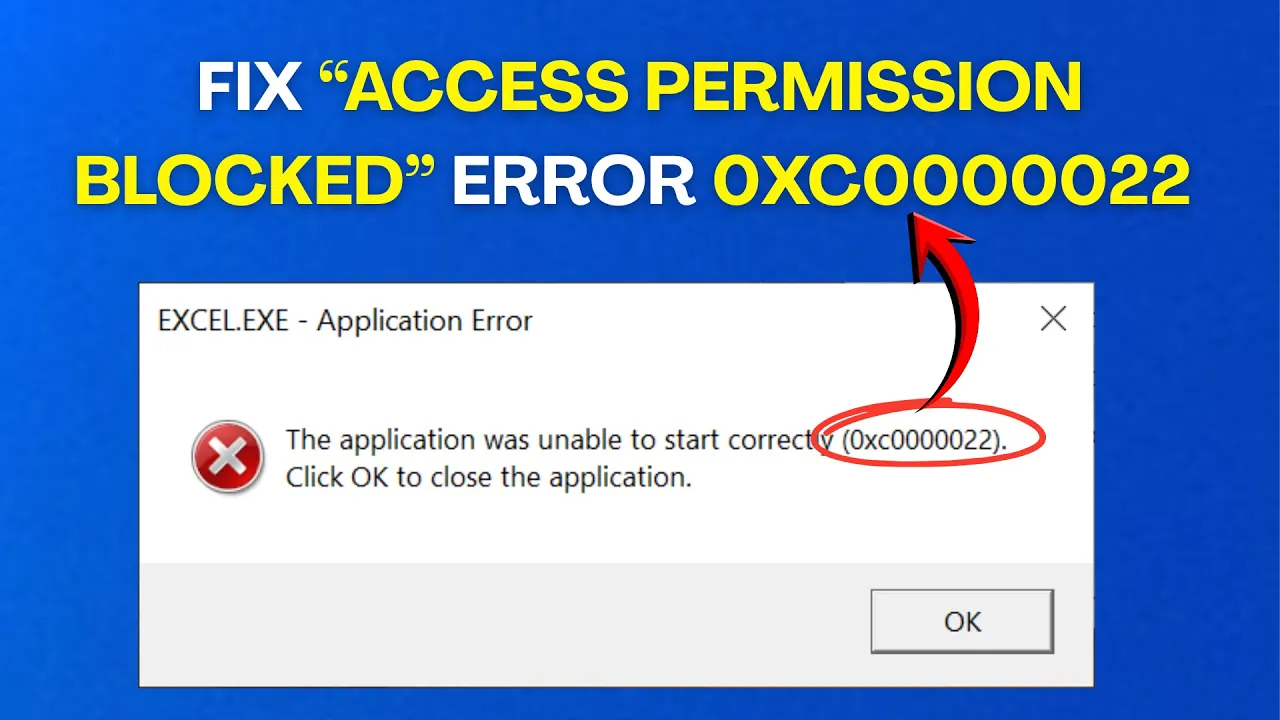
The “Access Permission Blocked” Error 0xC0000022 in Windows can be really annoying, especially when you’re trying to open a program or file and suddenly get stopped by this message. This error usually happens because of permission issues or problems with system files, and many users feel stuck when they see it. The good news is, it’s not as scary as it looks—you can fix it with a few simple steps. In this beginner-friendly blog, we’ll explain in easy language what causes Error 0xC0000022 and how to solve it step by step, so you can get your Windows PC running smoothly again.

Step 1: Open Registry Editor
Click on the start menu. Type regedit. Right click on registry editor and choose Run as administrator. If you see a User Account Control (UAC) popup, click Yes.
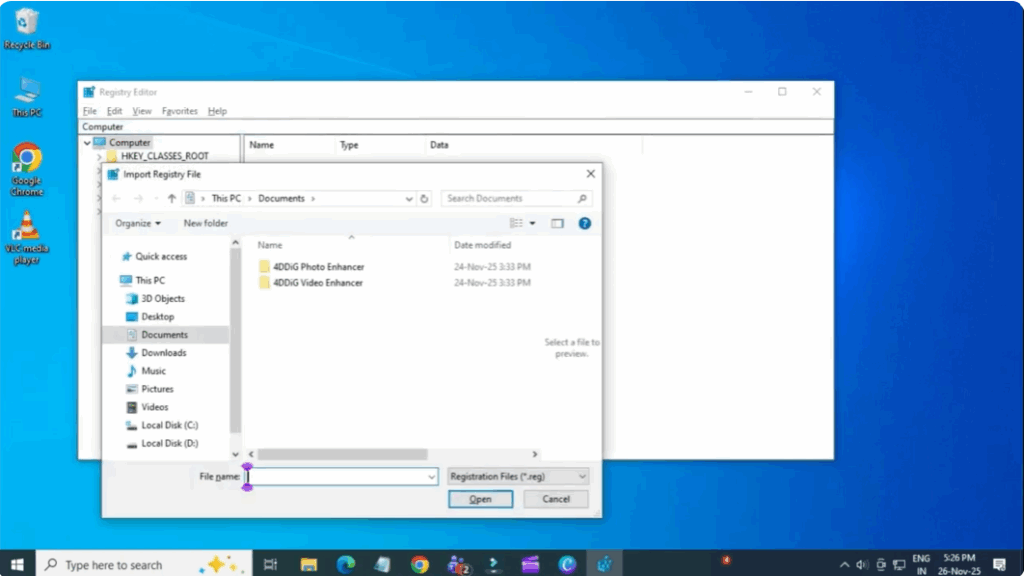
Step 2: Create a Backup
Before making any changes, I recommend creating a backup of the registry.
Go to File and click Export.
Name the backup with today’s date.
Ensure the export range is set to All.
Save it somewhere easy to find.
If something goes wrong, you can restore it by going to File → Import and selecting that backup.
Step 3: Navigate to the Key Location
Now follow this path step by step:
HKEY_LOCAL_MACHINE → SOFTWARE → Microsoft → Windows → CurrentVersion → SoftwareProtectionPlatform
Once you’re inside SoftwareProtectionPlatform, look on the right side for a value.
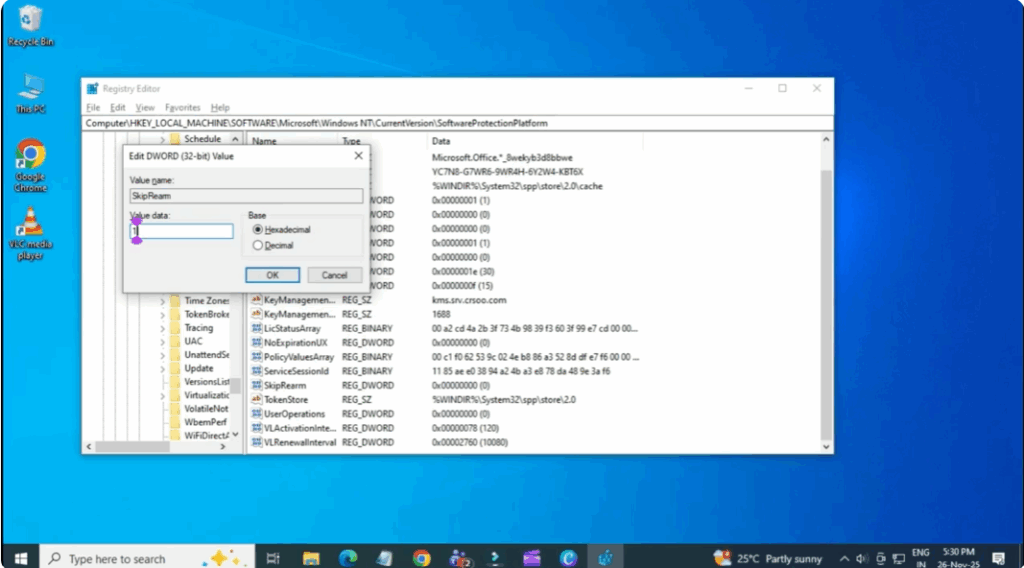
Step 4: Edit the SkipRearm Value
Once you’re there, find the entry named SkipRearm.
Double click it and change the value from 0 to 1.
Then click OK.
Step 5: Restart Your PC
Now close the registry editor and restart your computer.
After rebooting, the error should be gone.






