
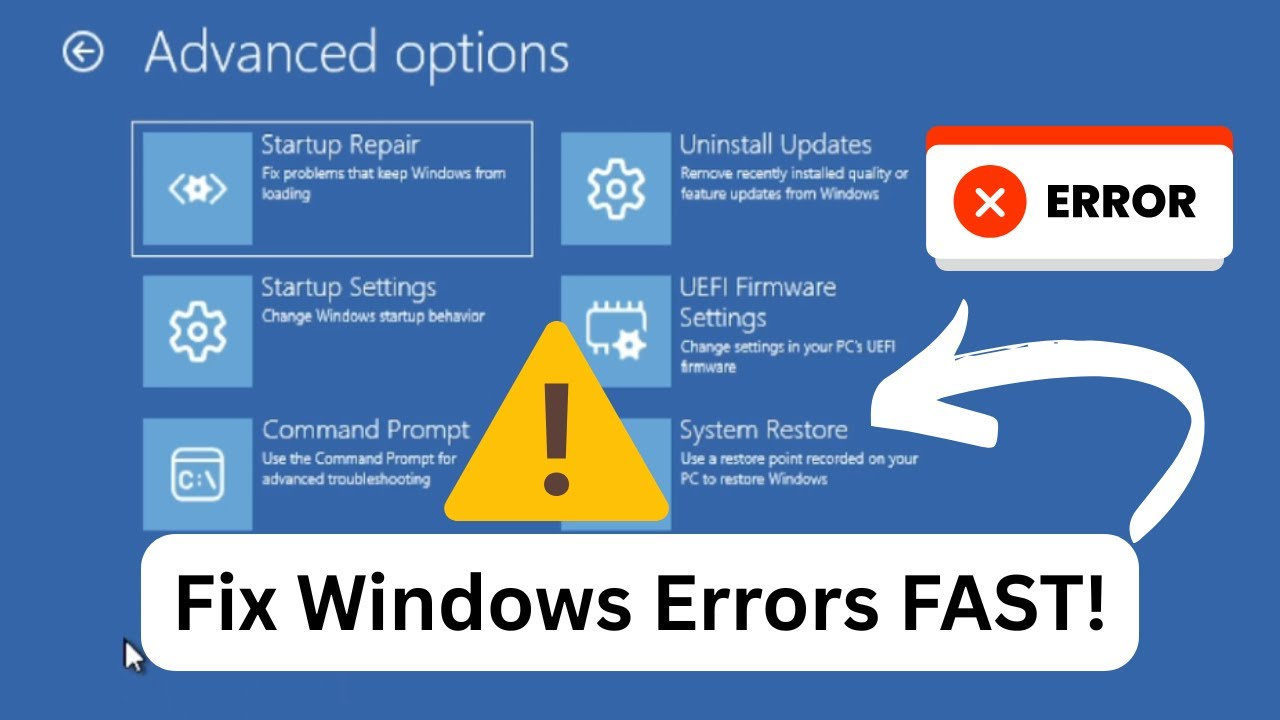
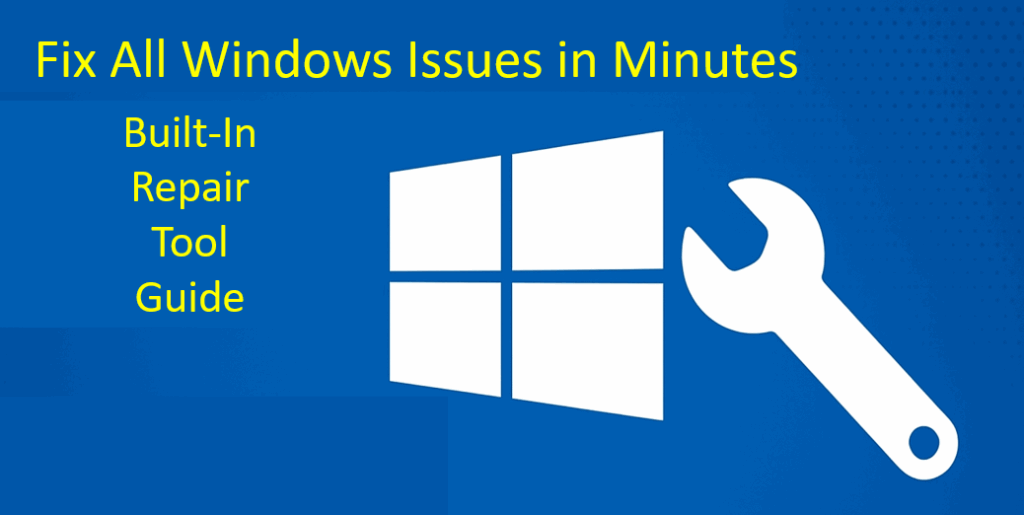
Is your Windows PC acting up with errors, crashes, or slow performance? You don’t always need a tech expert to fix it! Windows 10 and 11 come with built-in repair tools that can solve many common problems in just a few minutes. From fixing network issues to repairing system files, these tools are easy to use and super helpful. In this blog, we’ll guide you through how to use Windows repair tools step by step, so you can get your computer running smoothly again—fast and hassle-free!
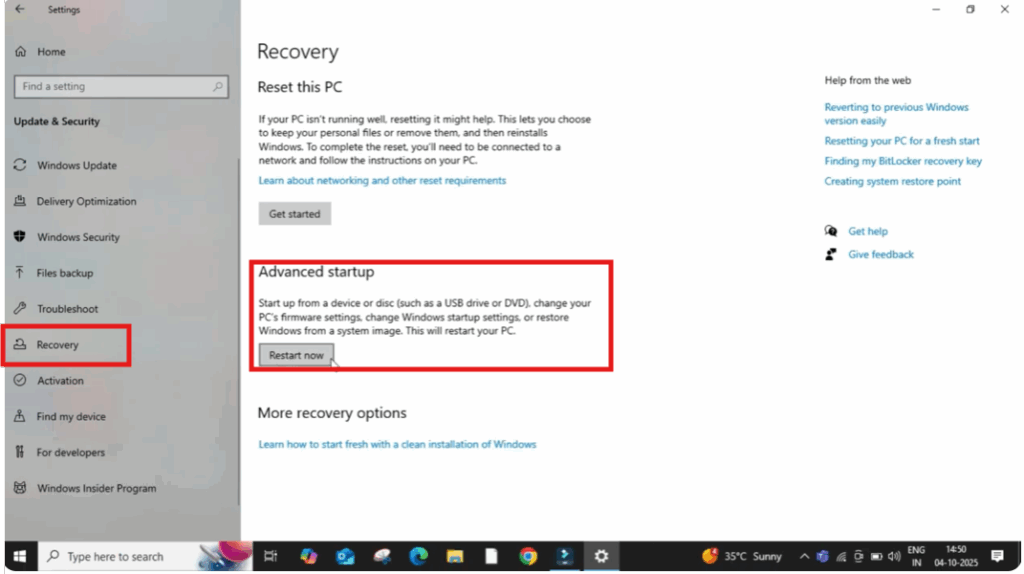
First, click on the Windows icon, then open Settings.
In the Settings window, click on Privacy & Security and then select Recovery.
Here, you’ll see an option that says Restart Now under Advanced Startup.
Click on it.
Once your PC restarts, you’ll see a blue screen with several advanced options.
But if you don’t see the screen automatically, don’t worry.
Simply forcefully shut down your PC three times in a row.
After doing this, Windows will open the same recovery screen automatically.
Now, click on Troubleshoot, then select Advanced Options.
Here you’ll find several powerful built-in tools that can help you repair your Windows system.

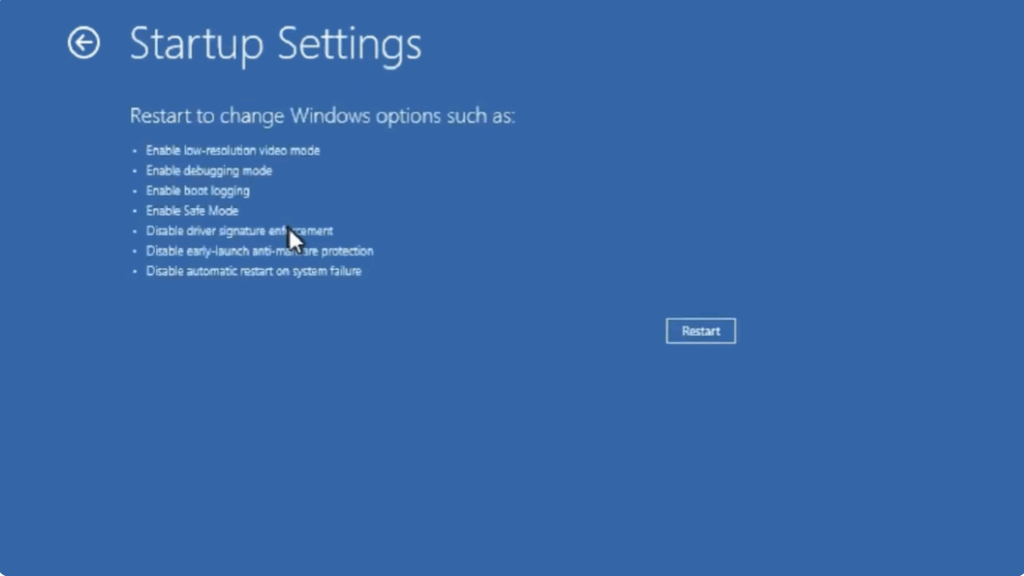
Next, click on Startup Settings and then click on Restart.
Your PC will restart once again.
After that, come back to Troubleshoot and again click on Advanced Options.
Now, select Command Prompt.
Once the Command Prompt opens, type the following command and press Enter:
sfc /scannow
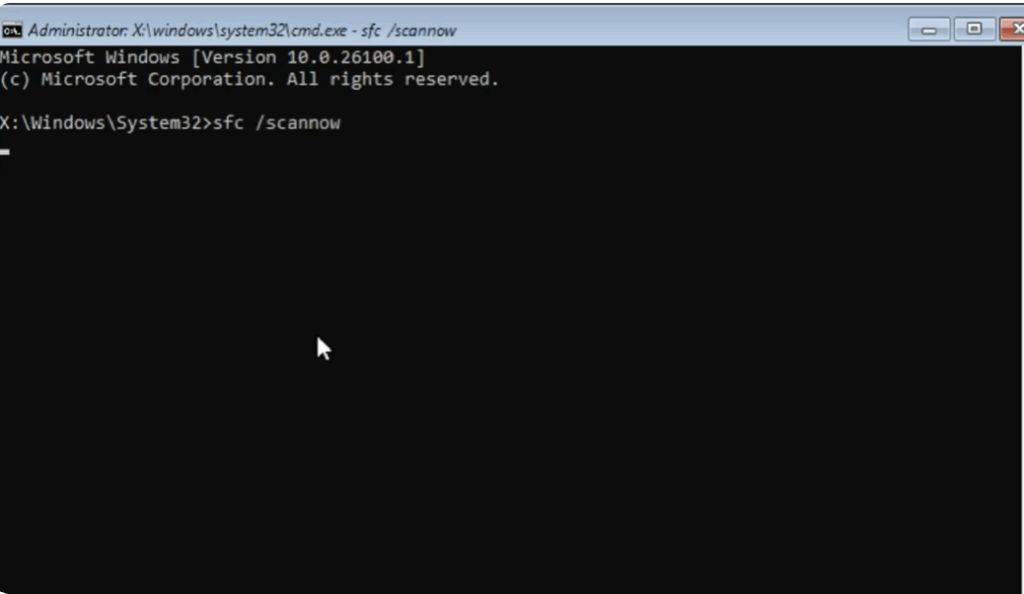
This command will start scanning your entire system for any corrupted or missing system files and automatically repair them.
It might take a few minutes, so be patient.
After the process completes, type another command and press Enter:
chkdsk /f /c
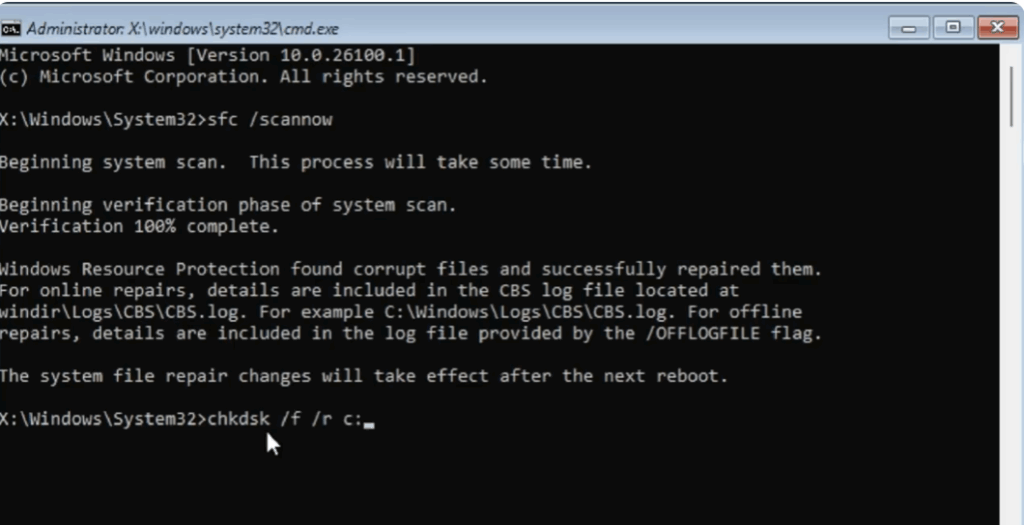
This will scan your hard drive for any bad sectors or disk errors and fix them automatically.
Once this is done, close Command Prompt and go back to the Troubleshoot menu.
Now, click on System Restore.
Then, click on Next.
Select the most recent Windows update restore point and click Next again.
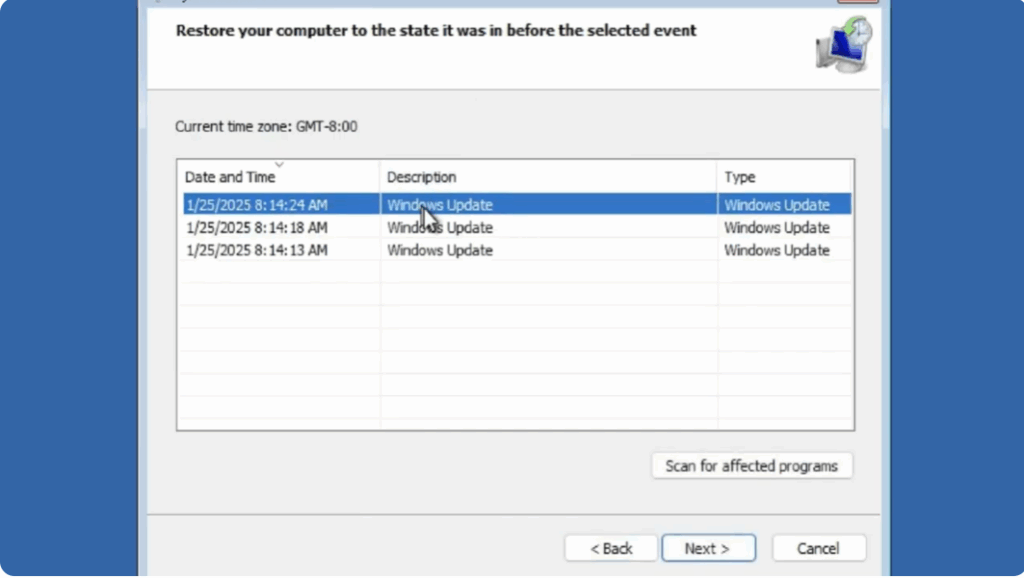
Finally, click Finish.
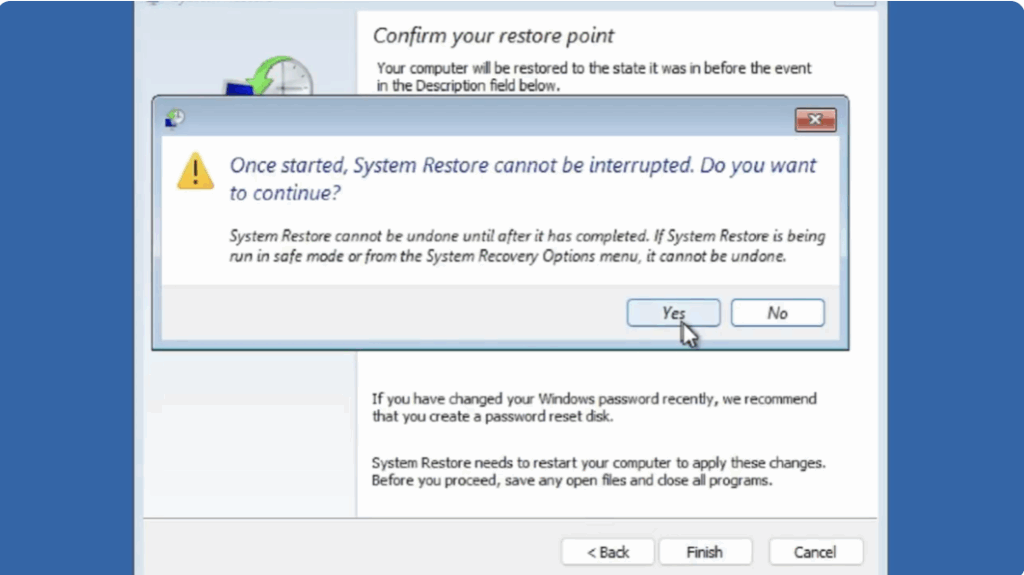
A confirmation message will pop up.
Click on Yes.
Windows will now restore your system to an earlier working condition, which often fixes deep-rooted software problems.
If none of these methods work, don’t worry. There’s still one more option.
Go back to the Troubleshoot menu and click on Reset This PC.
This will reinstall Windows while giving you the option to keep your files or remove everything.
Once the reset is complete, your PC will be fresh, fast, and error-free again.






