
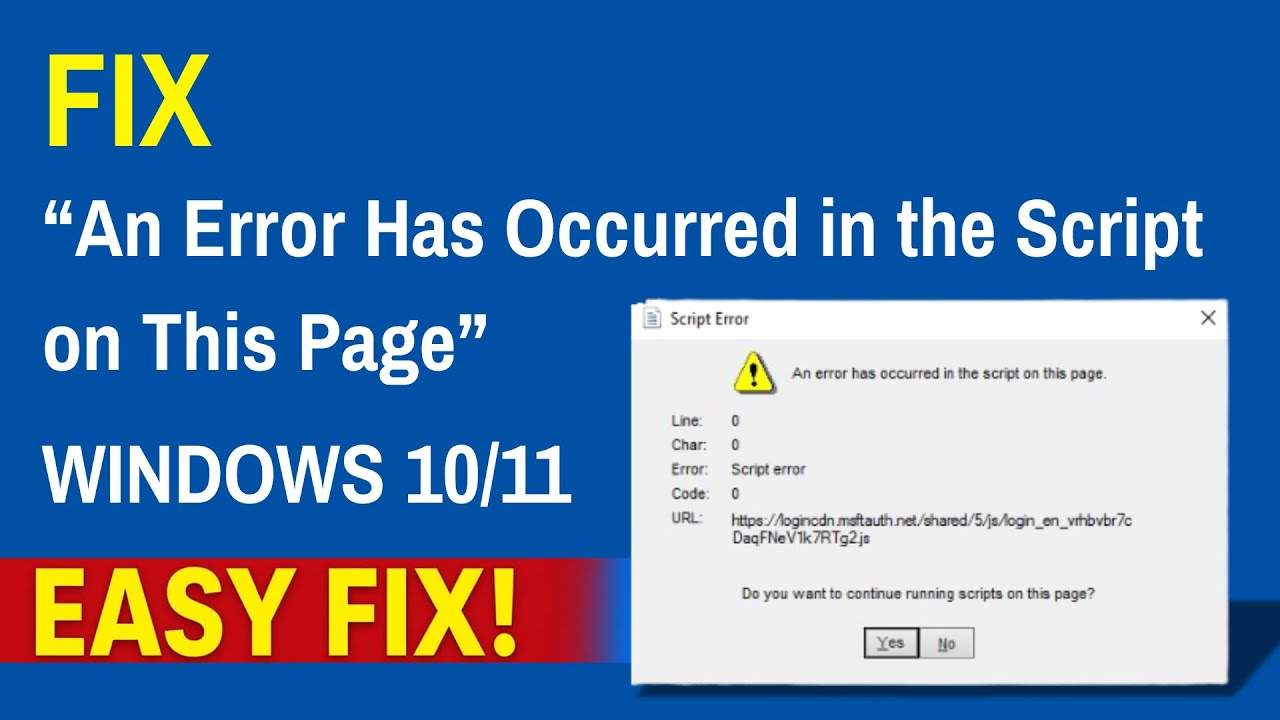
When using your computer, you might sometimes see a pop-up saying “An error has occurred in the script on this page.” This issue is common in Windows 10 and Windows 11 and usually happens when certain settings, browser scripts, or system files don’t work properly. It can be annoying, especially if it keeps appearing again and again while you’re browsing or opening programs. The good news is, fixing it is simple and doesn’t require advanced technical skills. In this blog, we’ll explain in easy language how to solve the script error step by step, so you can get rid of the pop-up and use your PC smoothly.
Before we fix it, you need to understand why this error appears. Most people think it’s a virus or a big system issue, but it’s not. It usually happens because:
- Internet Explorer components inside Windows get corrupted.
- A system file called earl.dll stops responding.
- Script debugging is turned on by default in older PCs.
- Temporary browser files overload Windows.
- Old website scripts don’t match modern Windows versions.
So once we fix these, the error disappears permanently.
Step One: Disable Script Debugging
Now let’s fix the main cause.
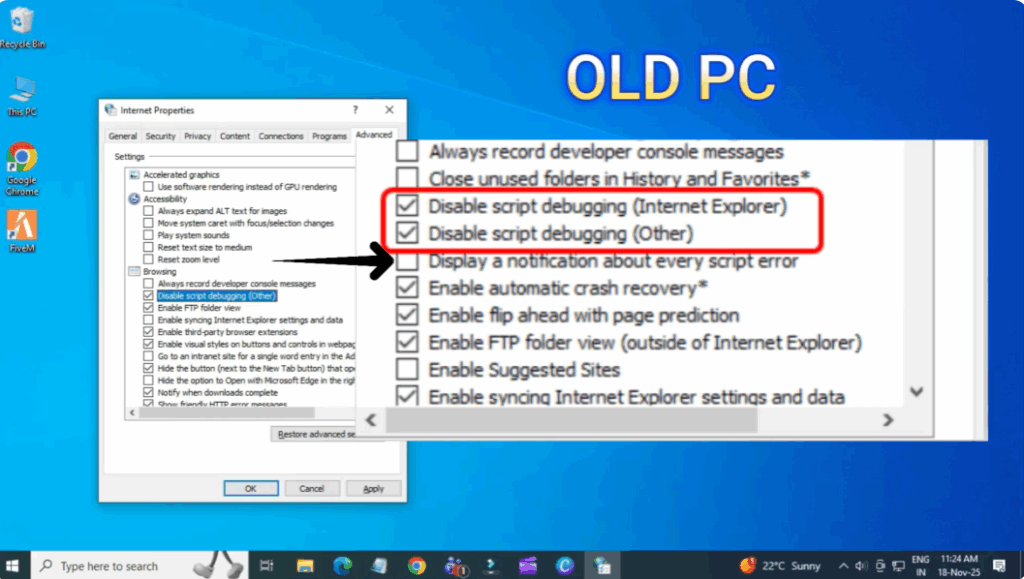
- In your Windows 10 or 11 PC, search for Internet Options.
- Open it and go to the Advanced tab.
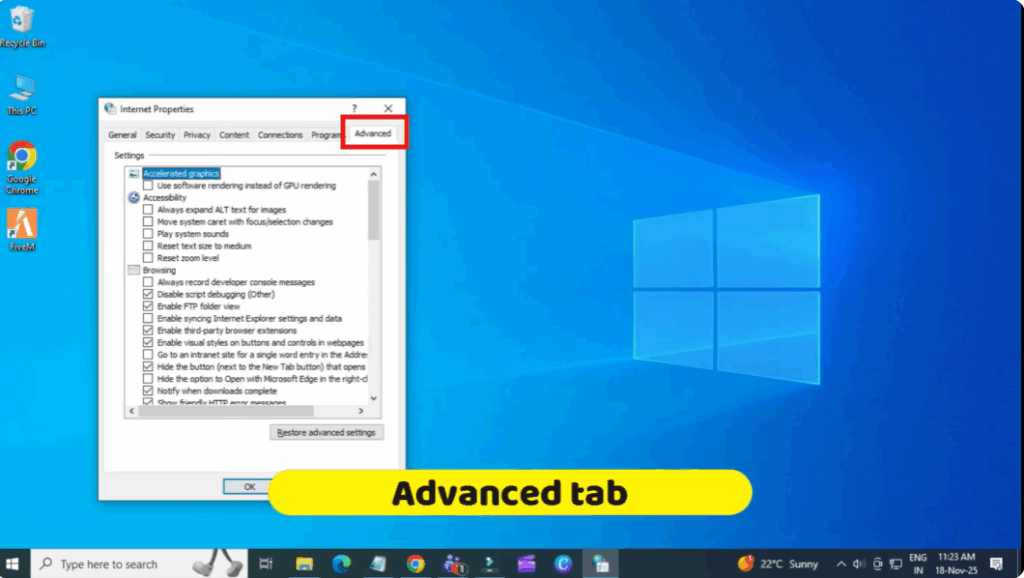
Inside this tab, scroll down until you find:
- Disable script debugging (Internet Explorer)
- Disable script debugging (Other)
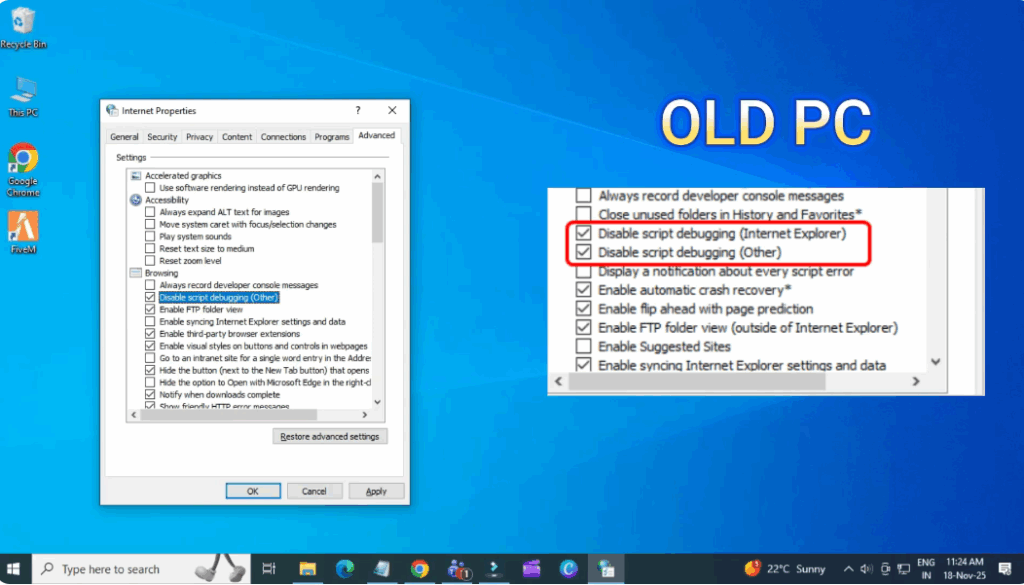
Now, check both of these options.
Next, look for the option Display a notification about every script error. Make sure this one is unchecked so you don’t see the pop-up again. Now, click Apply and OK. This instantly stops Windows from showing script error pop-ups.
Step Two: Clear Browser Cache and Corrupted Files
Now, let’s fix the second cause, corrupted history files.
Go back to Internet Options and open the General tab. Here click on Delete under Browsing History.
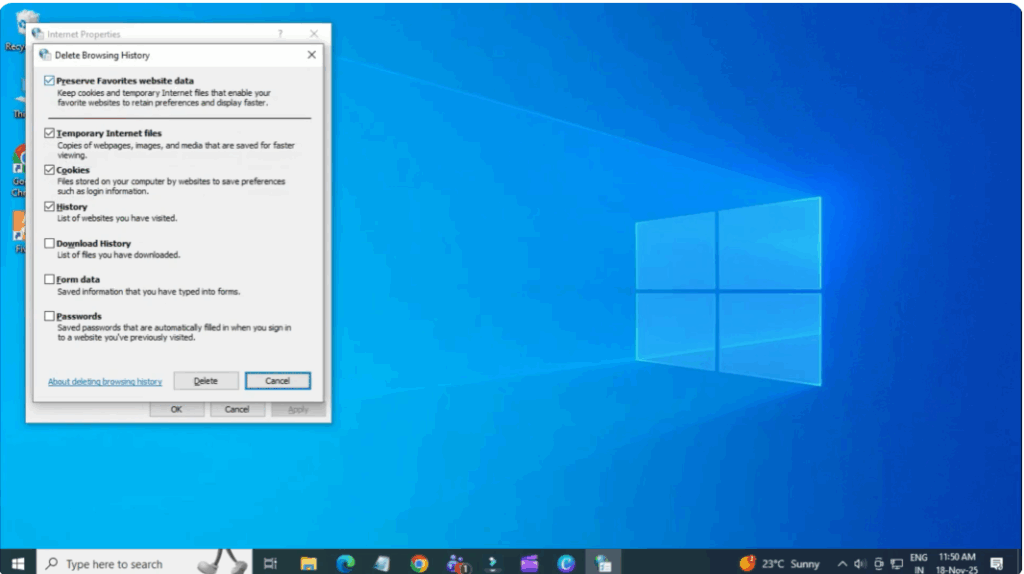
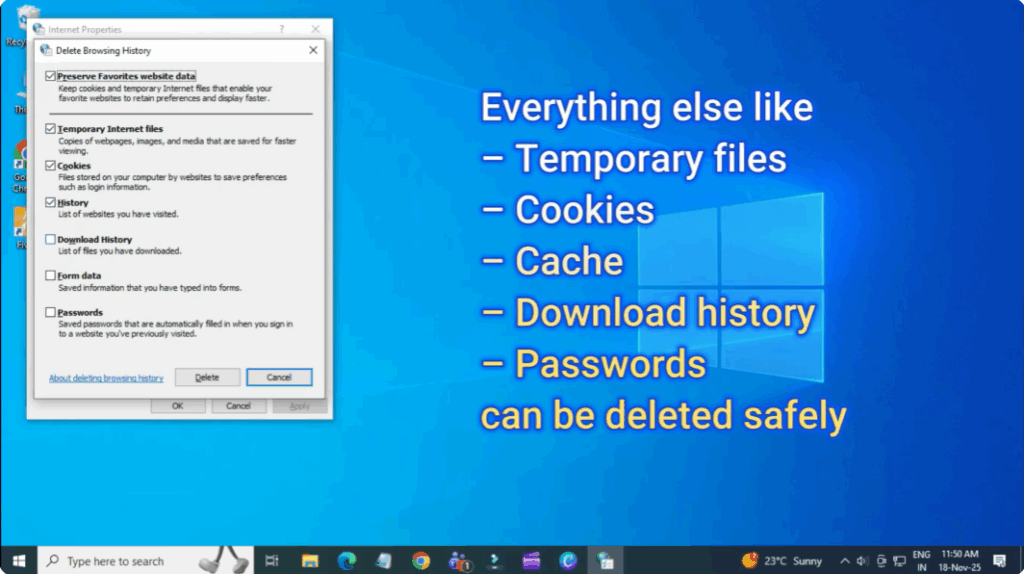
Preserve Favorites Website Data remains checked. Everything else like
- temporary files
- download history
can be deleted safely. These files get corrupted with time and trigger the script error. Click Delete and Windows will clean everything for you.
Modern browsers like Chrome, Edge, Brave, and Firefox don’t show this error often, but since Windows still uses Internet Explorer components in the background, this script error appears even if you don’t open Internet Explorer manually.
Final Words
And that’s it. Just these two simple steps, disabling script debugging and clearing corrupted files, fix the script error in Windows 10 and Windows 11.






