
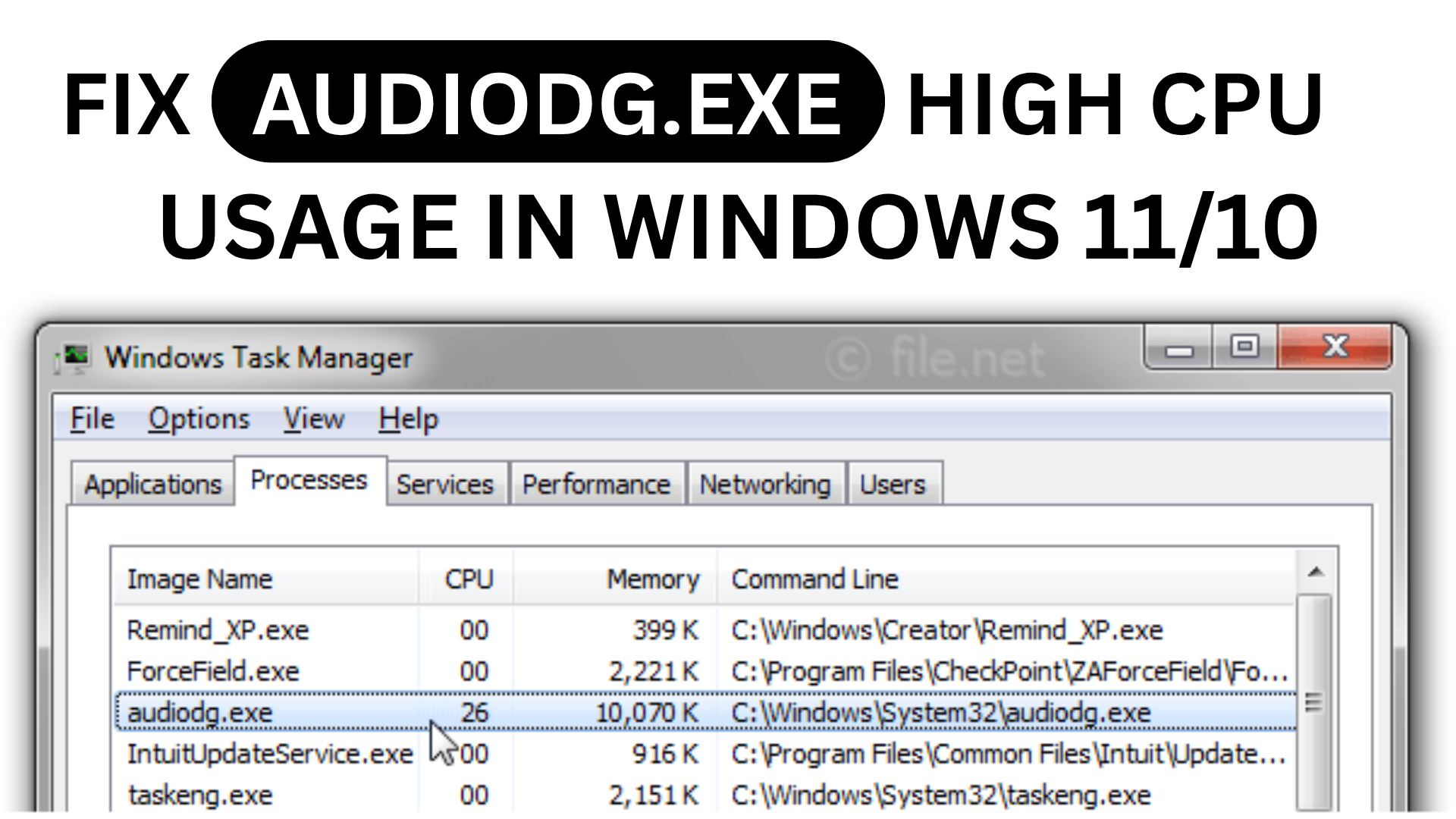
If you notice that audiodg.exe is using a lot of CPU on your Windows 11 or Windows 10 computer, it can slow down your system and make everyday tasks frustrating. This process, known as Windows Audio Device Graph Isolation, sometimes spikes in usage because of audio enhancements, outdated drivers, or conflicting software. Thankfully, you don’t need advanced skills to fix it—just follow a few easy steps like disabling sound effects, updating drivers, or changing audio settings. In this blog, we’ll guide you through proven solutions to lower audiodg.exe’s CPU usage and get your PC running smoothly again.
🛠 How to Fix audiodg.exe High CPU Usage (Step-by-Step)
Here are effective methods to reduce audiodg.exe CPU (or memory) usage:
1. Disable All Audio Enhancements / Effects
- Right-click the speaker icon in the taskbar → Sounds (or Open Sound settings → Sound Control Panel)
- In the Playback tab, right-click your default audio device → Properties
- Go to the Enhancements tab (or Effects tab depending on version)
- Check “Disable all enhancements” (or “Disable all sound effects”)
- Click Apply / OK
- Also, in Communications tab, set “When Windows detects communications activity” to Do nothing
This often reduces the load because the audio graph won’t be doing heavy processing.
2. Change Audio Sample Rate / Bit Depth
- In the same Properties → Advanced tab, you’ll see options for Default Format (e.g. 24 bit, 48000 Hz, etc.)
- Try selecting lower sample/bit settings (e.g. 16 bit, 44100 Hz or similar)
- Click Apply / OK and see if audiodg.exe CPU spikes decrease
3. Update or Reinstall Audio Drivers
- Open Device Manager (Win + X → Device Manager)
- Expand Sound, video and game controllers
- Right-click your audio device → Update driver → Search automatically
- If that doesn’t help, uninstall the driver and reinstall the latest version from the manufacturer (Realtek, etc.)
- Reboot and test again
4. Run the Audio Troubleshooter
- Press Windows + I → System → Troubleshoot → Other troubleshooters
- Find Playing Audio → Click Run
- Let Windows detect any audio issues and apply fixes
5. Use Clean Boot to Isolate Conflicting Software
- Press Windows + R, type
msconfig, press Enter - Under Services tab, check “Hide all Microsoft services”, then disable all remaining third-party services
- Under Startup tab, open Task Manager and disable all startup apps
- Reboot and see if audiodg.exe CPU usage is lower
- If yes, re-enable services/apps one by one to find the culprit
6. Check for Malware / File Legitimacy
- In Task Manager, locate audiodg.exe, right-click → Open file location
- It should be in
C:\Windows\System32. If it isn’t, it might be malware. - Run a full antivirus / anti-malware scan
7. Restart Audio Services
- Press Windows + R, type
services.msc, press Enter - Locate Windows Audio service → right-click → Restart
- Also restart Windows Audio Endpoint Builder
- This can reset the audio pipeline and clear stuck resource usage
8. Adjust Power Plan / CPU Settings
- Go to Settings → Power & battery (or Power & sleep) → Additional power settings
- Make sure you’re using a balanced or high-performance plan, not a power-saving plan that throttles CPU
- In advanced plan settings, ensure Processor power management is not too restricted
9. Uninstall or Update Conflicting Audio Software
- Some apps (VoIP, audio mixers, Logitech GHUB, etc.) may conflict with the audio pipeline
- Temporarily uninstall or update them to see if audiodg.exe usage drops






