
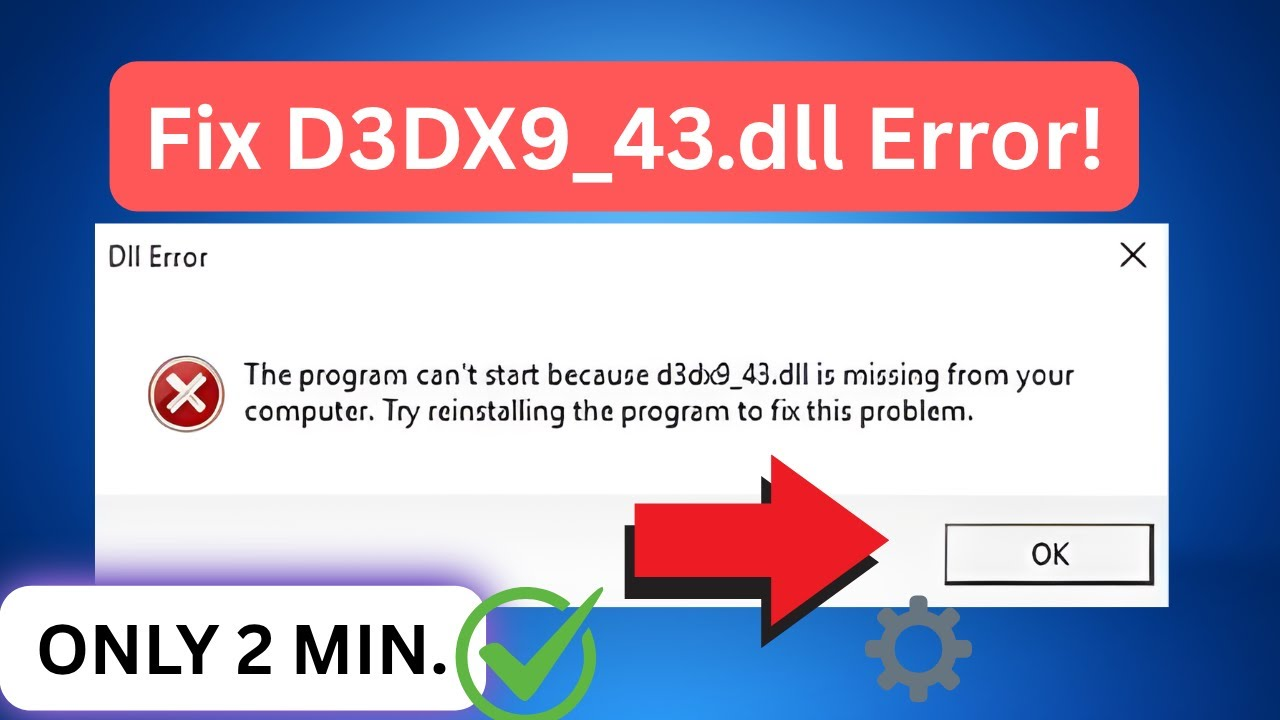
If you encounter a “D3DX9_43.dll Missing” error on your Windows 10 or 11 PC, it usually means that the DLL file required for running certain games or multimedia applications is missing or corrupted. This error often appears when playing games like League of Legends or GTA, which rely on DirectX 9. The easiest and safest way to fix this is by installing or updating the Microsoft DirectX software, which includes the missing DLL file. You can do this by downloading the latest DirectX Web Installer from Microsoft’s official website and following the steps to install it. This quick fix will restore the missing file and help you run your applications smoothly again in 2026.
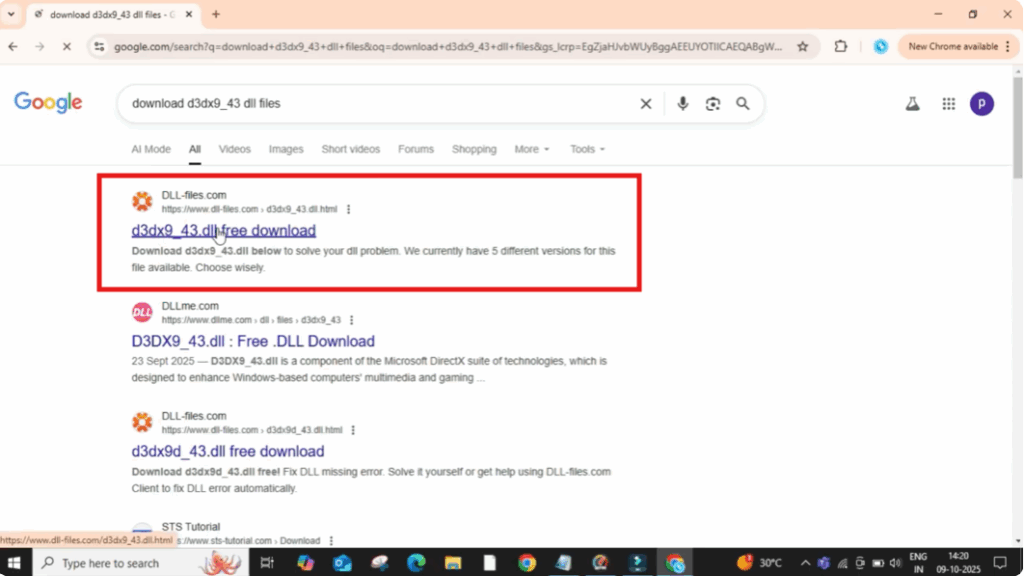
First, open Google Chrome or any web browser you use. In the search bar, type download D3DX9_43 DLL files and press enter.
Now, click on the first website that appears. Make sure it’s a trusted one like dl–files.com or Microsoft’s official site.
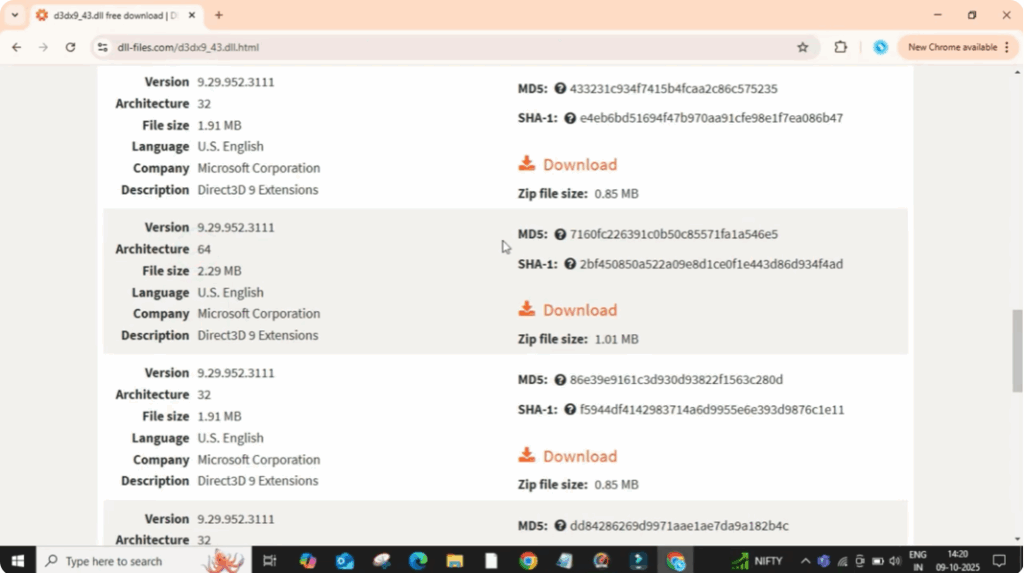
Once you’re on the website, scroll down a little and you’ll see different versions of the file listed under architecture.
Here, you need to check whether your system is 32-bit or 64-bit.
Now, download the correct file based on your system.
In my case, it’s 64-bit. So, I’ll click on the download button next to the 64-bit version.
Once the download is complete, open it. Then right click on the zip file and select extract files.
A small pop-up window will appear. Just click okay to confirm extraction.
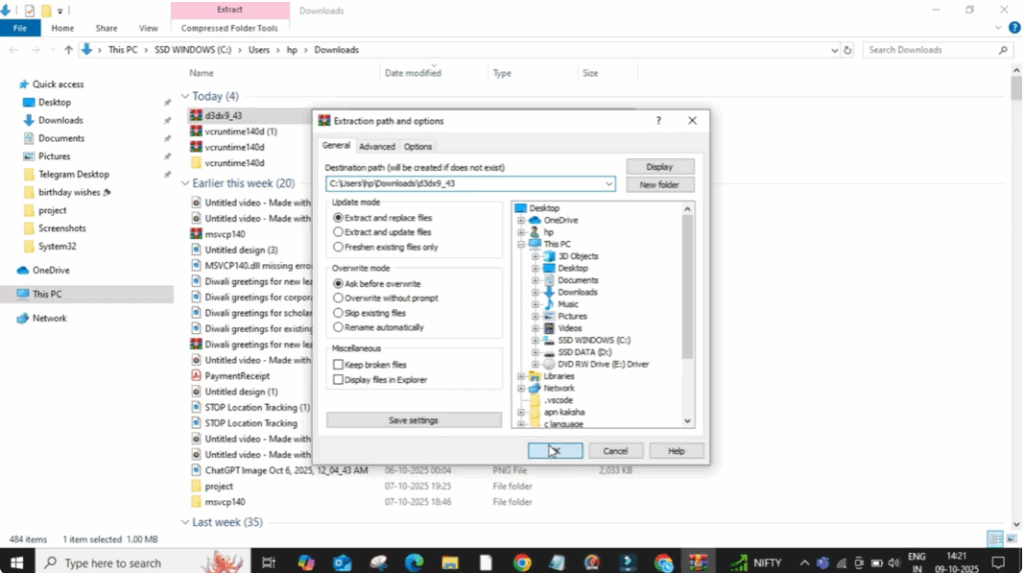
After a few seconds, the files will be extracted into a new folder.
Now, right click on the folder and then click on copy.
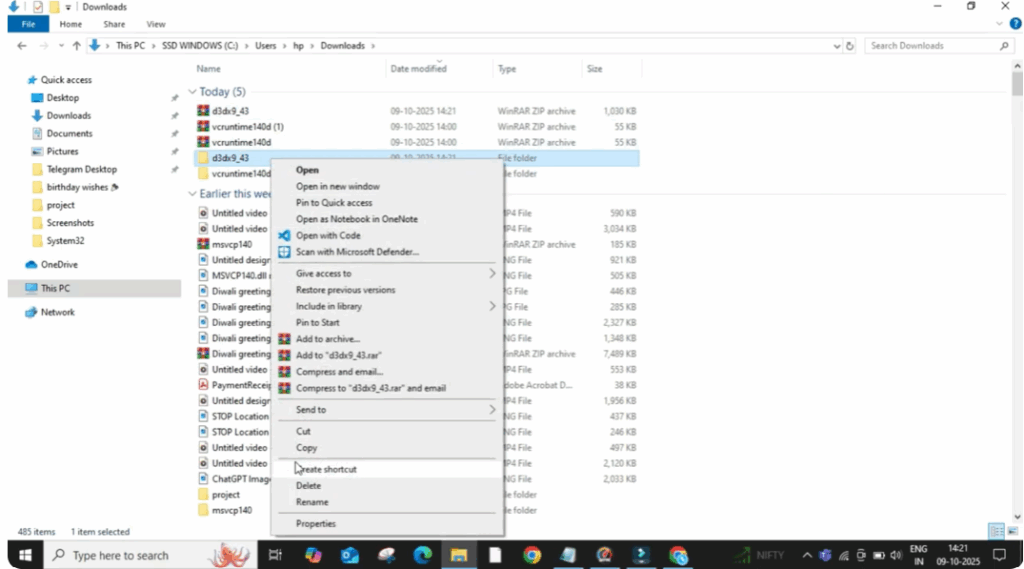
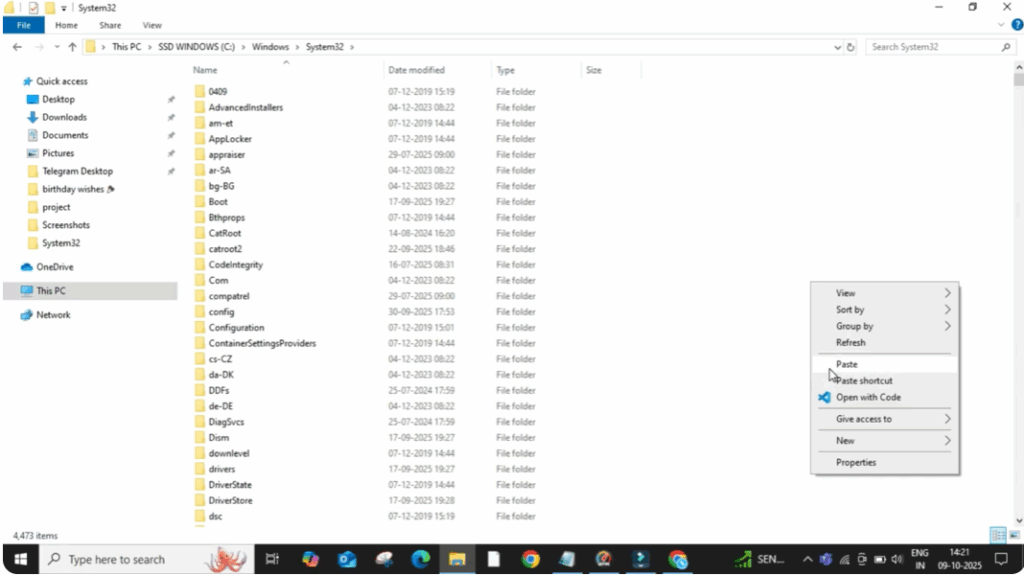
Next, open This PC, go to your C drive, then open the Windows folder, and inside that, open the System32 folder.
Once you’re inside System32, right click on any empty area and choose paste.
This will copy the d3dx9_43.dll files into your system folder.
Now close everything and restart your PC.
After the restart, try opening the same app or game again.
This time, the missing D3DX9_43.dll error should be completely fixed.






