
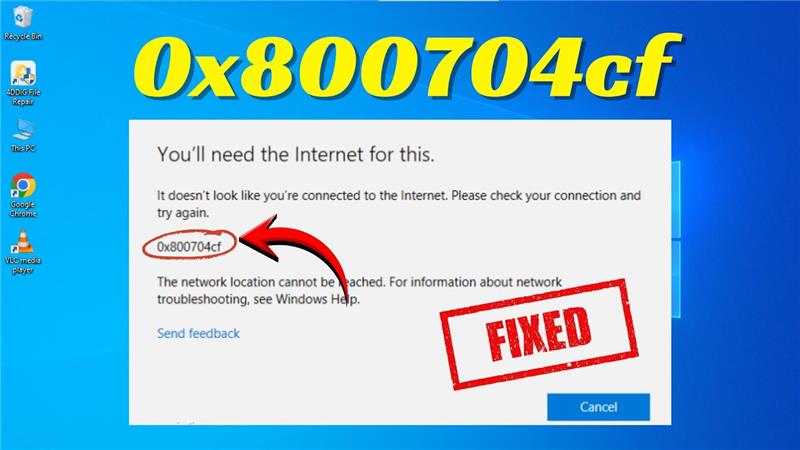
The Error 0x800704cf – No Internet Access is a common issue that Windows 10 and Windows 11 users may face, and it can be really frustrating when you suddenly lose connection while trying to browse, stream, or work online. This error usually shows up because of network settings problems or glitches in your system, but the good news is it can be fixed with simple steps. In this beginner-friendly blog, we’ll explain in easy language how to fix Error 0x800704cf using the latest 2026 methods, so you can get your internet working smoothly again without stress.
Method 1: Network Settings Fix
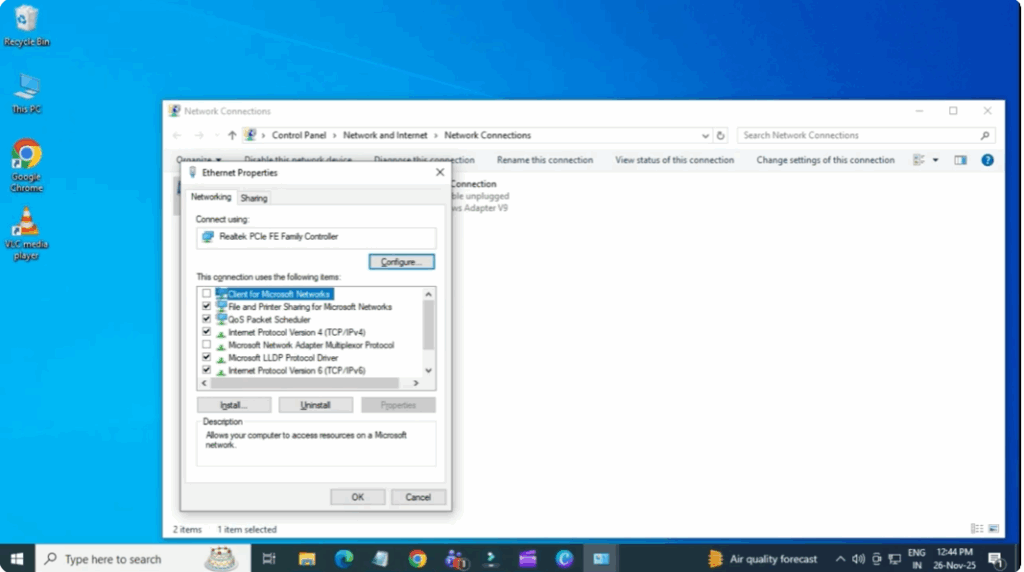
First, open the Windows search bar and type view network connections. Once it opens, select the connection you’re using — Ethernet if you’re wired or Wi-Fi if you’re wireless. Right click on it and select properties.
Now, uncheck the option Client for Microsoft Networks. Click okay.
Then test your internet connection. If it works, great. If not, move to the next method.
Method 2: Reset the Network Using Commands
Go to the search bar again, type cmd, right click and select run as administrator.
Now run the network reset commands one by one:
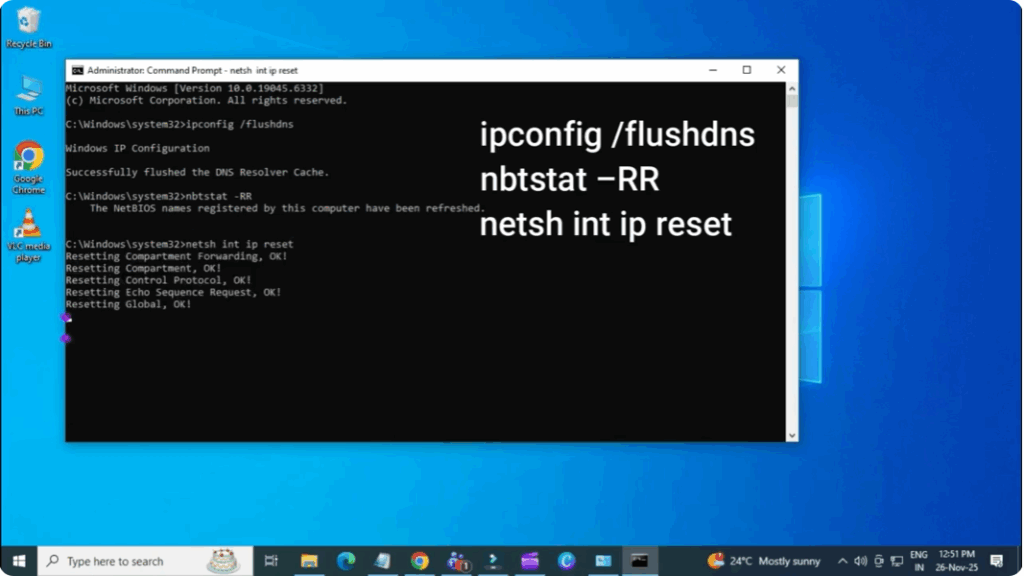
ipconfig /flushdns
nbtstat -rr
netsh int ip reset
netsh winsock reset
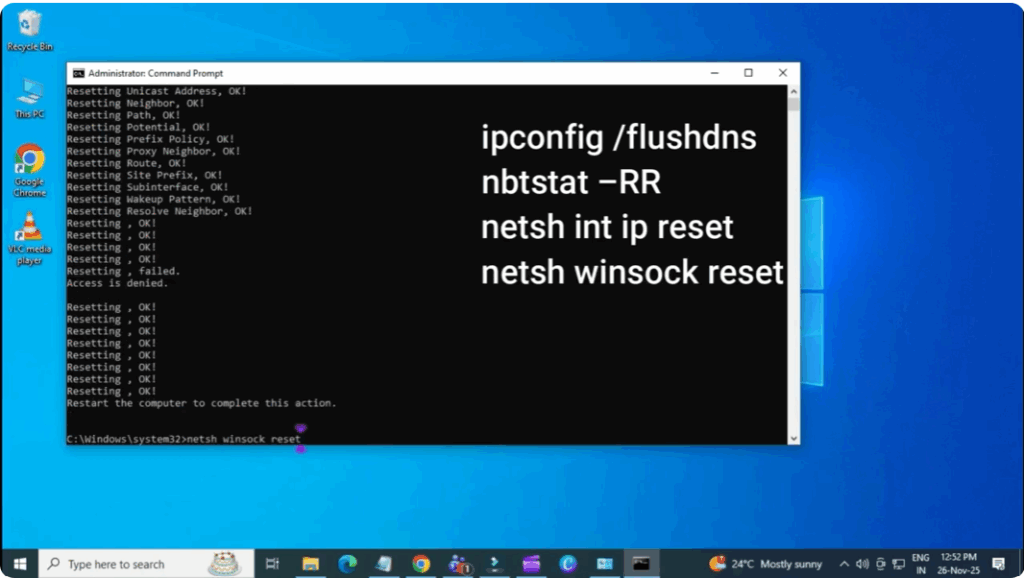
These commands have already been added to the video description for easy copying. After running all the commands, restart your computer and check the connection again.
Method 3: Reinstall the Network Drivers
Go to search again and type device manager. Open it. Once open, expand network adapters. Right click your network adapter and select uninstall device.
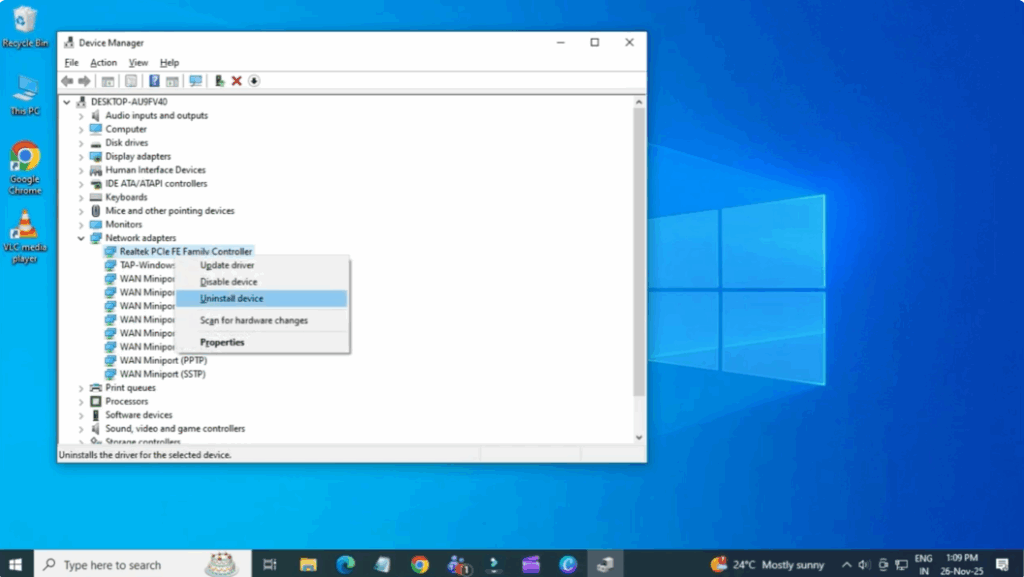
After uninstalling, go to the top menu, click action, and select scan for hardware changes.
Windows will automatically reinstall the driver.
Now, restart your PC and your problem should be fixed.






