
Seeing the error 0x80071129 with the message “The tag present in the reparse point buffer is invalid” while using OneDrive? Don’t worry—it sounds complicated, but it’s a common issue that many Windows 10 and 11 users face. This error usually happens when there’s a problem with syncing or accessing files stored in OneDrive, especially if they’re stored only in the cloud. In this blog, we’ll explain what this error means and show you simple steps to fix it, so you can get back to using your files without any trouble. Let’s get started!

🛠 How to Fix Error 0x80071129 (Reparse Point / OneDrive)
Below are steps you can try. After each, attempt your file/folder action again to see if the error is resolved.
✅ Step 1: Run CHKDSK to Repair File System & Remove Invalid Reparse Points
This is the primary fix recommended by Microsoft.
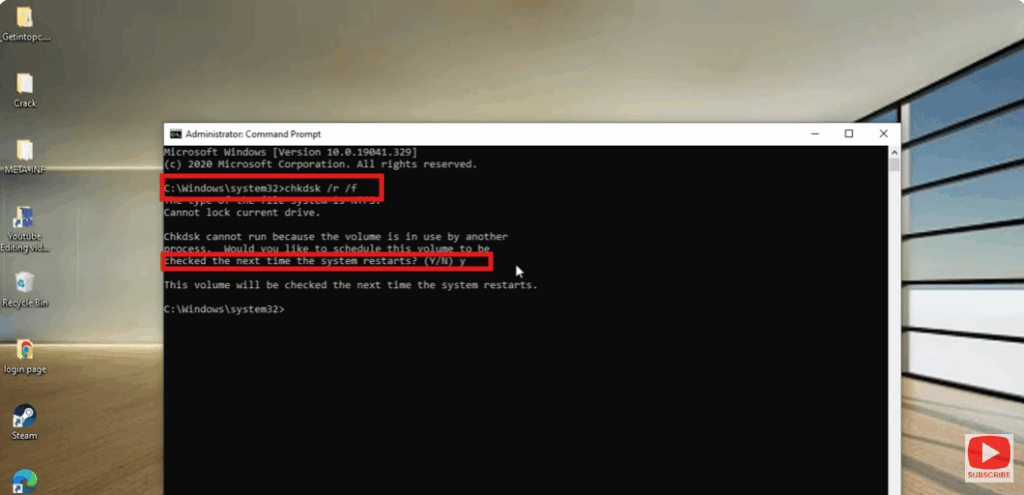
- Open Command Prompt as Administrator.
- Run:
chkdsk r /f - If the volume is in use, you’ll be asked: “Would you like to schedule this volume to be checked the next time the system restarts? (Y/N)”.
TypeYand press Enter. - Reboot your PC. CHKDSK will run before Windows loads, scanning and repairing file system issues and removing invalid reparse points.
- After reboot, try the file / folder operation again.
Because OneDrive uses reparse points for Files On-Demand, CHKDSK cleans up those that are invalid or broken.






