
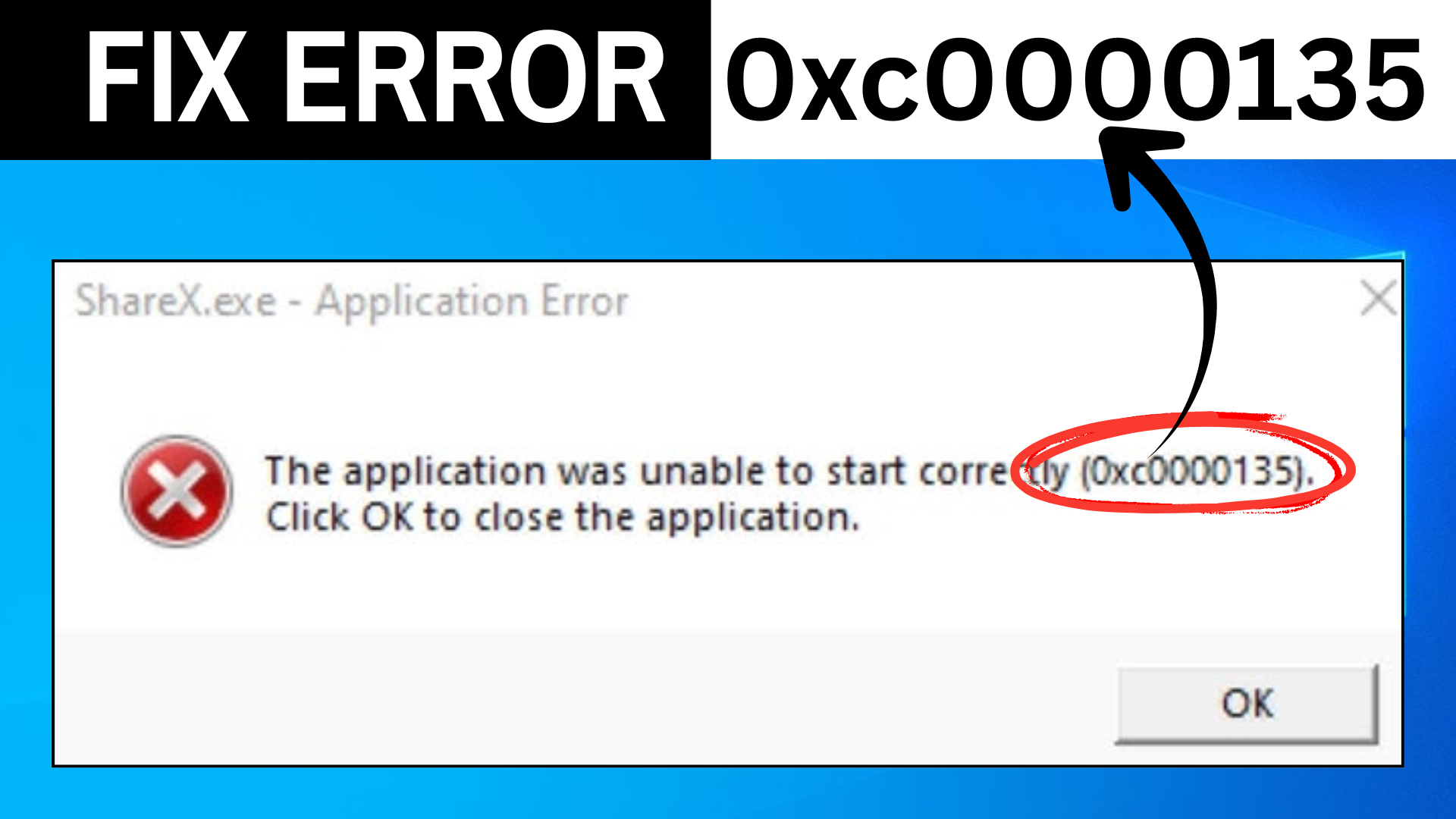
The Error 0xc0000135 – App Failed to Start is a common problem many Windows 10 and Windows 11 users face when trying to open certain apps or games. Instead of launching, the program shows this error message, which can be frustrating and confusing. The good news is, this issue usually happens because of missing files or system components, and it can be fixed easily without needing advanced technical skills. In this beginner-friendly blog, we’ll explain in simple language how to fix Error 0xc0000135 step by step with 100% working solutions, so you can get your apps running smoothly again.
Method One: Enable .NET Framework (Most Common Fix)
First, go to the Windows search bar and type Turn Windows features on or off. Open it here.
Make sure both of the following options are checked:
- Net Framework 3.5
- .NET Framework 4.8 Advanced Services
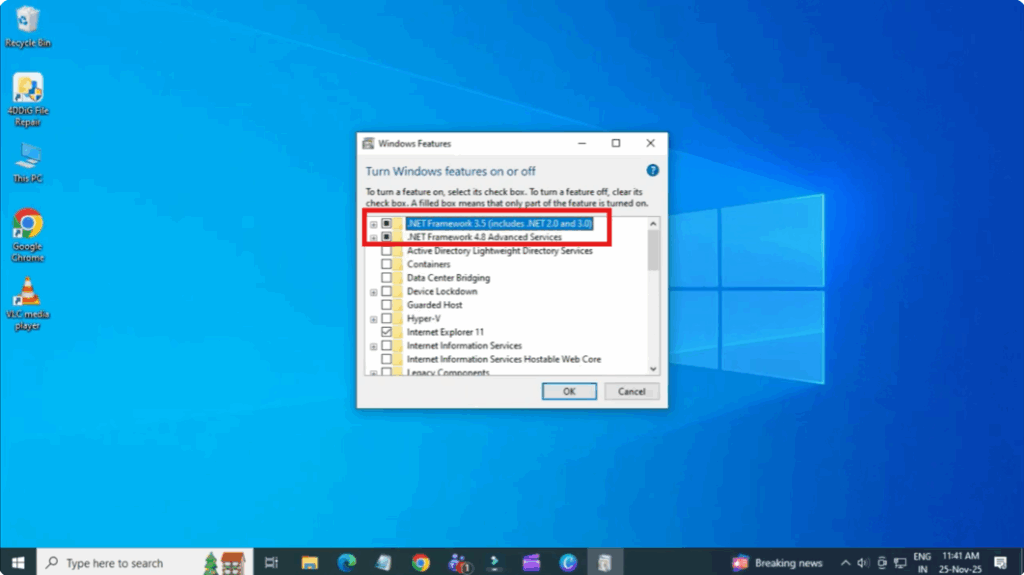
After selecting them, click OK and let Windows complete the process.
If you see a prompt asking let Windows Update download the files for you, choose the first option and wait for it to finish.
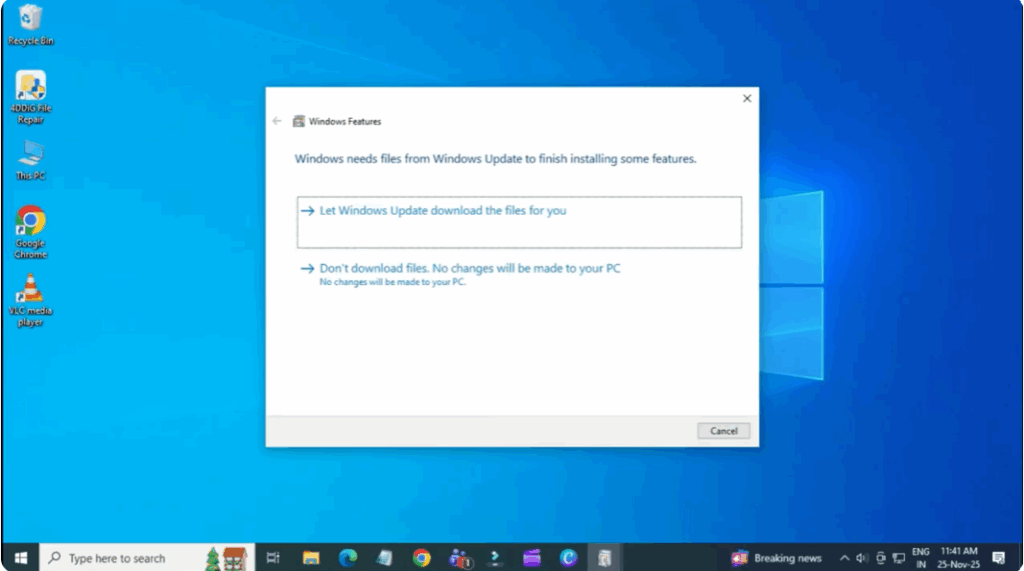
Once done, restart your PC.
For most users, this alone fixes the error.
Method Two: Use Command Prompt to Repair System Files
If the first method didn’t work, open the Windows search again and type cmd.
Right-click Command Prompt and choose Run as administrator.
Now enter these commands one by one. Wait for each to finish:
sfc /scannow
DISM /online /cleanup-image /checkhealth
DISM /online /cleanup-image /restorehealth
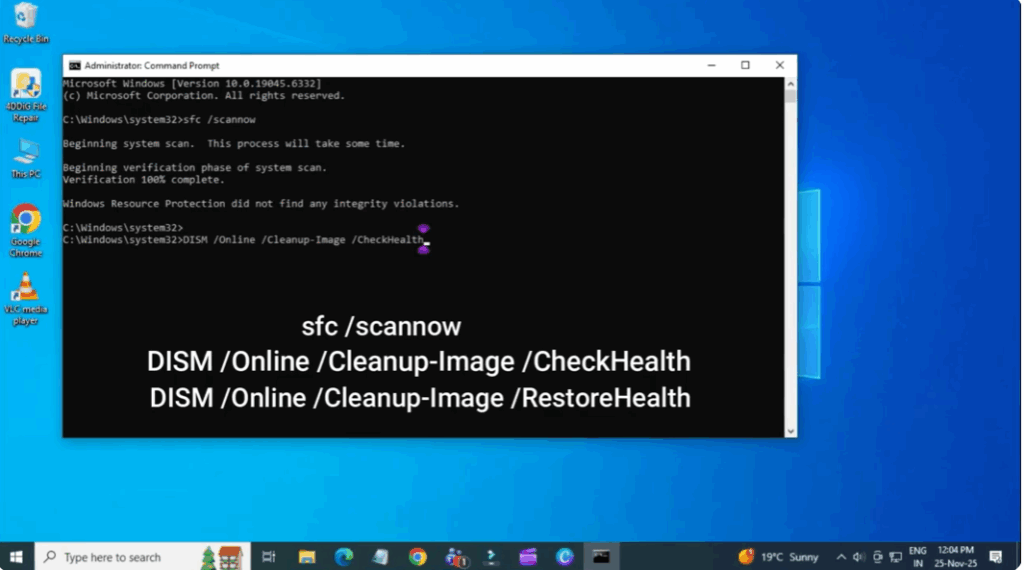
These commands repair missing or corrupted system components that often cause this error.
After the last command completes, restart your laptop.
You should no longer see this error.






