

Hello friends, welcome back to my channel. In today’s guide, we’ll address a very common and frustrating Windows error: “Operation did not complete successfully because the file contains a virus or potentially unwanted software.”
Don’t worry — this issue can be fixed easily using a 100% working method. Just follow the steps below carefully.

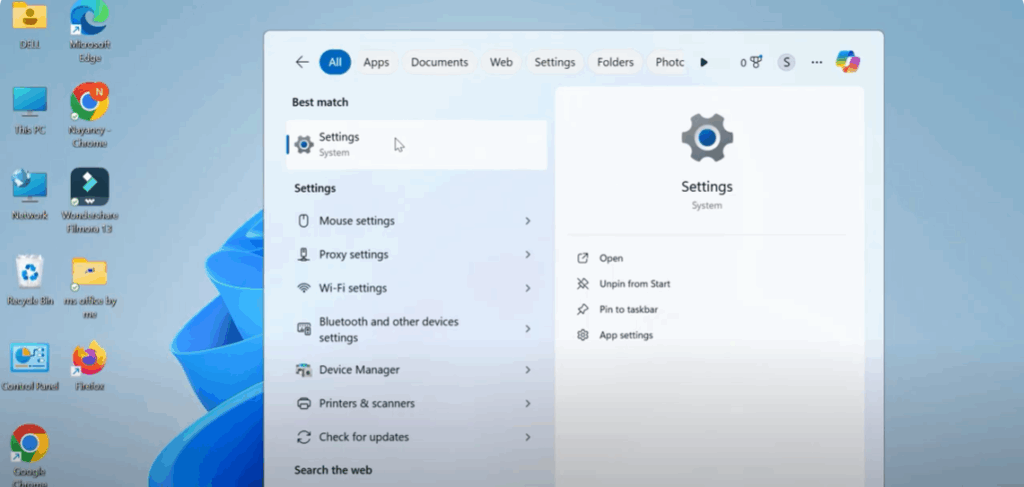
Step 1: Open Windows Settings
- Click on the Start button.
- Type Settings in the search bar and open the Settings app.
Step 2: Navigate to Security Settings
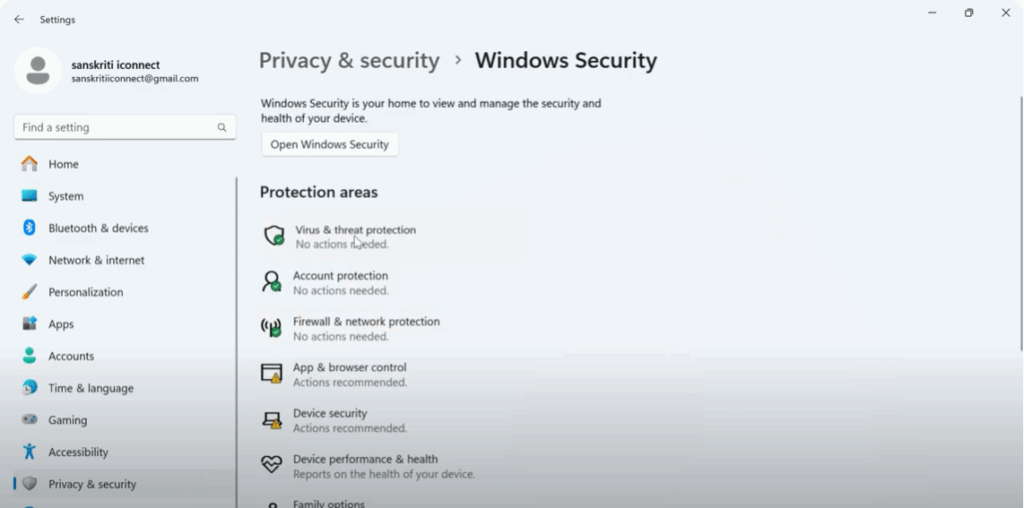
- Inside the Settings window, click on Privacy & Security.
- Find and select Windows Security.
- Click on Virus & Threat Protection to access all protection settings for your system.
Step 3: Manage Virus Protection Settings
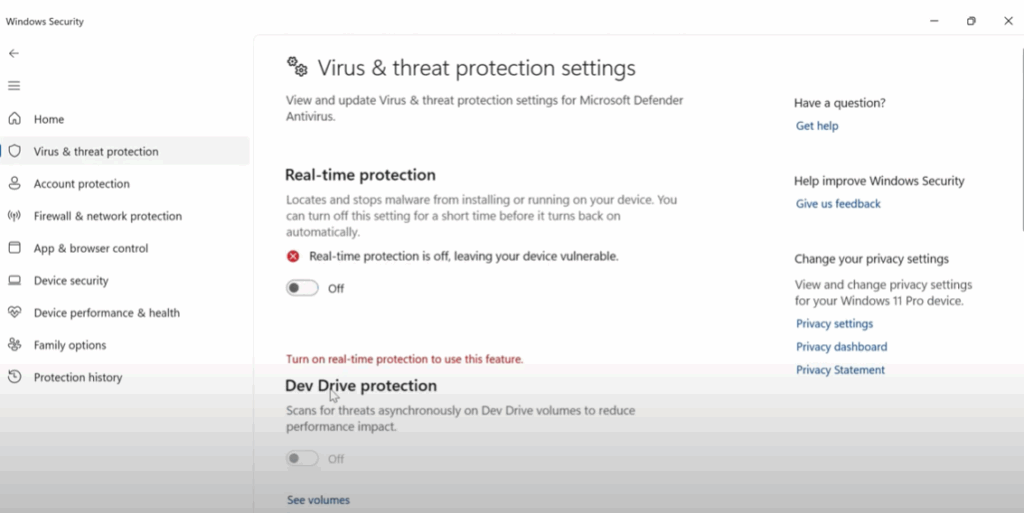
- Scroll down and locate Manage Settings under the Virus & Threat Protection section.
- Click on it to open the Manage Settings page.
- You’ll see several toggles, including:
- Real-time Protection
- Cloud-delivered Protection
- Automatic Sample Submission
- Tamper Protection
This step is necessary to make changes to the blocked file.
Step 4: Use Command Prompt to Fix the Issue
- Go back to your desktop and click on the Start button again.
- Type CMD, then click on Command Prompt.
- Open the Notepad file where the required commands are saved.
- Copy the first command, paste it into Command Prompt, and press Enter.
- Copy the second command, paste it as well, and press Enter again.
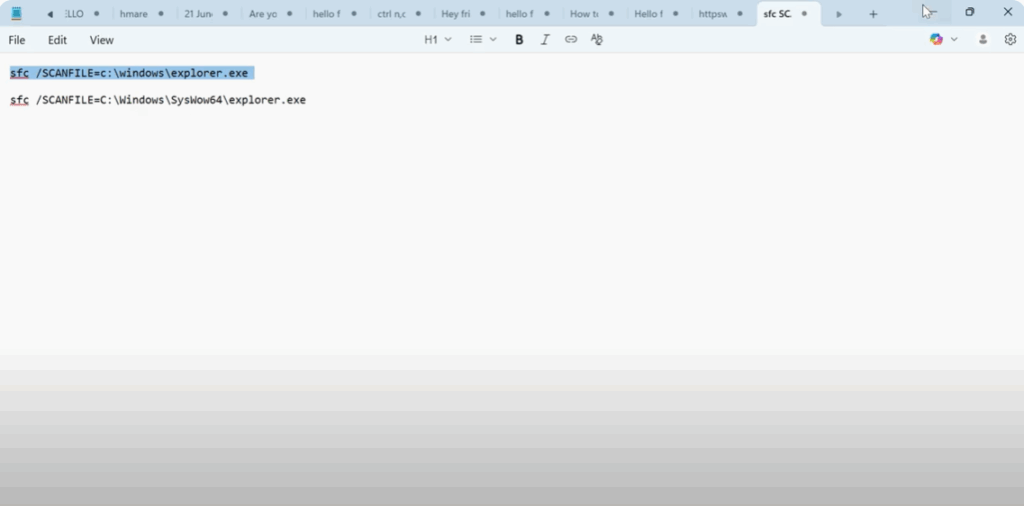
Once both commands execute successfully, the issue should be resolved, and your file will no longer be blocked by Windows.
Final Step: Verify & Restart
After completing these steps, you should now be able to run and open your file without any issues.
Conclusion
That’s it! By temporarily disabling protection settings and running the necessary commands, you can quickly fix this Windows error.
If you found this tutorial helpful, make sure to subscribe to my channel for more useful tech tips. Thanks for watching, and I’ll see you in the next tutorial!






