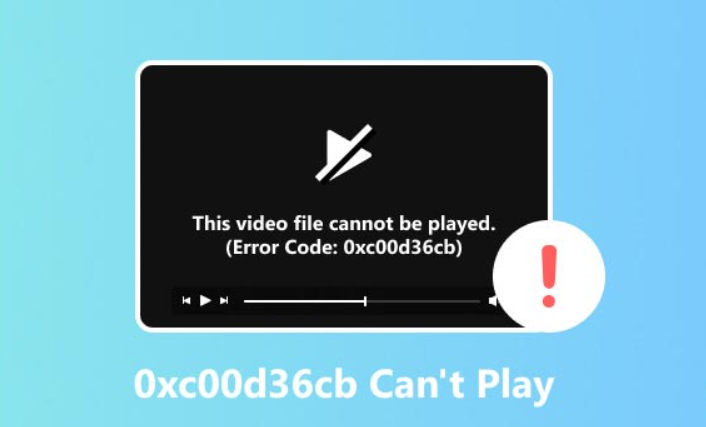
If the Films & TV app (also known as Movies & TV) on your Windows 11 or Windows 10 computer shows error code 0xc00d36cb when you try to play a video, it can be frustrating and confusing. This common problem often happens with certain video file types or when the app’s settings or codecs are out of date. Luckily, there are easy ways to fix the error, such as repairing or resetting the app, running the video troubleshooter, or installing the right video codecs. In this guide, you’ll learn simple, step-by-step solutions to quickly get your Films & TV app working again and enjoy your videos without errors.
🛠 How to Fix Error 0xC00D36CB – Step by Step
Here are several solutions you can try. Work from the top; test after each step.
1. Run the Built-in Video Playback Troubleshooter
Windows includes a troubleshooter that may detect and fix video playback issues automatically.
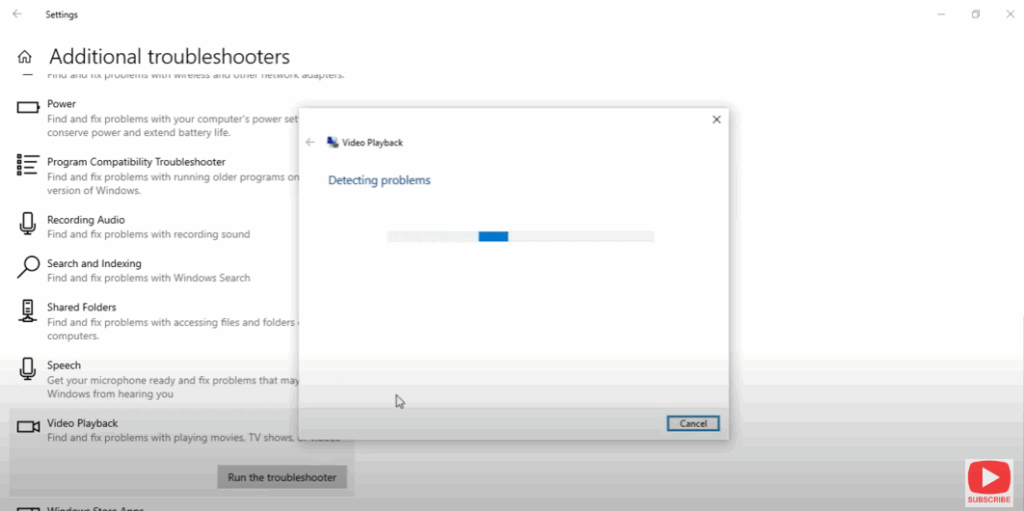
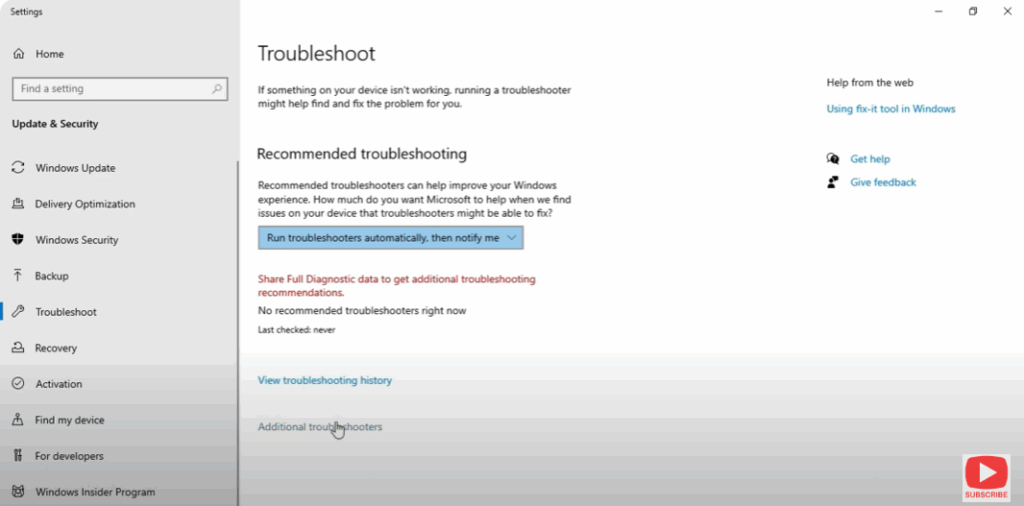
- Open Settings → Update & Security → Troubleshoot → Additional troubleshooters
- Select Video Playback → click Run the troubleshooter
- Follow prompts and allow the troubleshooter to detect/fix issues
- After it finishes, reboot and try playing the video again