
Downloading files through Google Chrome should be quick and simple, but sometimes the browser slows down and makes even small downloads feel endless. This problem can happen for many reasons, such as weak internet settings, too many extensions, or outdated Chrome versions. The good news is that you don’t need to be a tech expert to fix it. In this 2025 guide, we’ll show you easy and effective ways to speed up Chrome downloads, improve your browsing performance, and make sure your files arrive faster without unnecessary delays. Let’s get your Chrome running smoothly again.
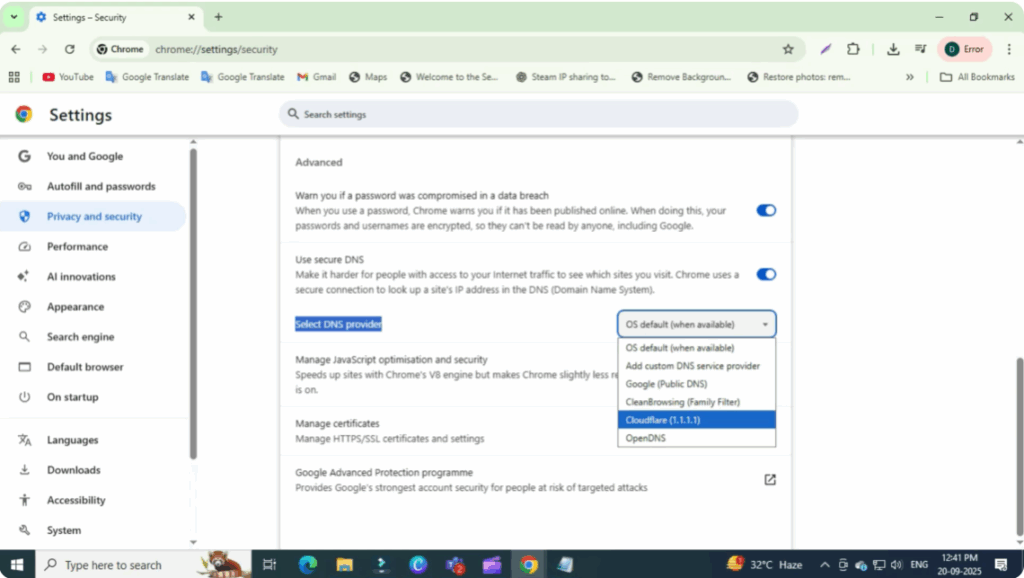
Step One: Change DNS Settings
- Open Google Chrome and click on the three dots in the top right corner. Then go to Settings. From there, click Privacy and Security. Then scroll down and click on Security.
- Scroll down and look for Use Secure DNS. Instead of your current provider, select Custom and choose either Google Public DNS or Cloudflare 1.1.1.1.
- Try both options and see which one gives you better performance in your location.
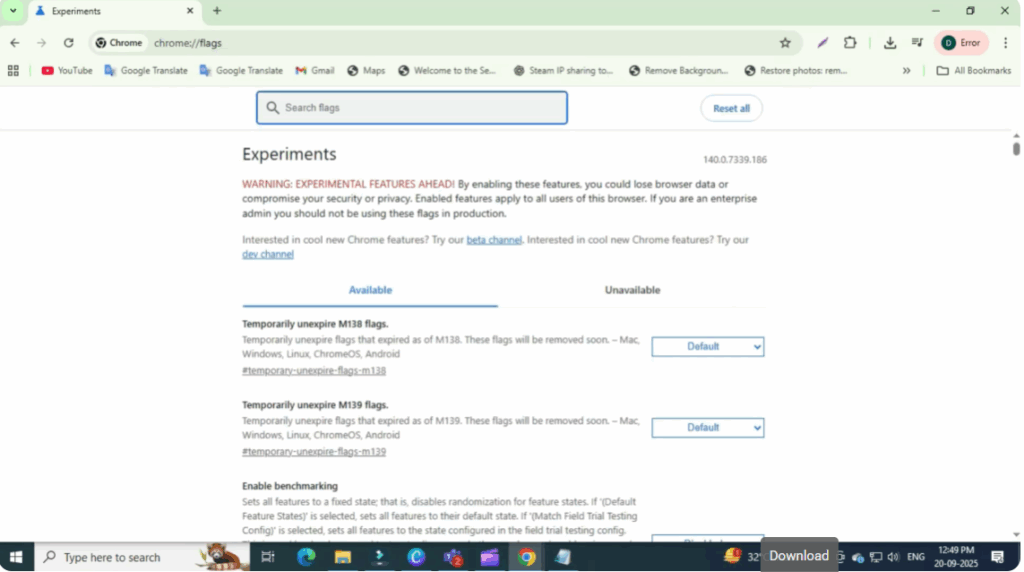
Step Two: Enable Parallel Downloading
In the Chrome address bar, type chrome://flags. Press Enter and search for Parallel Downloading. Enable it to boost Chrome’s download speed.
Step Three: Optimize System Settings
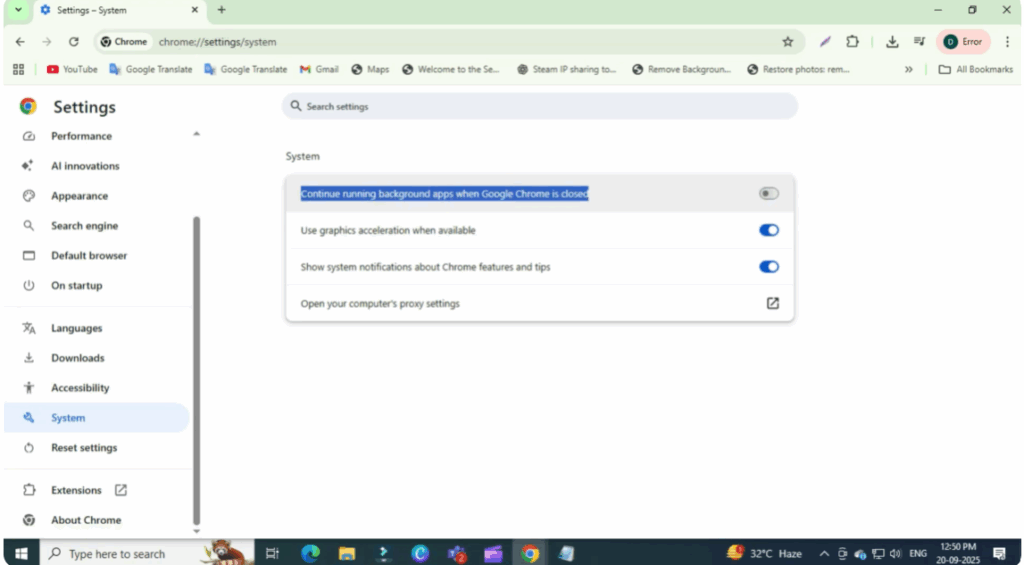
- Click the three dots in the upper right corner. Then go to Settings and this time to System.
- Under system, you’ll find the Continue running background apps when Google Chrome is closed option. This should be turned off as it saves system resources.
- When available, turn on Hardware Acceleration as it improves performance.
Step Four: Remove Unnecessary Extensions
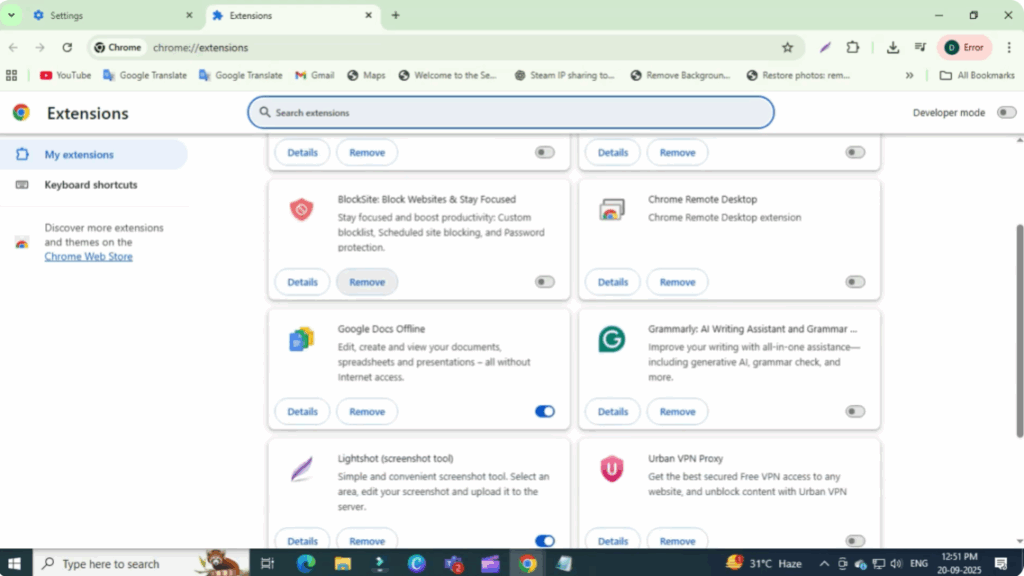
- Click the three dots again. Go to Settings and then Extensions.
- Check your installed extensions and remove the ones you don’t use. Extra extensions consume internet, RAM, and CPU, which can slow Chrome down.
That’s it. After applying these changes, restart Chrome, and you should notice faster download speed and smoother performance.






