
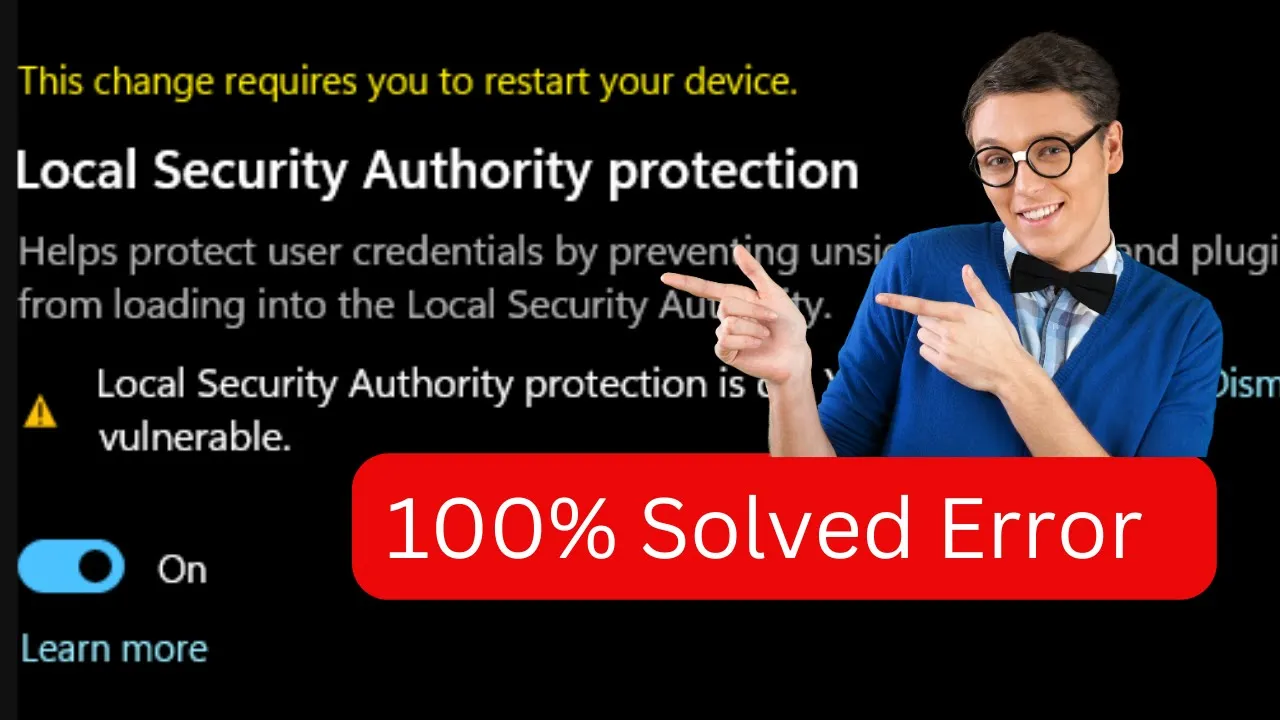
If your Windows Security shows the message “Local Security Authority protection is off – Your device may be vulnerable,” it means the system’s security feature that verifies user sign-ins isn’t working properly. This can happen due to a system bug, registry issues, or incomplete Windows updates. The Local Security Authority (LSA) helps protect your credentials from unauthorized access, so it’s important to fix this warning right away. In this blog, you’ll learn easy methods to turn LSA protection back on using Settings, Registry Editor, or Command Prompt and make your device secure again.
🧩 How to Fix Local Security Authority Protection Is Off
Follow these methods step-by-step as shown in the video:
🧰 Method 1: Turn On LSA Protection Manually
- Press Windows + I to open Settings.
- Go to Privacy & Security → Windows Security → Device Security.
- Click on Core Isolation Details.
- Turn ON the toggle next to Local Security Authority (LSA) Protection.
- Restart your PC to apply the changes.
If the toggle is already on but you still see the warning, proceed to the next method.
🗃️ Method 2: Enable LSA Protection Using Registry Editor
- Press Windows + R, type regedit, and hit Enter.
- Navigate to this path:
HKEY_LOCAL_MACHINE\SYSTEM\CurrentControlSet\Control\Lsa - On the right side, find RunAsPPL and RunAsPPLBoot.
- If they don’t exist, create new DWORD (32-bit) values for them.
- Set both their values to 2.
- Close Registry Editor and restart your computer.
This forces LSA protection to stay on even after rebooting.
🧱 Method 3: Check Windows Updates
- Open Settings → Windows Update.
- Click Check for updates.
- Install all pending updates — sometimes, Microsoft releases patches for LSA-related issues.
🧰 Method 4: Run System File Checker (SFC)
- Search cmd, right-click Command Prompt, and choose Run as administrator.
- Type:
sfc /scannow - Press Enter and let the scan complete.
- Restart your PC once it’s done.
🧩 Method 5: Restart the LSA Service
- Open Services (Windows + R → services.msc).
- Scroll down and locate Security Accounts Manager.
- Right-click and choose Restart.
- Restart your system again.
✅ After Restart
Once your PC reboots, open Windows Security → Device Security and check again.
You should now see “Local Security Authority protection is on” — meaning your device is protected.
💡 Conclusion
By following the above steps, you can easily fix the “Local Security Authority Protection is off” warning in Windows 11 or 10. Keeping this setting enabled ensures your device stays safe from unauthorized access and potential malware attacks.






