
![Fix Low FPS on Windows 10 While Gaming [2025 Guide]](https://techgitterofficial.com/wp-content/uploads/2025/08/Fix-Low-FPS-on-Windows-10-While-Gaming-2025-Guide.jpg)
Hello friends, welcome back to Tech Gitter Official. If you’re experiencing FPS drops, stuttering, or lag while gaming on Windows 10, then this guide is just for you. I’ll guide you through some simple yet powerful steps to boost your FPS and fix lag issues. Let’s get started.
Step One: Disable Game DVR via Registry Editor
- Go to the Windows search bar and type regedit.mse.
- Right-click on it and choose Run as administrator.
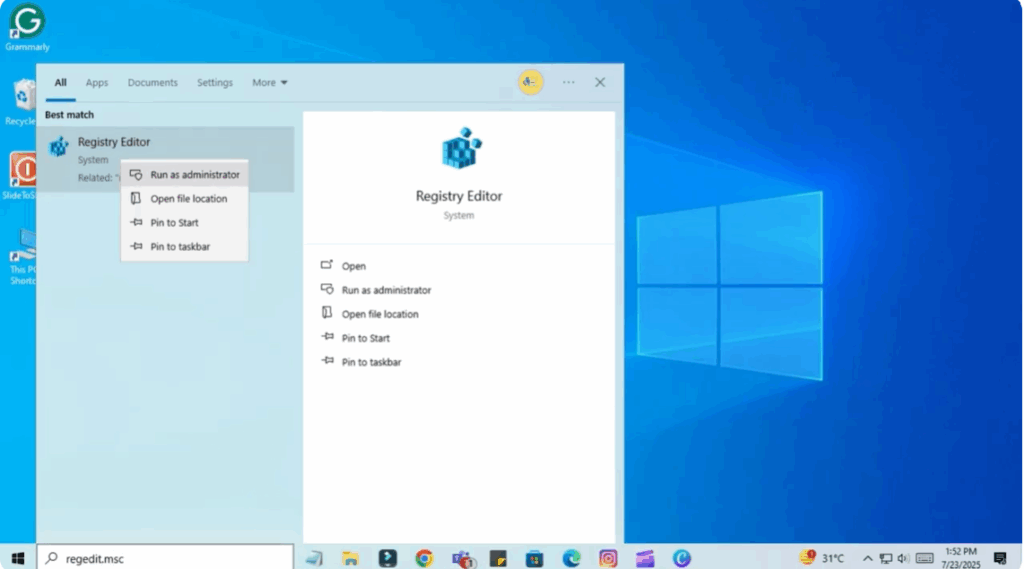
- When the User Account Control window appears, click Yes.
- The Registry Editor window will open.
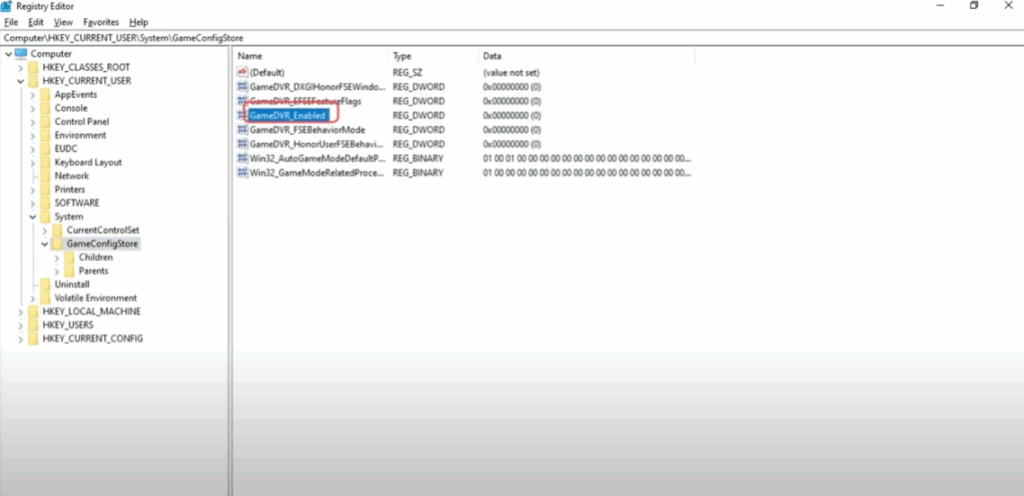
- Navigate to HQ Current User and expand it.
- Now expand the System folder.
- After that, click on Game Config Store.
- On the right side, right-click on Game DVR Enabled and select Modify.
- In the value data box, type 0 and click OK.
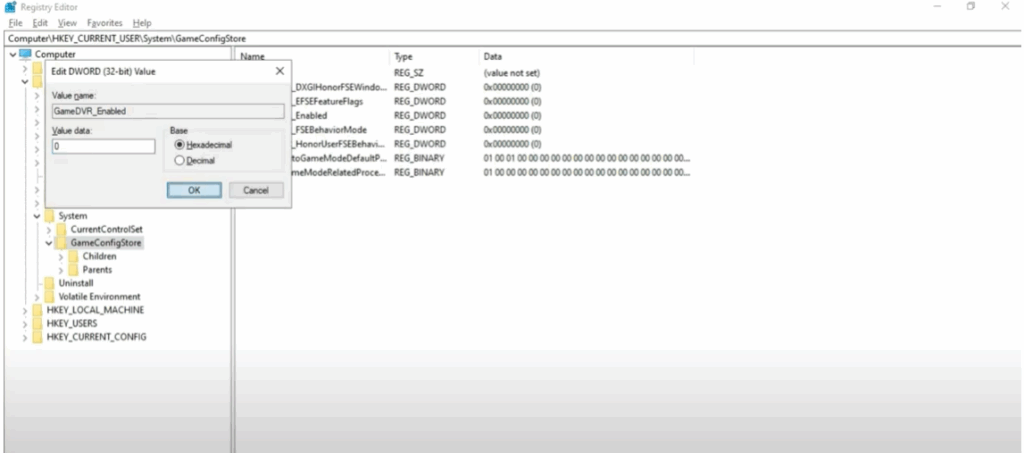
This disables Game DVR which can negatively impact gaming performance. Restart your PC to apply the changes and check if your games are running smoother.
Step Two: Disable Game DVR via Local Machine Policy
If you’re still facing the issue, follow these additional steps:
- In the Registry Editor, go to HQ Local Machine and expand it.
- Now, expand the Software folder.
- After this, expand Microsoft.
- Scroll down and go to Policy Manager and expand it.
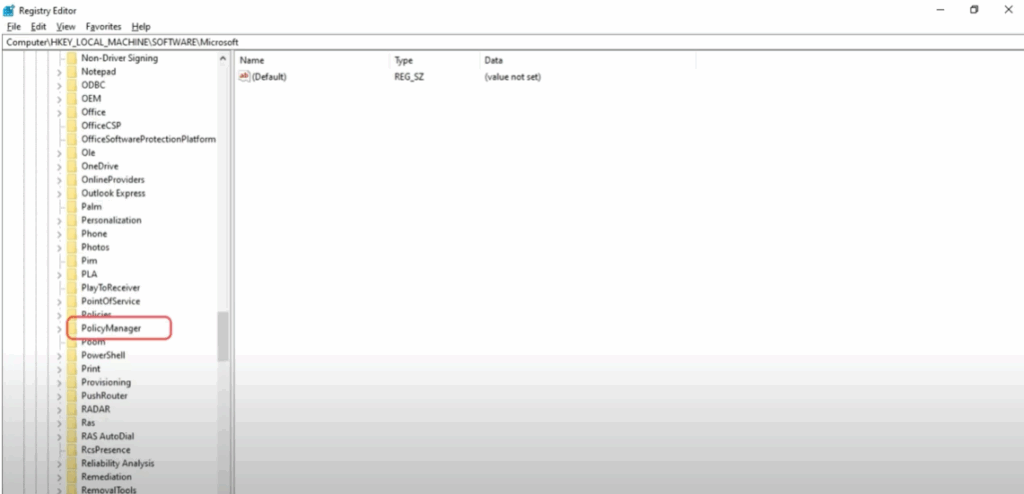
- Next, expand the Default folder.
- Expand Application Management and click on Allow Game DVR.
- On the right side, right-click the value and select Modify.
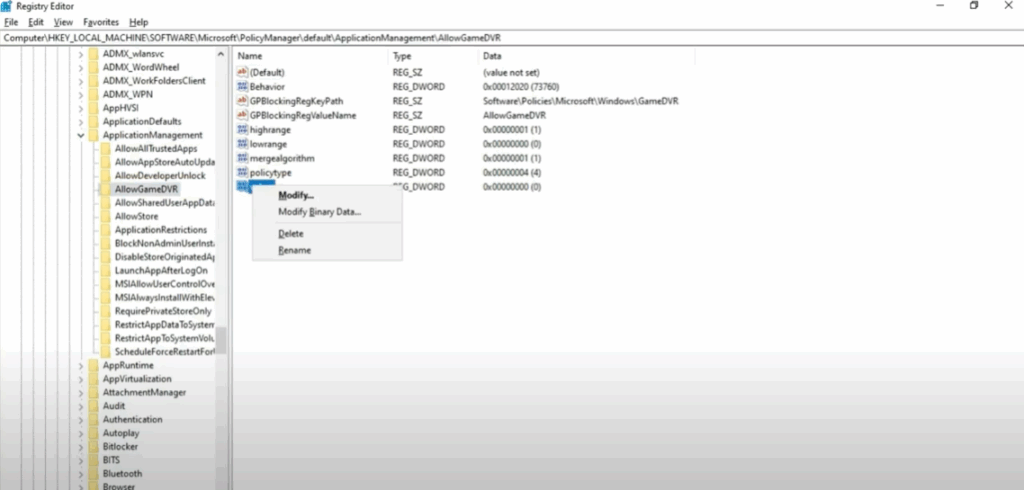
- Set the value data to 0 and click OK.
Now, restart your computer again. These two steps should completely disable Game DVR and help improve your FPS during gaming.
Bonus Tip: Improve Gaming Performance
If you’re still experiencing lag, try lowering your game’s resolution and turn off high-end graphics settings like:
- Antialiasing
- Shadows
- Motion Blur
This can greatly enhance performance, especially on mid or low-end systems.
Final Words
And that’s it! Your games should now run much smoother on Windows 10.
If this tutorial helped you, please like, subscribe, and hit the bell icon so you never miss more useful tech fixes from Tech Gitter Official.






