
If your Microsoft Store isn’t downloading apps or games, you’re not alone—this is a common problem that many Windows users face. This issue can happen for several reasons, like network problems, outdated system files, or a corrupted Store cache. The good news is you can fix it easily by checking your internet connection, updating Windows, resetting the Store app, or running simple troubleshooting tools. In this blog, you’ll learn easy step-by-step solutions to get Microsoft Store working again so you can download your favorite apps and games without any hassle.
🔧 Step-by-Step Fixes for Microsoft Store Download Failures
Try these methods one by one, checking Store functionality after each.
1. Check Date, Time & Region Settings
- Click the time/date on the taskbar → Date & Time settings
- Enable “Set time automatically” and “Set time zone automatically”
- Also go to Settings → Time & language → Region and ensure your country / region is correct
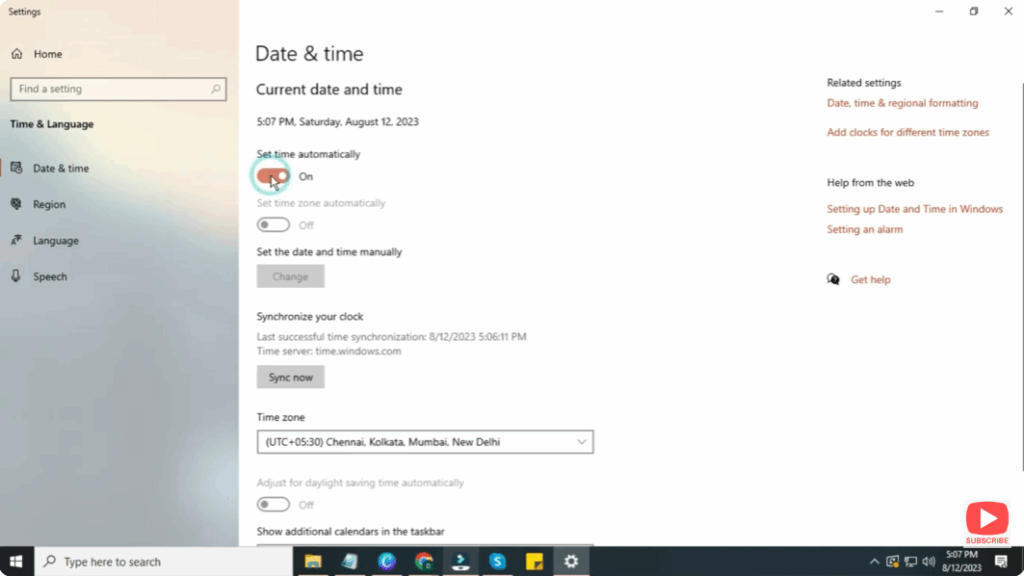
Incorrect time / date or region settings often block Microsoft Store downloads. Community users report that fixing this resolved their issues.
2. Clear the Microsoft Store Cache (wsreset)
- Press Win + R
- Type:
wsreset.exe - Press Enter
- A Command Prompt window opens, and after ~10 seconds, the Microsoft Store should open automatically
This clears the Store’s cache, which often resolves stuck downloads.
3. Run the Windows Store Apps Troubleshooter
- Go to Settings → System → Troubleshoot → Other troubleshooters (Windows 11) or Settings → Update & Security → Troubleshoot (Windows 10)
- Find Windows Store Apps and click Run
- Let Windows detect and fix potential issues
The troubleshooter can repair configuration problems automatically.
4. Repair or Reset the Microsoft Store / Problematic App
- Navigate to Settings → Apps → Installed apps (or Apps & features)
- Find Microsoft Store, click ⋮ → Advanced options
- Try Repair first (this retains data), then Reset (which clears data)
- Likewise, if a particular game/app is failing, try repairing or resetting it via its advanced settings
Resetting often resolves persistent download / startup problems.
5. Restart Microsoft Store Services & Windows Update Dependencies
- Press Win + R, type services.msc, press Enter
- In Services, locate:
- Windows Update
- Delivery Optimization
- Windows Store Install Service (or Store Install Service)
- Right-click each → Restart (or Start if stopped)
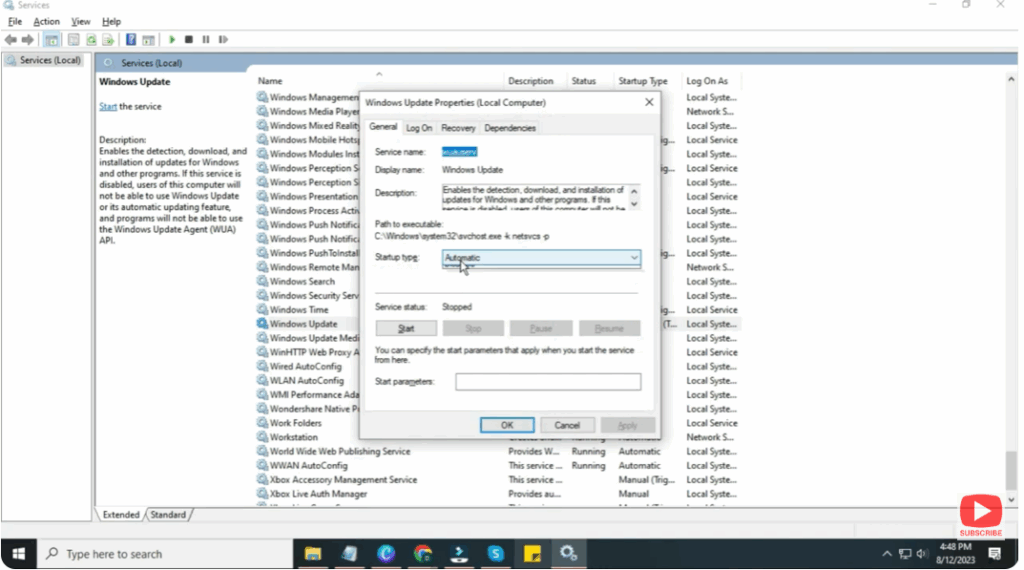
Ensure critical services are running smoothly, as they support Store downloads. Many video tutorials recommend verifying or restarting such services.
6. Re-register / Reinstall Microsoft Store via PowerShell
If Store registration is corrupted, re-registering can often fix it:
- Open PowerShell as Administrator
- Run:
Get-AppxPackage -AllUsers Microsoft.WindowsStore | ForEach { Add-AppxPackage -DisableDevelopmentMode -Register "$($_.InstallLocation)\AppXManifest.xml" } - Optionally, you can first remove the Store (for all users) and then re-add it:
Get-AppxPackage -AllUsers Microsoft.WindowsStore | Remove-AppxPackage Get-AppxPackage -AllUsers Microsoft.WindowsStore | ForEach { Add-AppxPackage -DisableDevelopmentMode -Register "$($_.InstallLocation)\AppXManifest.xml" }
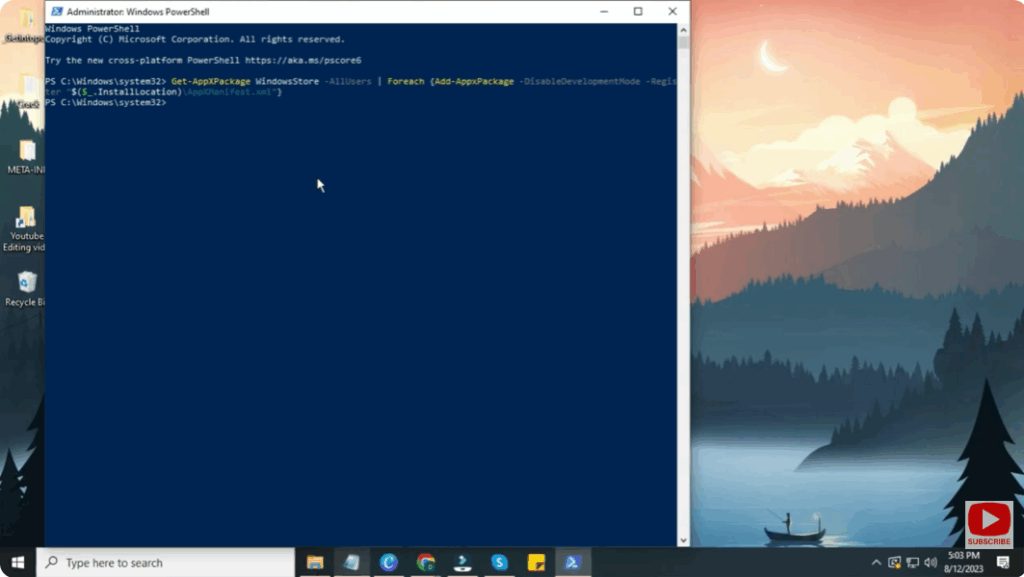
This forces Windows to rebuild the Store’s registration.
7. Run System File Checker (SFC) & DISM to Repair System Components
- Open Command Prompt / PowerShell as Administrator
- Run:
sfc /scannow - After it completes, run:
DISM /Online /Cleanup-Image /RestoreHealth
These commands repair corrupted system and component files which may interfere with Store operations.
8. Free Up Storage & Clean Temporary Files
- Make sure your drive (especially the one where apps install) has enough free space
- Delete unnecessary temporary files:
- Press Win + R, type
%temp%, delete all files - Use Disk Cleanup or Storage Sense
- Press Win + R, type
Several video tutorials suggest cleaning storage to allow new downloads to proceed.
9. Try a Different Network or Disable VPN / Proxy
- Switch to a different Wi-Fi network or use mobile hotspot
- Temporarily disable any VPN, proxy settings, or firewall software
- Test Microsoft Store again
Network interference or routing issues often block Store downloads, as shared by users online.






