
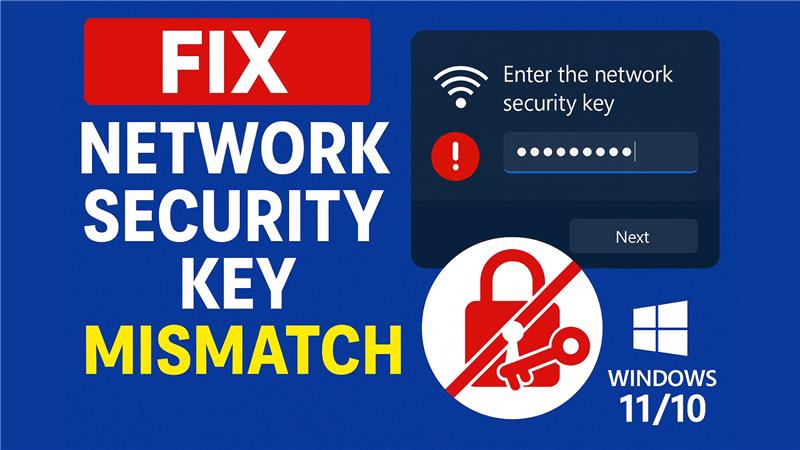
When Windows displays “Network security key mismatch” (or “The network security key isn’t correct”), it means there’s a problem authenticating with the Wi-Fi network using the security key (password). Often, the password is correct, but something else is interfering — such as Wi-Fi settings, driver issues, or network configuration mismatches.
🔧 Step-by-Step Fixes: Solve the Security Key Mismatch
1. Reset Network Settings (Full Network Reset)
If all else fails, do a full network reset:
- Go to Settings → Network & Internet.
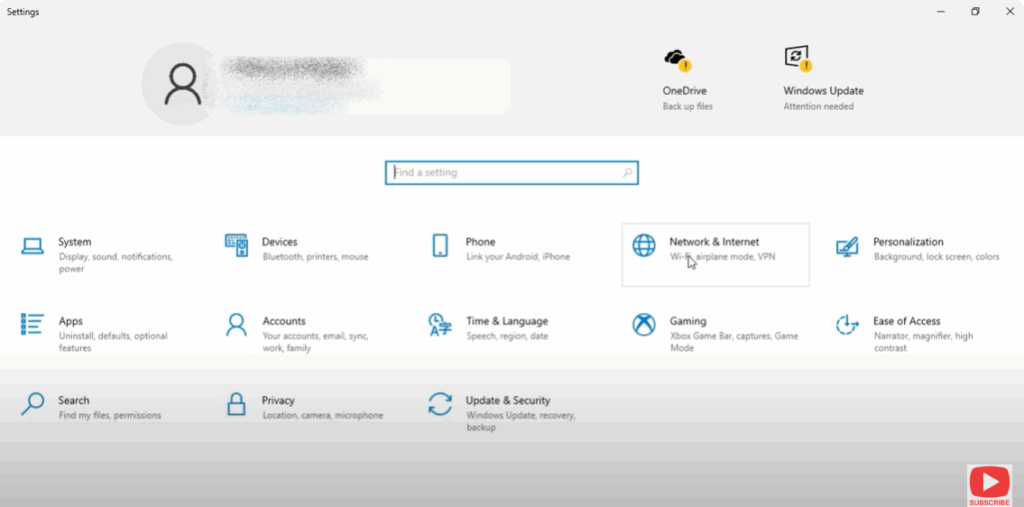
- For Windows 11, scroll down to Advanced network settings → Network reset.
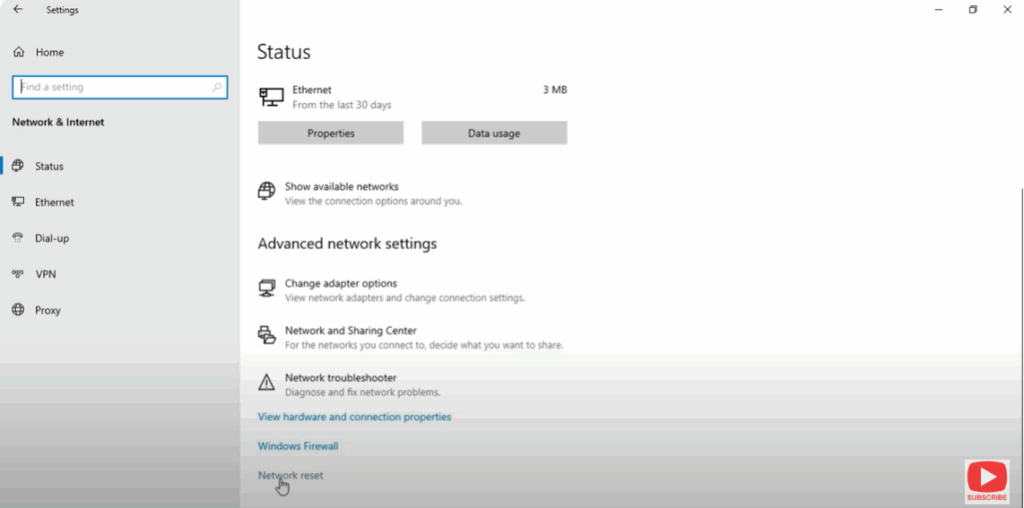
- For Windows 10: under Status, find Network reset.
- Click Reset now → confirm.
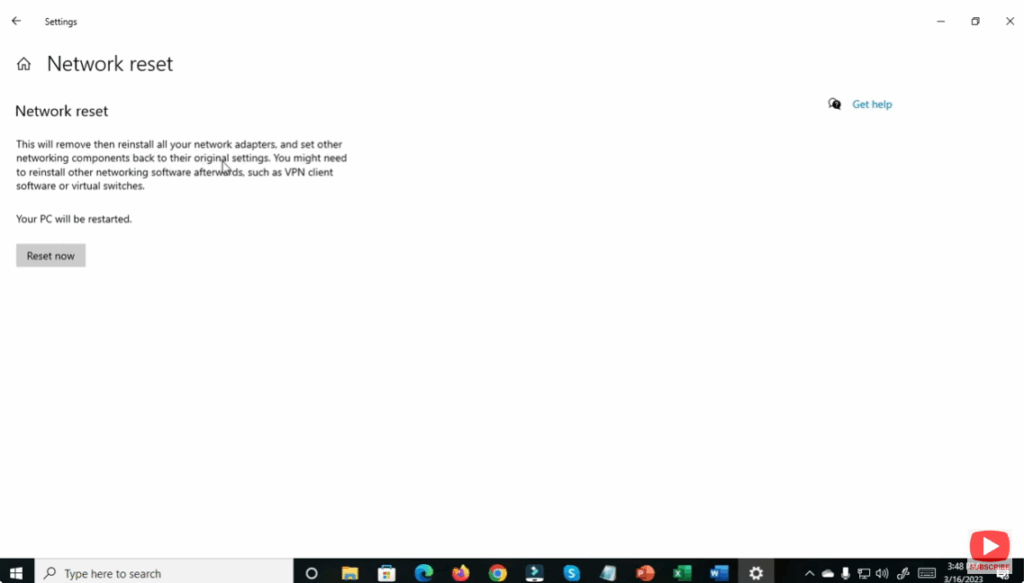
This clears all network adapters and resets settings. You’ll need to reconnect to Wi-Fi afterward.
✅ Conclusion
The “Network security key mismatch” error is frustrating, especially when the password is correct. But applying fix like forgetting the network, resetting TCP/IP, updating drivers, or doing a network reset often resolves the issue.






