

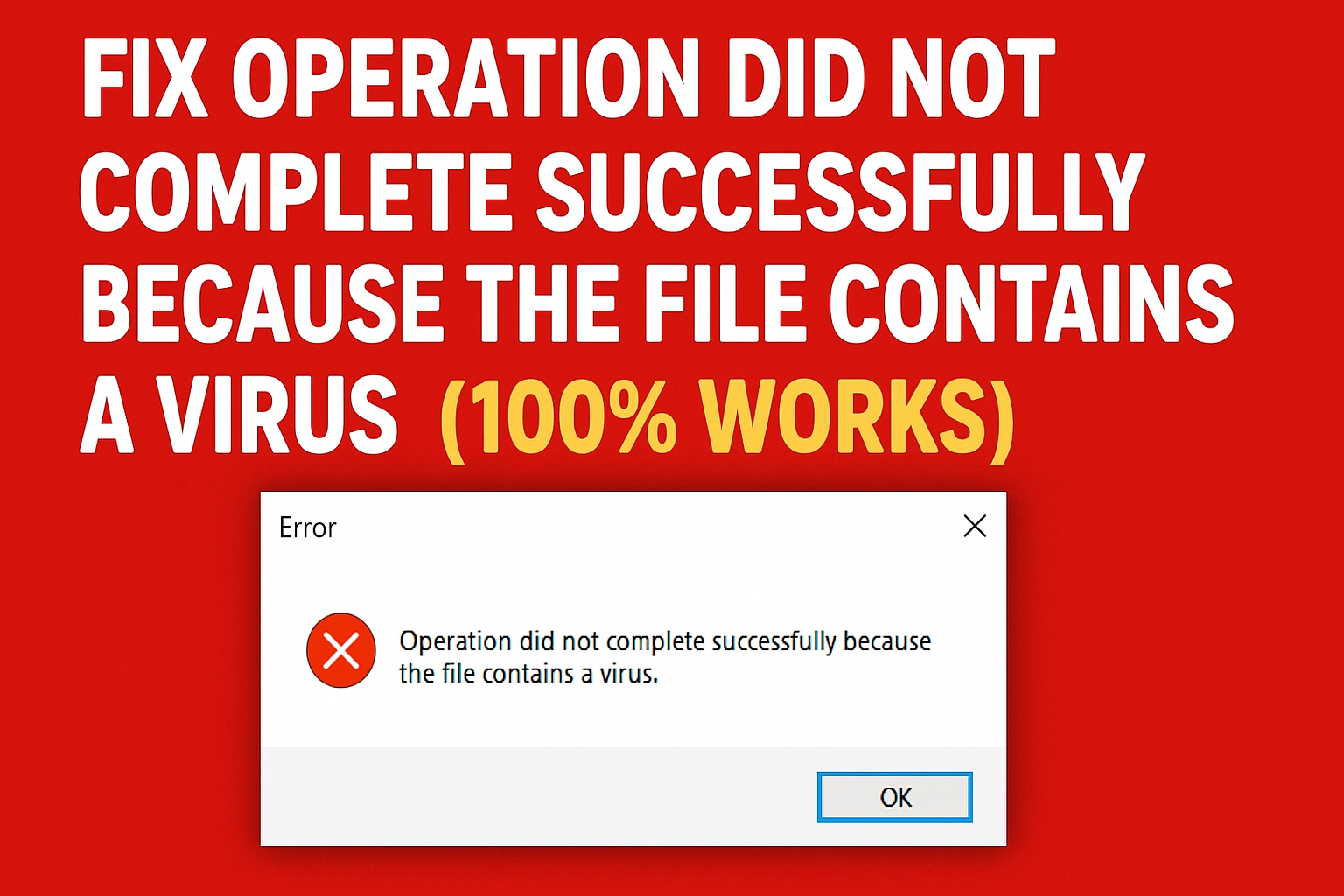
When Windows prevents a file from opening, claiming it contains a virus or potentially unwanted software—even when you’re certain it’s safe—don’t worry. Often this is a false positive triggered by antivirus software acting overly cautious. Here’s how to confidently resolve it.
Step 1: Ensure the File Is Safe
First, confirm the file comes from a reputable source—ideally the official website or a trusted provider. If in doubt, download it again ﹘ a corrupted download can trigger antivirus warnings.
Step 2: Temporarily Disable Antivirus (Windows Defender or Third-Party)
To test whether the block is a false positive:
- Windows Defender: Go to Settings → Privacy & security → Windows Security → Virus & threat protection → Manage settings, and turn off Real-time protection.
- For third-party antivirus, open its control panel and disable real-time protection temporarily.
Try running the file again—if it works, proceed to the next step before re-enabling your protection.
Step 3: Add the File or Folder to Exclusions
If you trust the file and want to avoid this issue in the future:
- Open Windows Security → Virus & threat protection → Manage settings → scroll to Exclusions.
- Click Add or remove exclusions, then choose File or Folder, and select the relevant path to whitelist it.
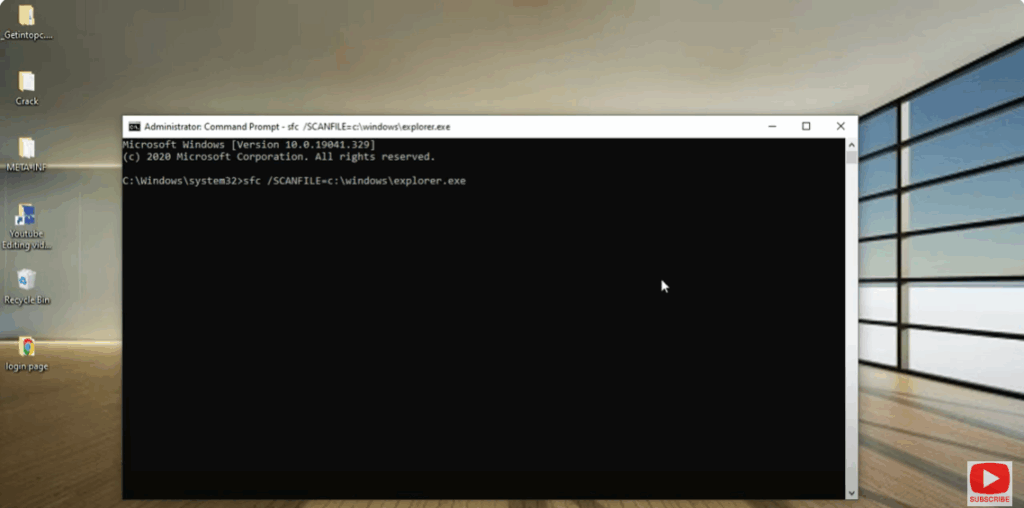
Step 4: Repair System Files (SFC)
Sometimes corrupt system files can cause false positives.
Open Command Prompt as Administrator and run:
sfc /SCANFILE=C:\windows\explorer.exe
Allow it to complete and reboot the system.
Step 5: Perform Windows Repair with Media Creation Tool (If Needed)
If the issue persists even after exclusions and antivirus off, you can use the Media Creation Tool to repair system files safely:
- Download and run the tool from Microsoft’s official site.
- Choose Upgrade this PC now.
- Select Keep personal files and apps to preserve your data and reinstall needed components.
Final Thoughts
This error is usually avoidable. By confirming file safety, using temporary antivirus disabling, and whitelisting trusted files, you can bypass it efficiently. Only use system repair tools if the issue persists after all precautions. Hope this helps you get past the block—let me know if you’d like steps tailored to your version of Windows!






