
The Riot Client not opening or launching is a common issue that can stop you from playing games like Valorant or League of Legends. Instead of starting smoothly, the client may freeze, fail to load, or simply not respond at all. This usually happens due to system glitches, outdated files, or background conflicts—but the good news is, it’s easy to fix. In this beginner-friendly blog, we’ll explain step by step how to fix the Riot Client when it won’t open or launch, so you can get back to gaming without interruptions.
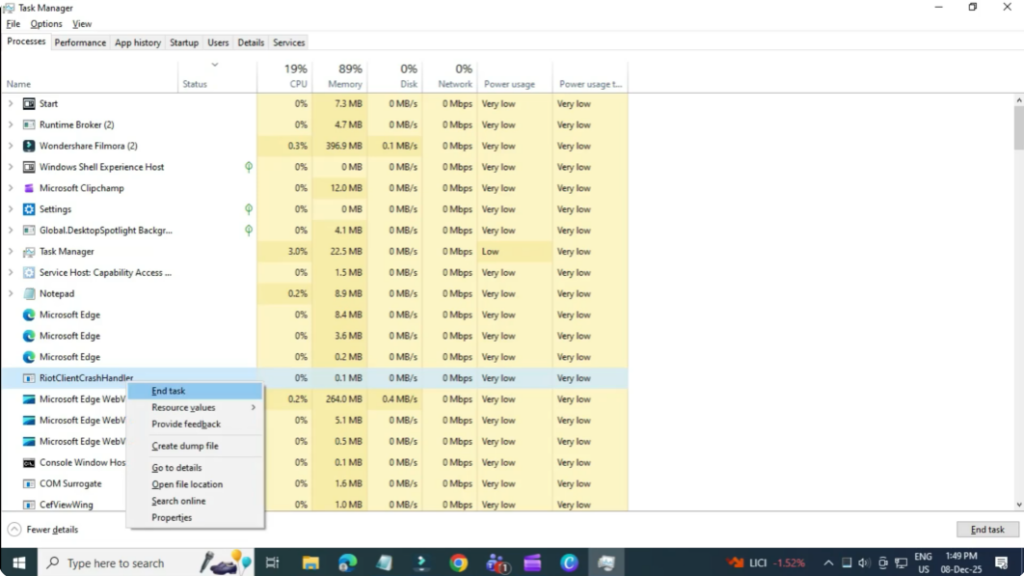
Step 1: Close All Riot Processes
First, open the Task Manager by searching for it in the Start menu. Look for anything related to Riot and make sure no Riot client processes are running. If you see any, right click and select End Task so everything is fully closed.
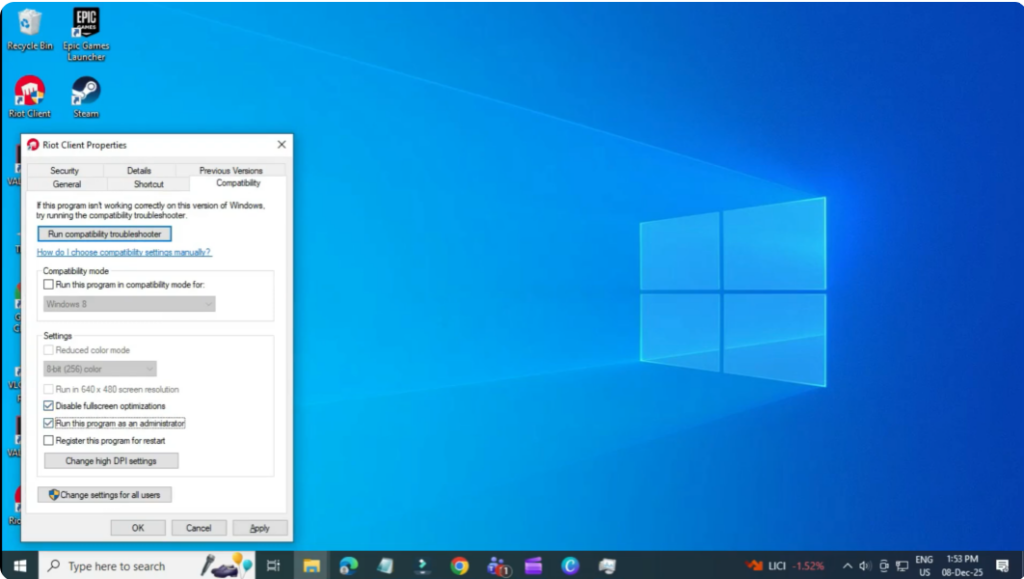
Step 2: Change Riot Client Compatibility Settings
Next, go to your desktop and right click on the Riot Client icon. Select Properties. Go to the Compatibility tab and make sure the options Disable full screen optimizations and Run this program as administrator are checked. Click Apply and OK. Then try launching the client again.
Step 3: Allow Riot Client Through Windows Defender Firewall
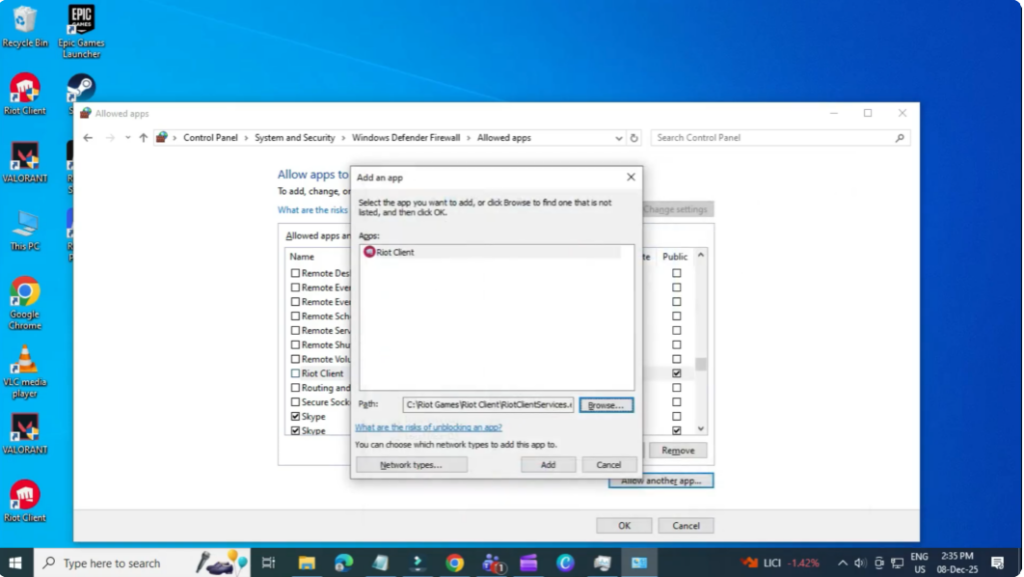
If it still doesn’t open, search for Windows Defender Firewall from the Start menu. Click Allow an app or feature through Windows Defender Firewall, then press Change settings. Make sure the Riot Client is listed here with both Private and Public boxes checked.

If it’s missing, click Allow another app, browse and locate RiotClientServices.exe, add it, and enable both checkboxes.
Step 4: Reset Network Settings
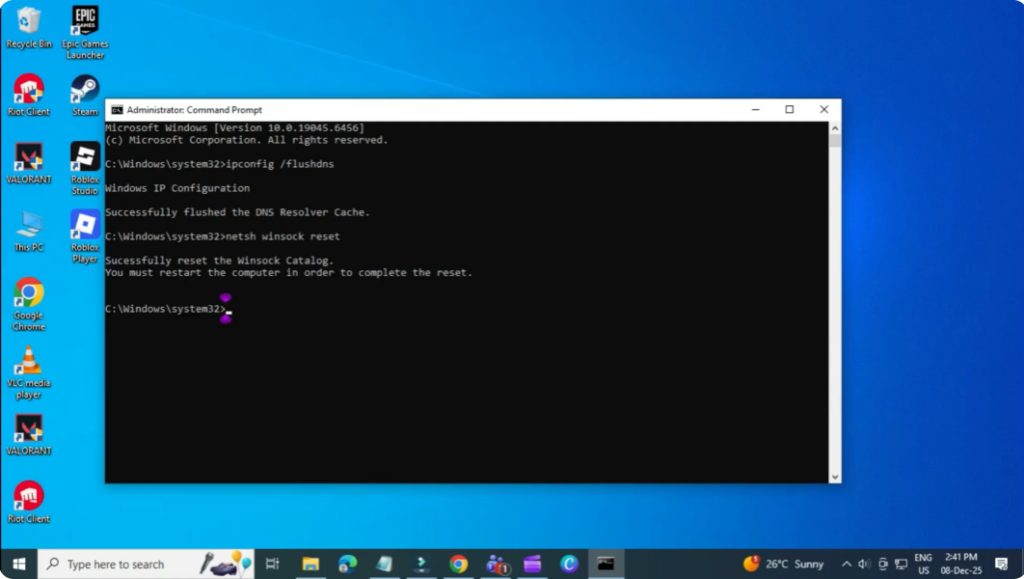
Now, if the issue is related to a network or connection problem, we’ll reset some network settings. Search CMD, right click Command Prompt, and run as administrator. Then enter these commands one by one:
IP protocol configuration / flushness
wins sock reset
Once done, close the Command Prompt and try launching the Riot Client again.






