
Welcome back to my channel Tech Gitter Official. In today’s video, we will learn operation requested not supported by hardware storage optimizer error 0x8900002A.
This error usually appears when you try to optimize or defragment your drive, but your system doesn’t properly recognize the hardware support. Don’t worry, the solution is simple and I’ll guide you step by step.
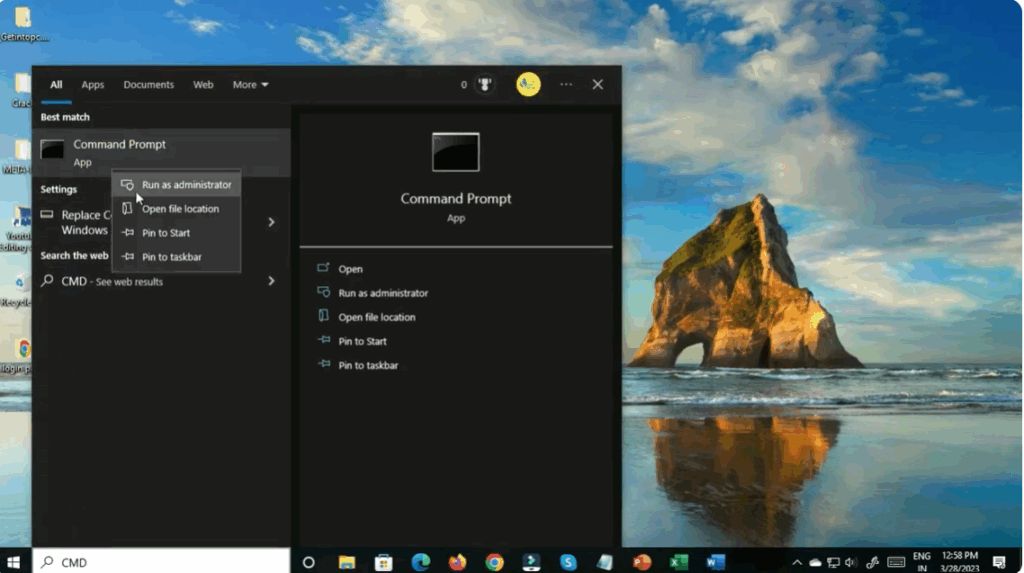
Step 1: Open Command Prompt as Administrator
First, click on the Start button. Type cmd in the search bar. Then right click on Command Prompt and select Run as administrator. Running it with admin rights is important, otherwise the commands won’t work.
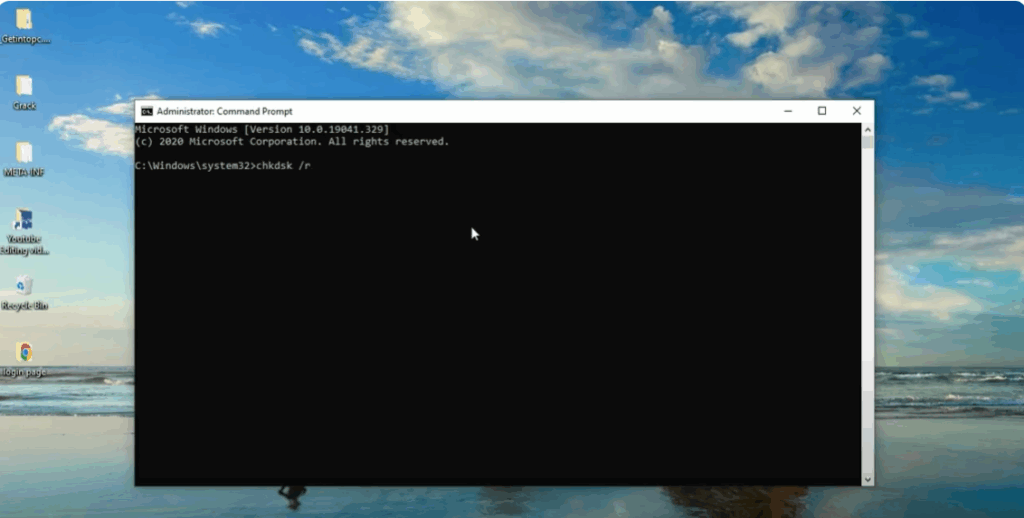
Step 2: Run the Check Disk Command
Once the Command Prompt window opens, type:
check disk /r
and then press Enter.
Once you press enter, Windows will start running the optimization process. If you see any warnings, just wait until the process completes.
Step 3: Restart Your PC
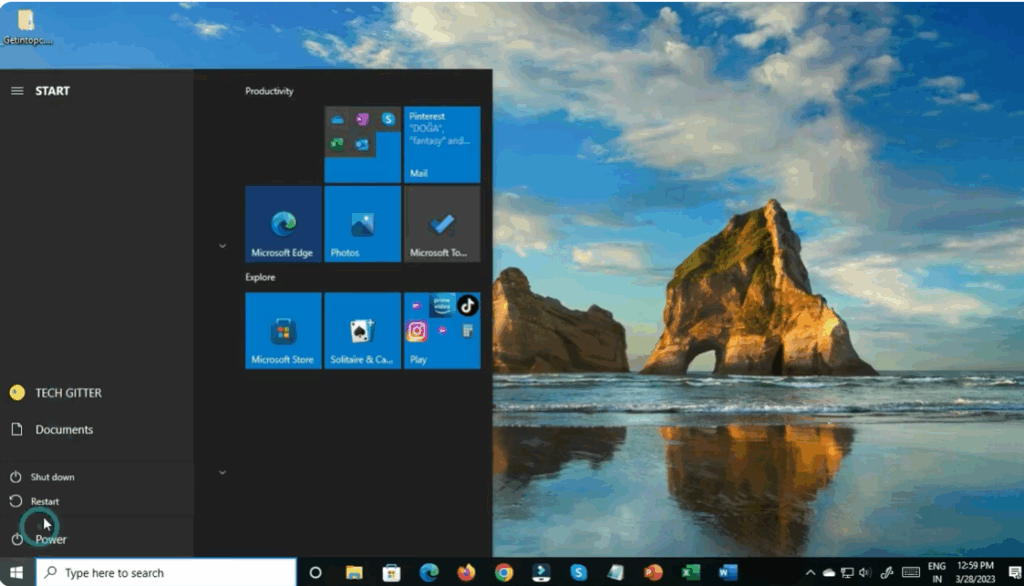
After running the command, simply close the command prompt. Now restart your PC so the changes take effect. For best results, go to the Start menu, click on Power, and select Shutdown or Restart.
Step 4: Confirm the Fix
Once your system boots back up, the error should no longer appear when you try to optimize your storage.
And that’s it. You’ve successfully fixed the storage optimizer error 0x8900002A.
Thanks for watching. If you found this tutorial useful, please like, comment, and subscribe for more helpful tech guides.






