
Welcome back to my channel Tech Gitter Official.
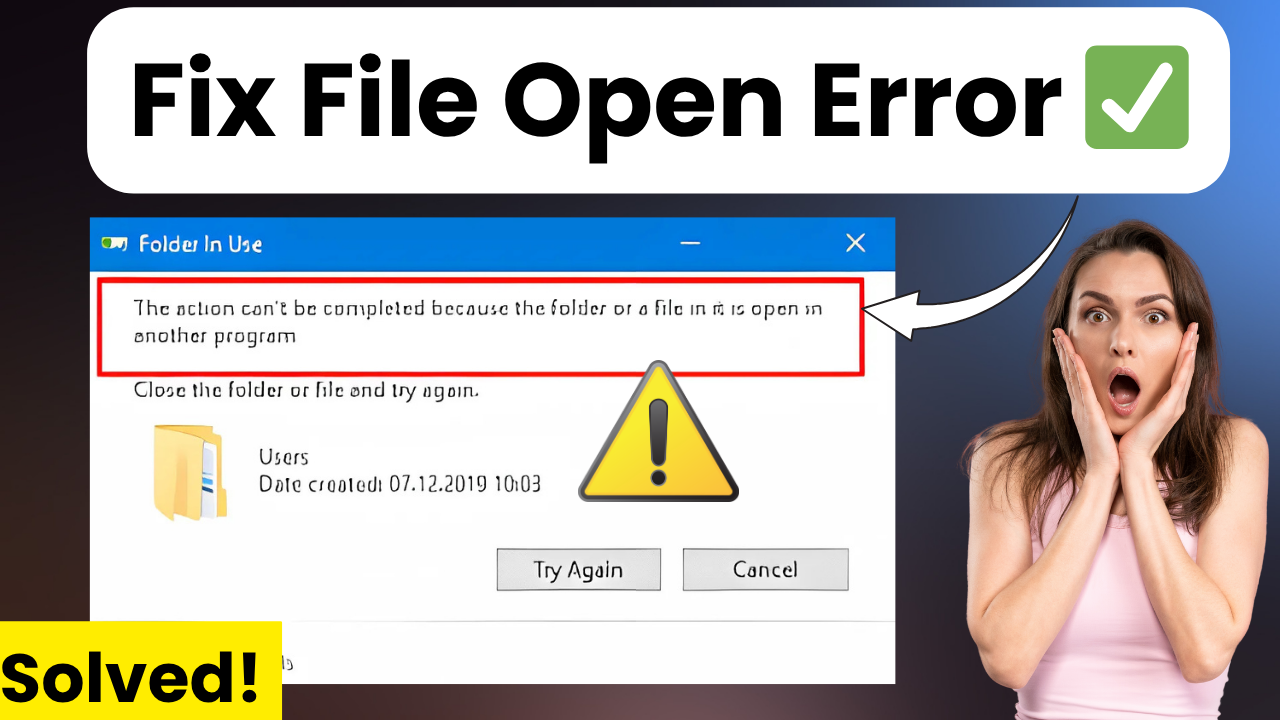
In today’s guide, we will learn how to fix the common Windows error:
“The action cannot be completed because the file is open in another program” on Windows 10 or 11.
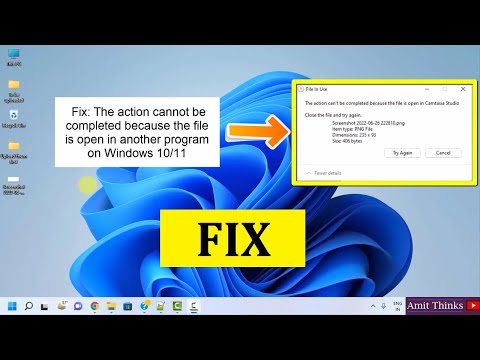
Follow these step-by-step instructions:
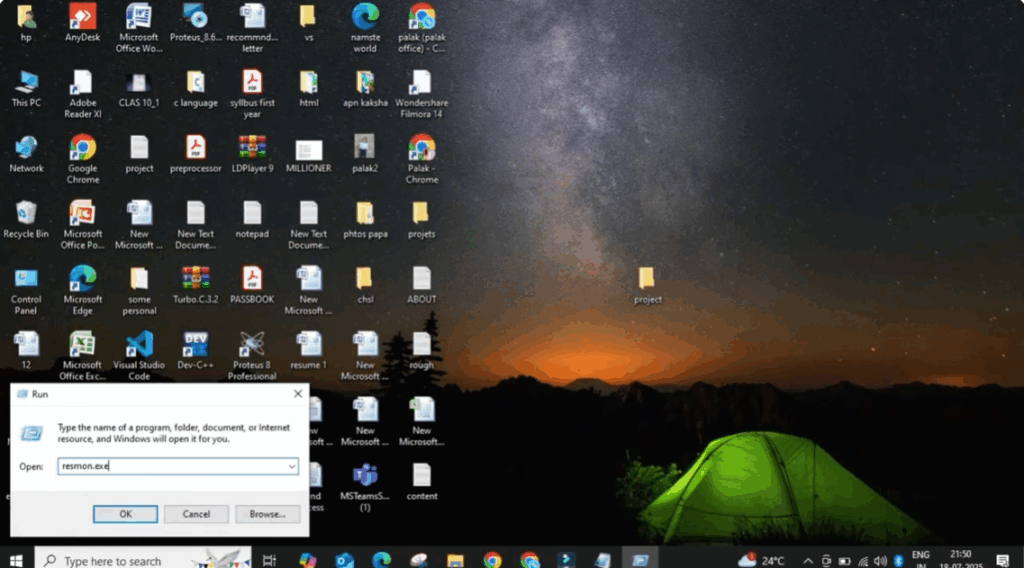
Step 1: Open Resource Monitor
- Right-click on the Windows icon and click on Run.
- Type Resmon.exe in the box and click OK.
Step 2: Find the Locked File or Folder
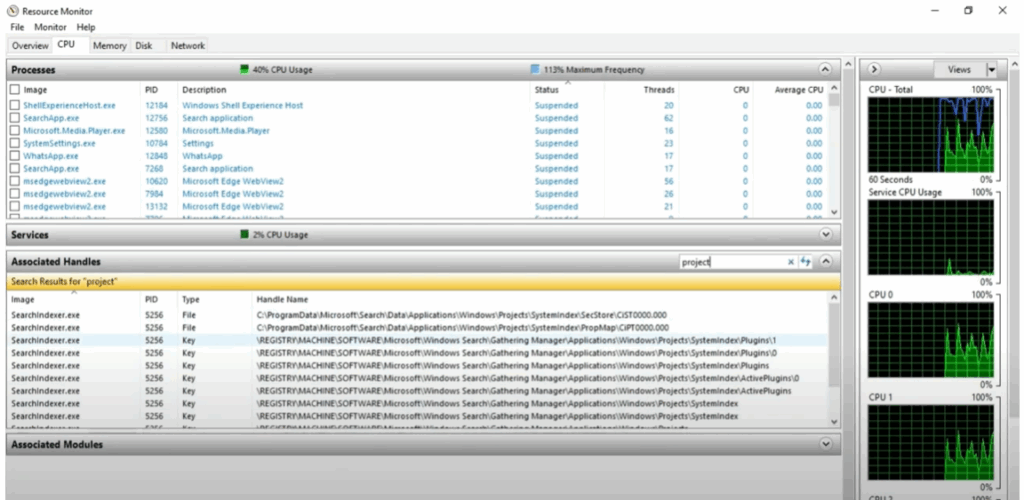
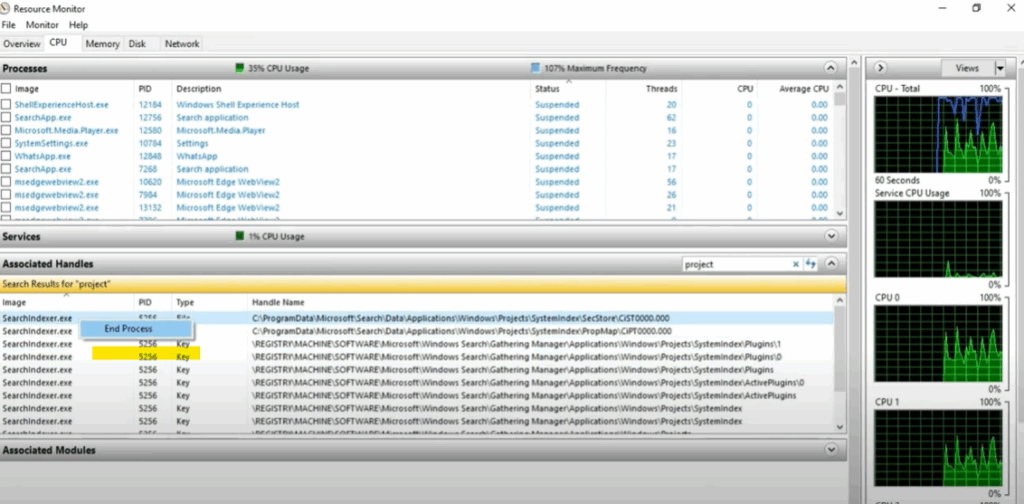
- Once the Resource Monitor opens, click on the CPU tab.
- Go to the Associated Handle search bar and type the name of the folder or file you want to delete.
- A list of processes using the file will appear below.
Step 3: End Related Processes
- Right-click on one of the listed processes and select End Process.
- Click End Process again to confirm.
- Repeat this for all related processes.
Step 4: Delete the File or Folder
- After ending all associated processes, close the Resource Monitor.
- Go back and try deleting the folder or file.
- It should now delete successfully.
Step 5: Restart Your PC
- Finally, reboot your PC to complete the process.
Thanks for reading!
If this guide helped you, don’t forget to like, share, and subscribe to Tech Gitter Official for more tech tips.






