
The “There Were Some Problems Installing Updates, but We’ll Try Again Later” (0x80070643) error is a common issue many Windows users face while updating their system. Instead of installing smoothly, the update fails and leaves you stuck with the same message again and again. This can be frustrating because updates are important for security, performance, and new features. The good news is, this error is usually caused by small glitches, corrupted files, or incorrect settings—and it can be fixed easily. In this beginner-friendly blog, we’ll explain in simple language how to solve the 0x80070643 update error step by step, so your Windows updates run smoothly again.
✅ How to Fix the Error: Step-by-Step Solutions
You don’t have to try all the methods — often one or two solve it. Start from the simpler ones and move to more advanced if needed.
1. Restart Your PC and Retry Update
A plain restart can sometimes clear transient glitches preventing updates from installing. After rebooting, re-run Windows Update.
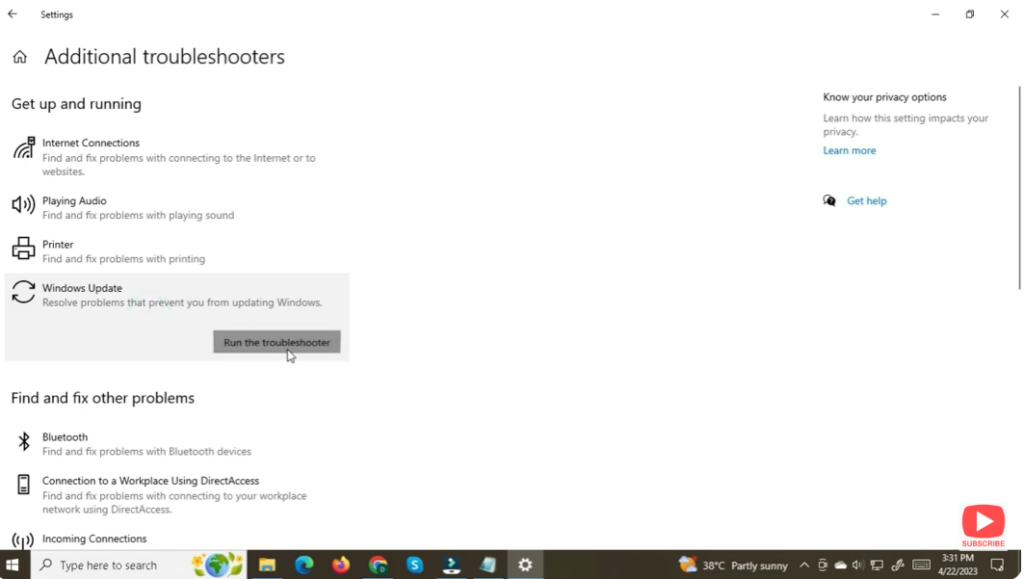
2. Run the Built-in Windows Update Troubleshooter
- Open Settings → Update & Security → Troubleshoot → Additional troubleshooters (or System → Troubleshoot → Other troubleshooters on newer Windows versions).
- Find Windows Update, run the troubleshooter, let it detect/fix any issues.
- Once done, restart and try updating again.
3. Restart or Reset Windows Update Services
Sometimes update-related services get stuck or corrupted. Restarting them resets the update mechanism:
- Press
Win + R, typeservices.mscand press Enter. - Find and restart services like Windows Update, Background Intelligent Transfer Service (BITS), Cryptographic Services, and Windows Installer (if present).
- Then retry the update.
4. Reset Windows Update Components (Clear Update Cache)
If cached update files are corrupt, resetting the update cache often helps:
Open Command Prompt as administrator, then run these commands one by one:
net stop wuauserv
net stop cryptSvc
net stop bits
net stop msiserver
ren C:\Windows\SoftwareDistribution SoftwareDistribution.old
ren C:\Windows\System32\catroot2 Catroot2.old
net start wuauserv
net start cryptSvc
net start bits
net start msiserver
After that, restart your PC and try Windows Update again.
5. Repair or Update .NET Framework
Because many Windows updates depend on .NET Framework components, any issue with .NET may result in 0x80070643.
- Download and run the official .NET Framework Repair Tool from Microsoft (or the latest .NET version installer).
- Install or repair .NET Framework, then restart your PC — after that, try running the update again.
6. Temporarily Disable Antivirus / Security Software
Third-party antivirus or firewall tools can sometimes block update installations or interfere with system services. Temporarily disable them (or Windows Defender if relevant), then retry the update. If update succeeds — re-enable protection immediately.
7. If All Else Fails – Manual Update or System Repair
- You can manually download the update package from the official Microsoft Update Catalog using the update’s “KB number.” Install manually.
- If update relates to recovery environment or system-level update (rare), sometimes a deeper fix or even resizing recovery partition may be required — though this is more advanced.
✅ Final Thoughts
The “There were some problems installing updates … 0x80070643” error is annoying — but in most cases, you can fix it yourself by following the troubleshooting steps above. Start easy (restart, run the troubleshooter), then move to more robust fixes (reset update services, repair .NET, clear update cache).






