
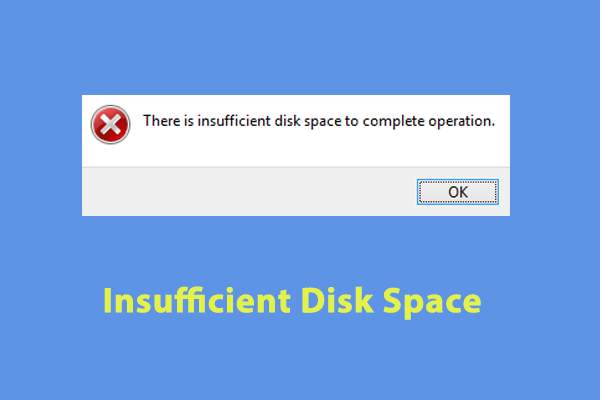
The error “There Is Insufficient Space on the Disk to Complete This Operation” typically appears when Windows or some application is trying to perform an action (like copying a file, updating, or resizing a partition) but the target drive doesn’t have enough usable / contiguous space to finish the operation. Even if your drive shows free space, certain conditions (fragmentation, reserved space, system files) can block the action.
✅ How to Fix It (Step-by-Step)
Try these in order. After each step, reattempt the operation to see if the error is resolved.
1. Free Up Disk Space
- Empty the Recycle Bin.
- Run Disk Cleanup (Win → type “Disk Cleanup”) → select system drive → clean temporary files, system files, Windows Update leftovers, etc.
- Delete or move large files (videos, ISO files, downloads) to external drive or cloud.
- Uninstall unused programs.
- Clean
%temp%folder (press Windows + R, type%temp%, delete contents).
2. Turn Off / Adjust System Files
- Disable Hibernation (which uses hiberfil.sys) if you don’t use it:
powercfg /hibernate off - Reduce / disable System Restore or delete old restore points.
- Adjust or disable pagefile temporarily (though Windows usually manages this).
3. Run Disk Error Check / Repair
- Open This PC → Right-click drive → Properties → Tools → Error checking.
- Or run from Command Prompt (as admin):
chkdsk C: /f /r - Reboot and let it repair issues.
4. Defragment / Optimize the Drive (for HDDs)
- If using HDD, use “Defragment and Optimize Drives” utility to consolidate free space.
- For SSDs, don’t defragment—just ensure TRIM is enabled.
5. Use a Third-Party Partition Tool
- Use a partition editor (like MiniTool Partition Wizard, EaseUS Partition Master) to move free space around, merge, or resize partitions to create a contiguous free chunk.
- Many tools let you “rearrange” unmovable files so that space becomes usable.
6. Try the Operation from Safe Mode or Clean Boot
- Boot into Safe Mode or Clean Boot (minimal services) — fewer programs locking files or using temporary space.
- Try performing the copy / installation again.
7. Move the Temporary Folder / Staging Drive
If the operation demands using temp space (e.g., installer), you can temporarily point your TEMP / TMP environment variables to a drive with more free space:
- Right-click This PC → Properties → Advanced system settings → Environment Variables.
- Under User / System, change
TEMPandTMPto a path on a drive with more space. - Restart and try again.
8. Use an External Drive / Another Partition
- If the target drive is almost full, try copying or installing to another drive or external disk.
- If you’re cloning or updating, sometimes creating a bootable media or using another partition avoids the space limitation.






