
Sometimes WhatsApp Web may not work properly on your Windows 10 or 11 PC due to issues like network problems, browser incompatibility, or temporary glitches. This can be frustrating when you want to quickly send messages or check chats on your computer. In this blog, you will learn simple and easy steps to troubleshoot and fix WhatsApp Web not working, so you can get back to chatting smoothly and without interruptions.
🛠 Step-by-Step Fixes
1. Clear Browser Cache and Cookies (If Using WhatsApp Web)
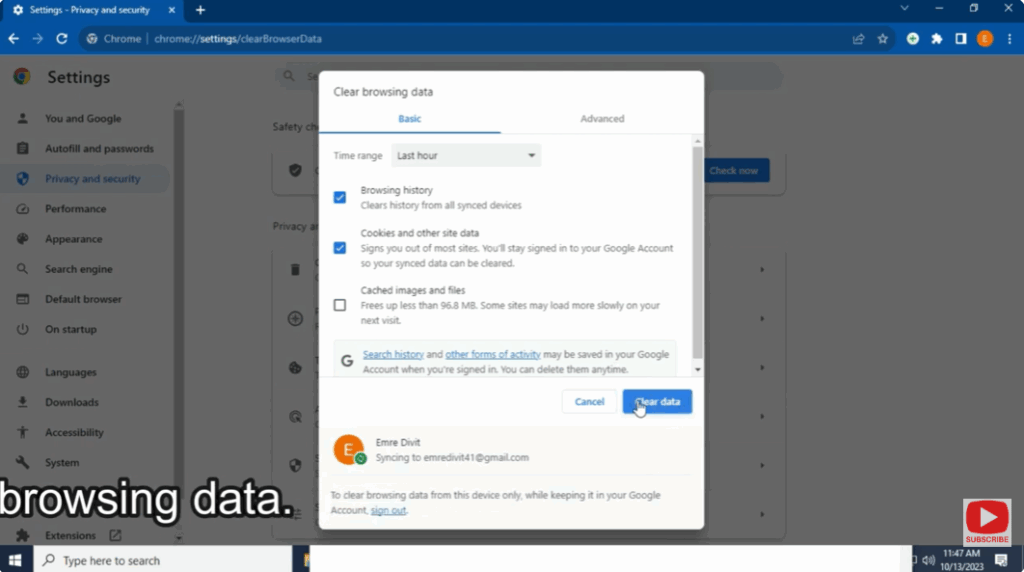
- Open your browser → go to Settings → Privacy & Security → Clear Browsing Data.
- Select options like Cached images and files and Cookies and other site data.
- After clearing, reload web.whatsapp.com, scan the QR code again, and try reconnecting.
2. Use Incognito / Private Mode
- Open a new Incognito (Chrome) or Private (Firefox/Edge) browser window.
- Navigate to
web.whatsapp.com→ scan QR code from your phone. - If it works in this mode, likely a browser extension or cache was blocking normal use.
3. Disable VPN / Proxy Temporarily
- If you’re using a VPN or Proxy, turn it off temporarily.
- Some VPNs can interfere with WhatsApp’s ability to connect reliably.
- After disabling, try refreshing WhatsApp Web again.
4. Check Browser Compatibility
- Make sure you’re using a supported browser: Chrome, Edge, Firefox, Opera, etc.
- Update your browser to the latest version. An outdated browser can cause compatibility issues.
5. Allow Background Use & Permissions for WhatsApp Desktop
- If you’re using the Windows WhatsApp app, go to Settings → Apps → Installed apps → find WhatsApp → click Advanced options.
- Under Background apps permissions, set it to Always.
- Also check if permissions for Microphone, Camera, or Notifications are enabled as needed.
6. Repair or Reset WhatsApp Desktop on Windows
- Open Settings → Apps → Apps & features (or Installed apps).
- Find WhatsApp → click the three-dot menu → Advanced options.
- Try first Repair. If that doesn’t work, click Reset to restore defaults.
- After reset, restart the app and scan QR code again from your phone.
7. Reinstall WhatsApp Desktop
- Uninstall the app from Settings → Apps → Installed apps.
- Reinstall either from the Microsoft Store or via the official WhatsApp website.
- During reinstallation, ensure you’re not using an outdated installer.
8. Install Media Feature Pack (For Windows N Editions)
- If you’re on a Windows 10/11 N edition, WhatsApp may fail because of missing media features.
- Go to Settings → Optional features → Add a feature → search for Media Feature Pack → install it.
- Reboot your PC after installation, then launch WhatsApp again.
9. Use WhatsApp Web as a Backup Option
If the desktop app still misbehaves:
- Open your browser and visit
web.whatsapp.com. - Scan the QR code using your mobile WhatsApp → link your device.
- This web version is often more stable when desktop issues persist.
✅ Final Thoughts
WhatsApp Web or Desktop not working on Windows 10 / 11 can be caused by a variety of factors — from browser cache to app permissions or installation issues. By following the steps above (in order), you can fix most of the common problems and get WhatsApp running smoothly again.






