
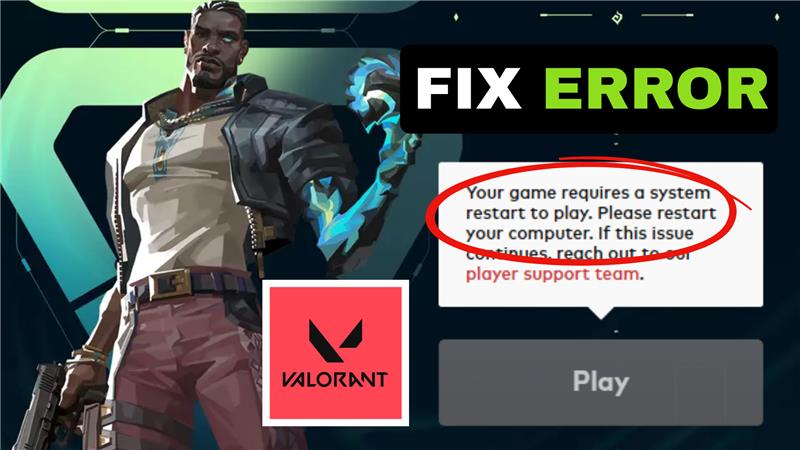
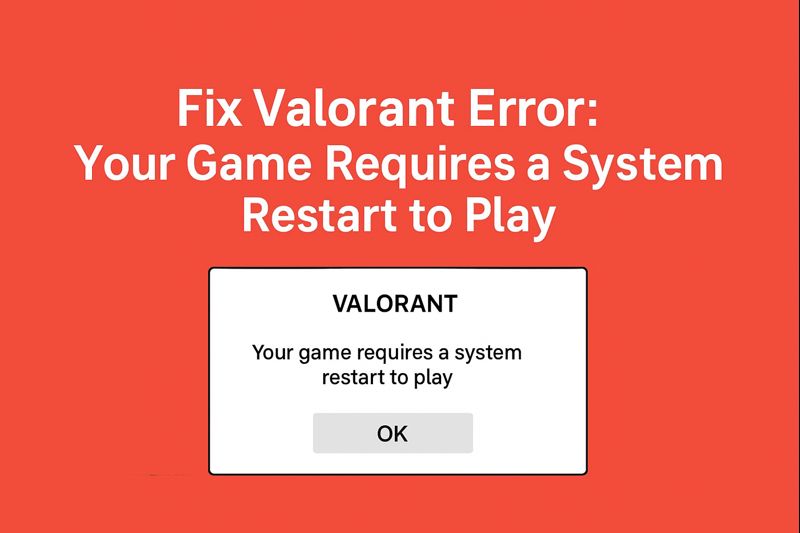
Running into the “Your Game Requires a System Restart to Play” error in Valorant can be incredibly annoying, especially when you’re all set to dive into a match. Instead of launching smoothly, the game blocks you with this message, often caused by issues with Riot’s Vanguard anti-cheat system, pending updates, or system conflicts. The good news is, this problem can usually be fixed with a few straightforward steps. In this beginner-friendly blog, we’ll walk you through how to fix the Valorant error requiring a system restart, so you can get back to playing without interruptions.
1. Run Valorant as Administrator
The first and simplest fix is to run Valorant with administrator privileges.
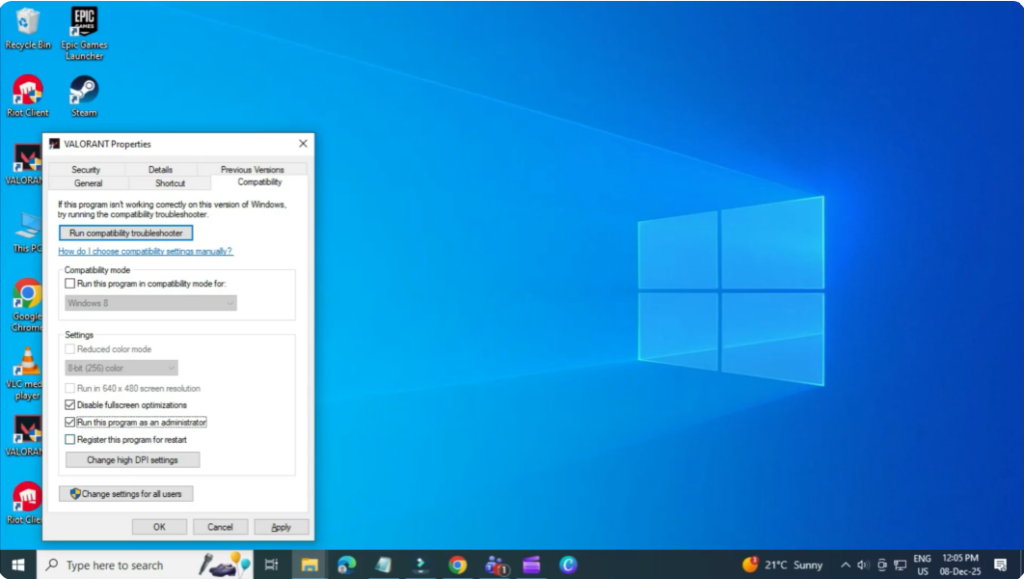
- Go to your Valorant desktop shortcut.
- Right-click and select Properties.
- Open the Compatibility tab.
- Check the option “Run this program as administrator.”
- Click Apply, then OK.
Try launching the game again to see if the error is resolved.
2. End Riot & Valorant Processes in Task Manager
If the issue continues, the next step is to close all active Riot and Valorant processes.
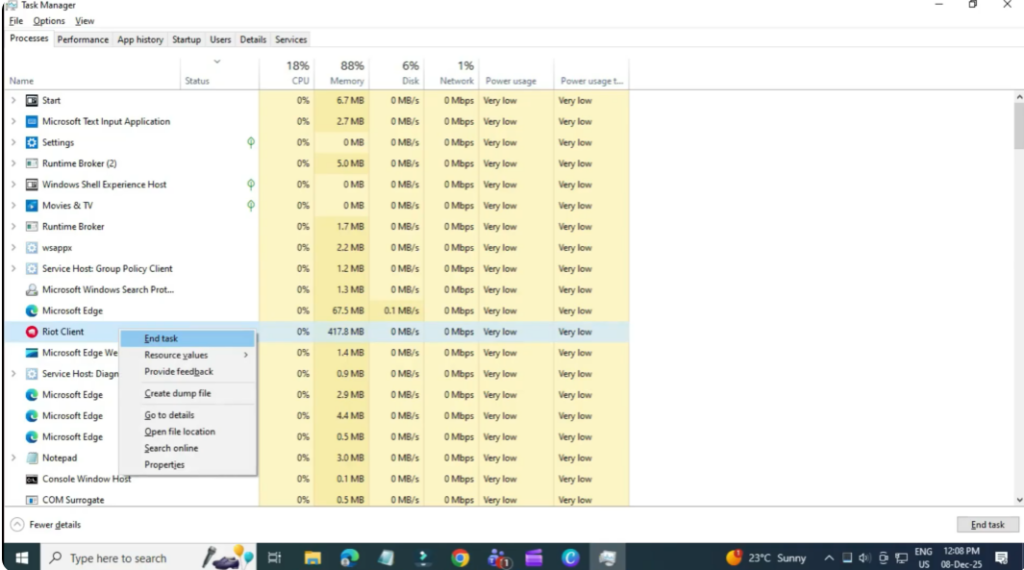
- Press Ctrl + Shift + Esc to open Task Manager.
- Look for all Riot-related processes.
- Right-click each one and select End Task.
- Do the same for Valorant.
Now try launching Valorant again.
3. Enable and Start the VGC Service
Valorant requires the VGC service (Vanguard) to run properly.
- Open the Start Menu and type Run.
- Open it, type services.msc, and press Enter.
- Scroll down and find VGC.
- Double-click it and set Startup type to Automatic.
- Click Start, then Apply, and OK.
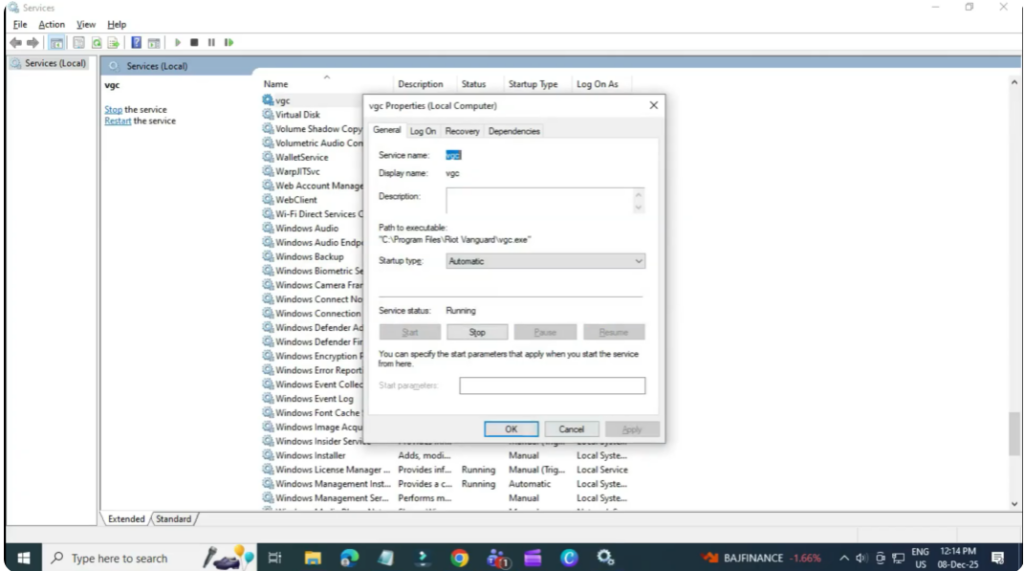
This ensures that Valorant’s anti-cheat service runs correctly.
4. Enable Vanguard in Startup Apps
Next, make sure Riot Vanguard is enabled on startup.
- Open Task Manager again.
- Go to the Startup tab.
- Find VGC tray / Riot Vanguard.
- Make sure it is Enabled.
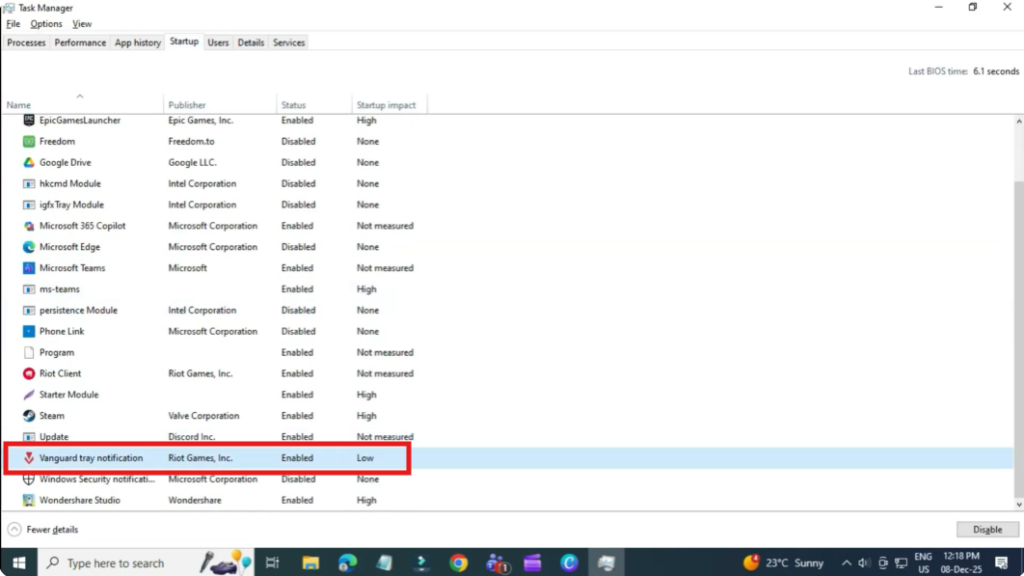
After making this change, restart your PC.
5. Uninstall and Reinstall Riot Vanguard (If Needed)
If the problem still persists, you may need to reinstall Vanguard.
- Open Start Menu and go to Add or Remove Programs.
- Search for Riot Vanguard.
- Click Uninstall.
- After uninstalling, launch Valorant again — it will automatically reinstall Vanguard.
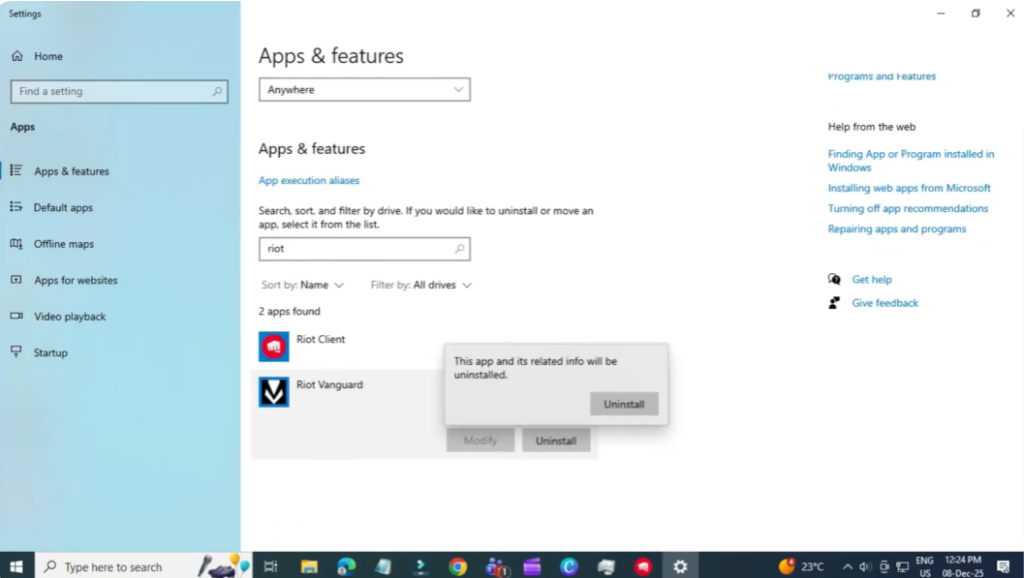
Once Vanguard is reinstalled, restart your PC and launch the game.
Final Words
That’s it! These methods should fix the Valorant error that says “Your game requires a system restart to play.” Follow each step carefully, and your game should be running smoothly again.






