
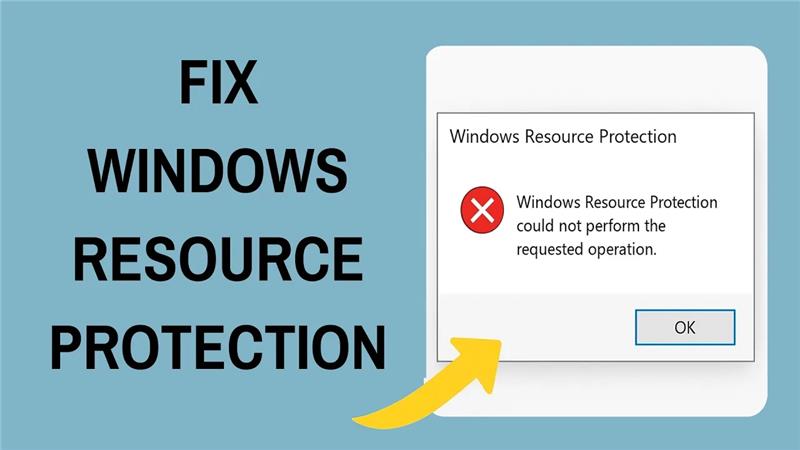
When you run the SFC scan in Windows and see the error “Windows Resource Protection could not perform the requested operation,” it means the system tool can’t repair your corrupted files. This frustrating problem often happens due to disk errors, malware, missing services, or incorrect permissions blocking the scan. In this blog, you’ll learn simple fixes like running DISM first, checking disk errors with CHKDSK, starting required services, and using Safe Mode to get SFC working and restore your PC’s health.
✅ Step-by-Step: How to Fix the Error
Here are several proven methods to get SFC working again by addressing common root causes. Try them in order — often one is enough.
1. Run Disk Check (CHKDSK) — Fix Drive / File System Errors
A corrupted hard drive or file-system errors may cause SFC to fail. Running a full disk check can help.
How to run:
- Open Command Prompt as administrator.
- Run:
chkdsk C: /f /r(ReplaceC:if your Windows drive is different.) - If prompted to schedule the check on next reboot, type
Yand restart. - After the scan completes — boot up again, open an elevated Command Prompt, and try:
sfc /scannow
Often fixing disk errors resolves SFC’s inability to safely access critical files.
2. Repair Windows Component Store Using DISM, Then Run SFC
Sometimes the core Windows “component store” is corrupted. Using the built-in DISM tool to repair the Windows image first — then running SFC — improves success rate.
Steps:
- Open Command Prompt as administrator.
- Run:
DISM /Online /Cleanup-Image /RestoreHealth - Wait until DISM completes (may take 15–30 minutes depending on system).
- Reboot the PC.
- Once back, open Command Prompt (admin) and run:
sfc /scannow
If corruption in the underlying image was the cause, this typically resolves it.
3. Run SFC in Safe Mode (or from Windows Recovery Environment)
Background processes or third-party apps may interfere with SFC. Running it in a minimal environment — Safe Mode — or from the recovery environment (WinRE) reduces interference.
How to do it:
- Press
Win + R, typemsconfig, press Enter → go to Boot tab → check Safe boot, choose Minimal, click OK → restart. - Once PC boots into Safe Mode, open Command Prompt (admin) → run
sfc /scannow. - Alternatively: in Windows 10/11 — Settings → Recovery → Advanced startup → Restart now → Troubleshoot → Advanced Options → Command Prompt — run SFC from there.
This often lets SFC complete without being blocked by running services or locked files.
4. Ensure Essential Services Are Running: Windows Modules Installer & Others
For SFC to work, certain services must be running — especially Windows Modules Installer (TrustedInstaller). If this service is disabled, SFC may fail.
Fix:
- Press
Win + R, typeservices.msc, press Enter. - In Services console → locate Windows Modules Installer → double-click → set Startup type to Manual (or Automatic) → click Start (if not already running) → click OK.
- After that, retry
sfc /scannow.
Also check other Windows-related services if necessary (e.g. Cryptographic Services / Background services depending on your Windows version) — sometimes third-party tools disable them.
5. Remove / Temporarily Disable Third-Party Security or Utility Tools
Antivirus, system optimizers, or “tune-up” utilities sometimes block or interfere with Windows system tools like SFC or DISM. If you have recently installed such tools — try uninstalling or disabling them before running SFC.
Once disabled (or removed), reboot, and attempt sfc /scannow again.
6. As a Last Resort — Perform a Windows Repair Install or Reinstall
If none of the above works, the Windows installation itself may be badly corrupted. Repair-installing Windows (using installation media / ISO) — or a clean reinstall — can restore a fresh, healthy system component store.
Steps:
- Backup important data.
- Use Windows installation media or ISO → run setup → choose “Upgrade this PC” (repair install), or backup data and perform clean install.
This step ensures all system files and protected resources are restored — but do it only when other methods fail.
Conclusion
Getting the “Windows Resource Protection could not perform the requested operation” error is frustrating — but in most cases, it’s not a permanent problem. By systematically checking disk health, repairing the Windows system image, ensuring required services are running, and eliminating interference, you can often restore SFC’s functionality and let it fix broken system files.






