
If the Xbox app won’t download or install on your Windows 11 PC, it can be frustrating when you just want to play your favorite games. This issue is often caused by problems with the Microsoft Store, outdated Windows updates, or app glitches. The good news is you can fix it using simple steps like resetting the app, repairing the Store, updating Windows, or using the Xbox website. In this blog, you’ll learn easy methods to resolve Xbox app installation problems and get back to gaming quickly.
🛠 Step-by-Step Fixes
Step 1: Check for Windows & Store Updates
- Go to Settings → Windows Update → Check for updates and install any pending updates.
- Open the Microsoft Store, click on the Library icon, then choose Get updates. This ensures the Store and its apps are up to date.
- After updates complete, restart your PC and then attempt to install the Xbox app again.
Step 2: Repair or Reset the Store & Xbox App
- Go to Settings → Apps → Installed apps.
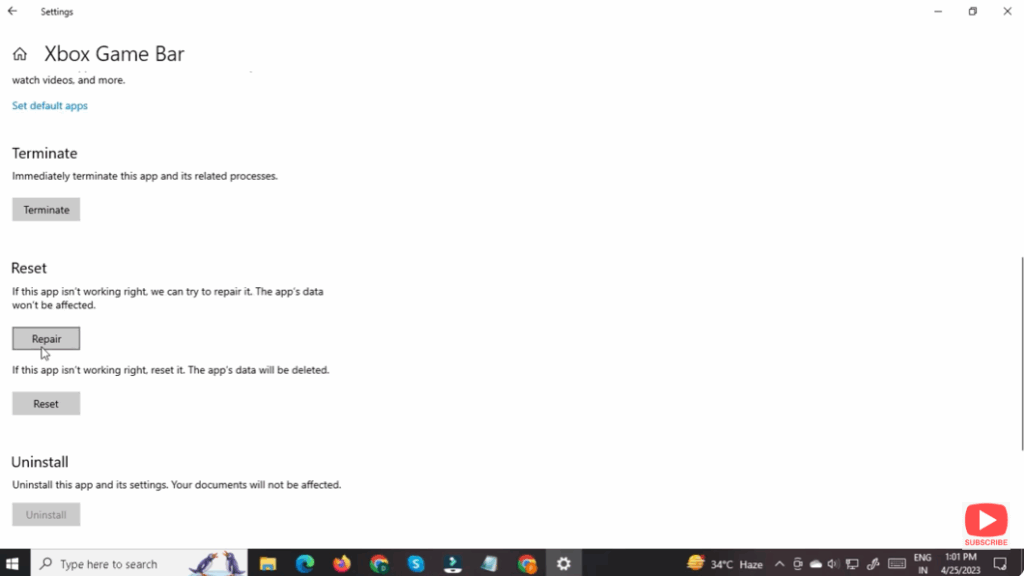
- Find Microsoft Store → click the three-dots → Advanced options → click Repair, then Reset.
- Also, find Xbox App, choose Advanced options, and select Repair. If repair fails, then Reset the app.
Step 3: Ensure Required Services Are Running
- Press Win + R, type
services.msc, and press Enter. - In the Services window, locate services like Gaming Services, Xbox Accessoires, Xbox Game Monitoring, etc. Make sure each is set to Automatic and running.
- If you find a service stopped, right-click → Start. Then try installing the Xbox app again.
Step 4: Reinstall Gaming Services via PowerShell
- Open Windows PowerShell as Administrator.
- Run the command:
Get-AppxPackage Microsoft.GamingServices | Remove-AppxPackage -AllUsers - Then install/re-register Gaming Services via the Microsoft Store link (or run
start ms-windows-store://pdp/?productid=9MWPM2CQNLHNin PowerShell). - After the reinstall, restart your PC and try the Xbox app installation.
Step 5: Free Up Disk Space & Clear the Cache
- Ensure you have sufficient free space on your system drive (C:). Low space can prevent downloads/installs.
- To clear Microsoft Store cache: Press Win + R, type
wsreset.exe, and press Enter. The Store will open automatically after a reset. - Retry installing the Xbox app.
Step 6: Disable IPv6 Temporarily (If Network Issues)
- Go to Settings → Network & Internet → Advanced network settings → Adapter options.
- Right-click your active network adapter → Properties.
- Uncheck Internet Protocol Version 6 (TCP/IPv6) and click OK.
- Restart your PC and attempt the installation again. Some users report this solved stuck download/installation issues.
Step 7: Uninstall & Reinstall the Xbox App
- If all else fails:
- Go to Settings → Apps → Installed apps, locate Xbox App → Uninstall.
- Open Microsoft Store and search for Xbox App → click Install.
- After installation, launch the app and sign in with your Microsoft account.
📝 Final Thoughts
The Xbox App should install and run smoothly on Windows 11, but issues with services, updates, network settings or Store cache can block the process. By following the steps above—from updates to service checks to reinstall—you’ll resolve most cases. If the issue persists, you may consider creating a new user profile on Windows as a next step.






