
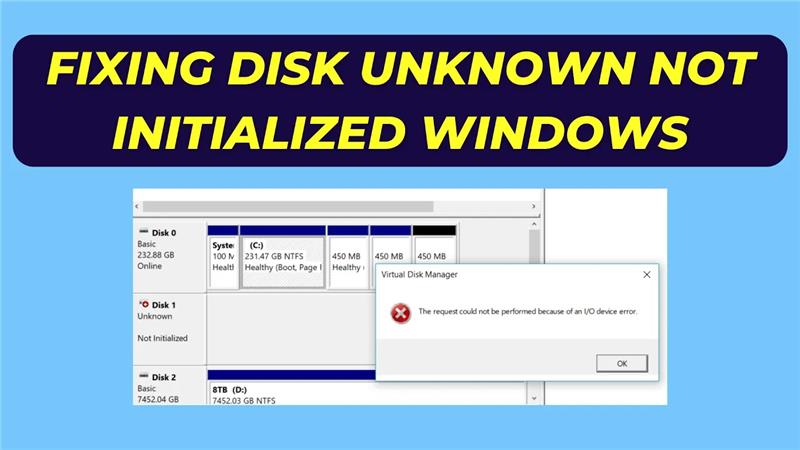
If your drive shows up as “Unknown, Not Initialized” in Disk Management, it means Windows recognizes the hardware but can’t access or communicate with it properly. This often leaves your data inaccessible—even though the drive appears connected.
Why This Happens
Common causes include:
- Corrupted MBR or partition table
- Lost or missing partitions
- Bad sectors or disk corruption
- Outdated or missing drivers
- File system or hardware failure
How to Fix It (Safely)
1. Check in Disk Management
Open Disk Management (Win + R, then type diskmgmt.msc) and locate the disk. If it shows as uninitialized, proceed with caution.
2. Initialize the Disk (Destructive)
If the disk doesn’t contain important data, you can:
- Right-click the disk → select Initialize Disk
- Choose between MBR or GPT
- Click OK
Warning: Initializing will erase all data on the disk.
3. Rebuild MBR with Third-Party Tools
Use tools like MiniTool Partition Wizard or AOMEI Partition Assistant to rebuild the MBR without erasing data:
- Launch the tool and choose your affected disk
- Use the Rebuild MBR feature
- Apply changes and review functionality again
4. Partition Recovery
If partitions are lost but data matters:
- In MiniTool: right-click the drive → Partition Recovery
- Choose scan range (Full Disk, Unallocated Space, etc.)
- Preview found partitions and recover them if possible
5. Drive Detection and Driver Troubleshooting
Some errors are due to driver issues:
- Open Device Manager → locate the drive → right-click → Update Driver, or uninstall and restart for automatic reinstall
- Disable any third-party antivirus temporarily—some tools block disk access
6. Workaround: Take the Disk Offline
To avoid damage if the disk is unstable:
- In Disk Management, right-click the erroneous disk → choose Offline
- Consider data recovery software like Recuva or Stellar Recovery
7. Check Physical Connections or BIOS
For desktops or laptops:
- Turn off PC, disconnect drive, remove CMOS battery for a few seconds, then reconnect and restart
8. Test the Disk on Another Machine
Sometimes hardware compatibility or PC issues cause the error. Testing the drive on a different PC can confirm if the disk itself is faulty.
Final Word
Start with safer, non-destructive steps like rebuilding MBR or updating drivers. Only proceed with initialization or reformatting if you’re sure data is backed up or irrelevant. If the disk remains inaccessible, professional recovery or hardware replacement may be your best bet.






