
If your computer is running slow, experiencing frequent errors, or you simply want to start fresh, formatting your PC and reinstalling Windows 10 can be an effective solution. This process completely removes all files from your system and restores it to factory defaults. However, before you begin, remember that formatting will erase everything on your hard drive—so make sure to back up all important files to an external drive or cloud storage.
Step 1: Open Windows Settings
Click on the Windows Start menu and select the Settings icon.
Step 2: Navigate to Recovery Options
Inside the Settings window, go to Update & Security. From the left-hand menu, click on Recovery.
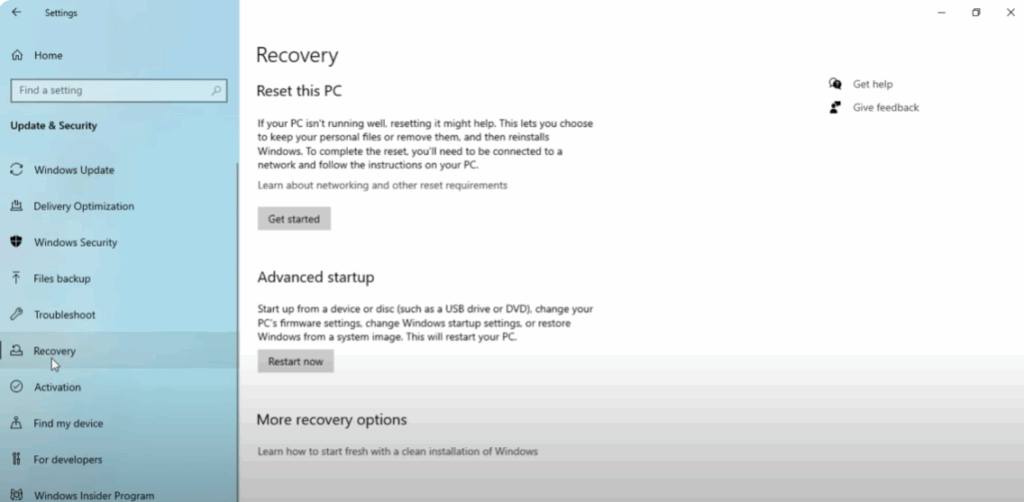
Step 3: Start the Reset Process
Under the Reset this PC section, click Get Started. You’ll be presented with two options:
- Keep my files – Reinstalls Windows but keeps your personal files.
- Remove everything – Formats your hard drive and reinstalls Windows completely.
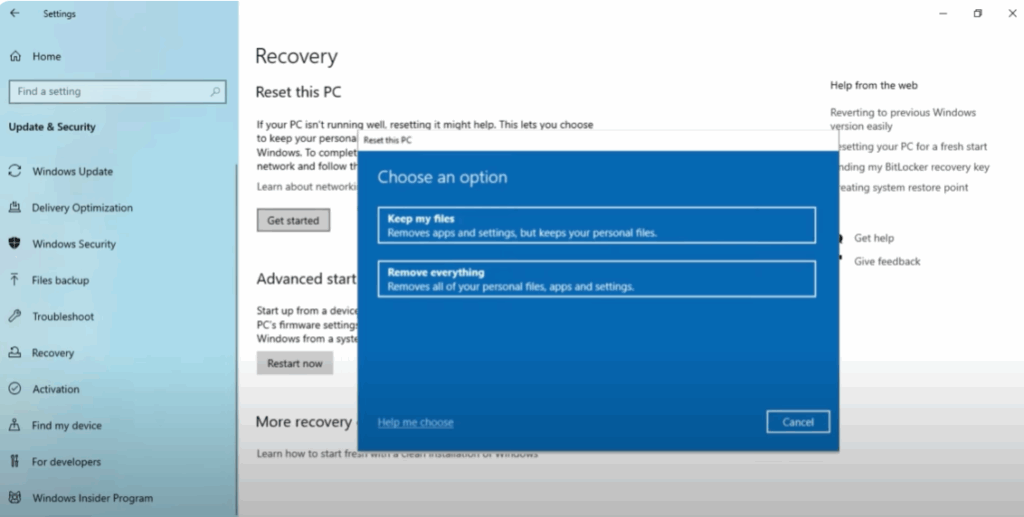
For a full format, choose Remove everything.
Step 4: Choose the Reinstall Method
You’ll now be asked how you want to reinstall Windows:
- Cloud download – Downloads a fresh copy of Windows from Microsoft servers.
- Local reinstall – Uses existing Windows files stored on your PC.
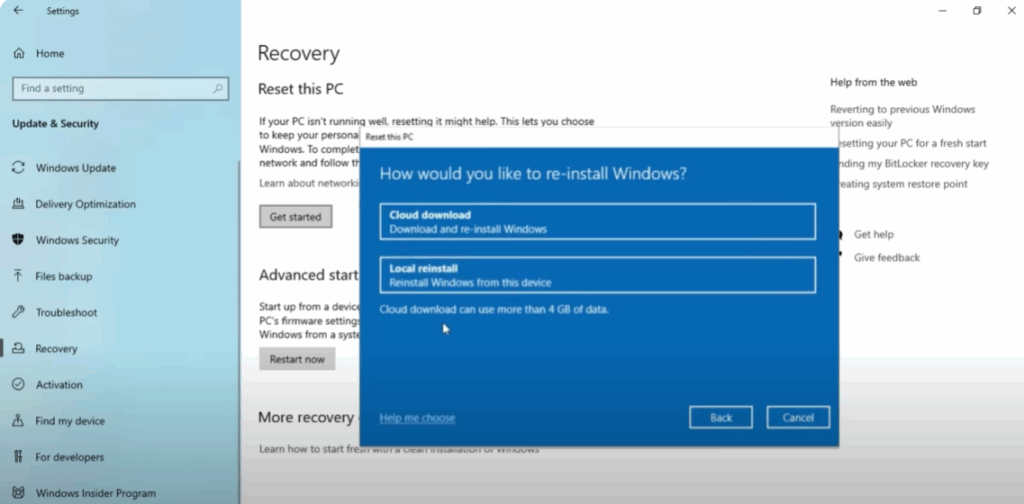
For the best results and faster installation, select Local reinstall.
Step 5: Configure Reset Settings
Review your reset configuration carefully:
- Turn Clean data to On for a secure erase.
- If downloading Windows online, ensure Download Windows is set to On.
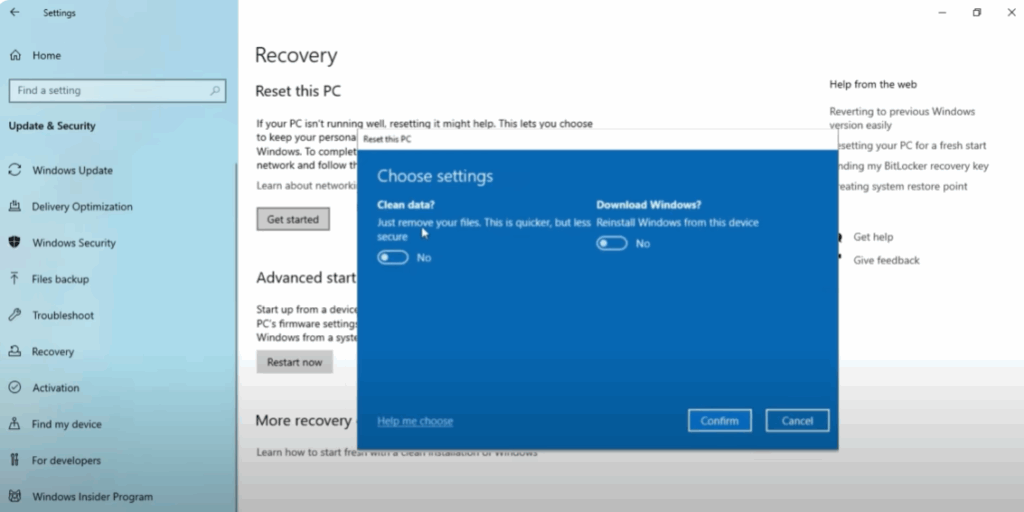
Once confirmed, click Next.
Step 6: Final Confirmation
Windows will now display a summary of your choices. Ensure that you have at least 4 GB of free space available. Click Reset to start the process.
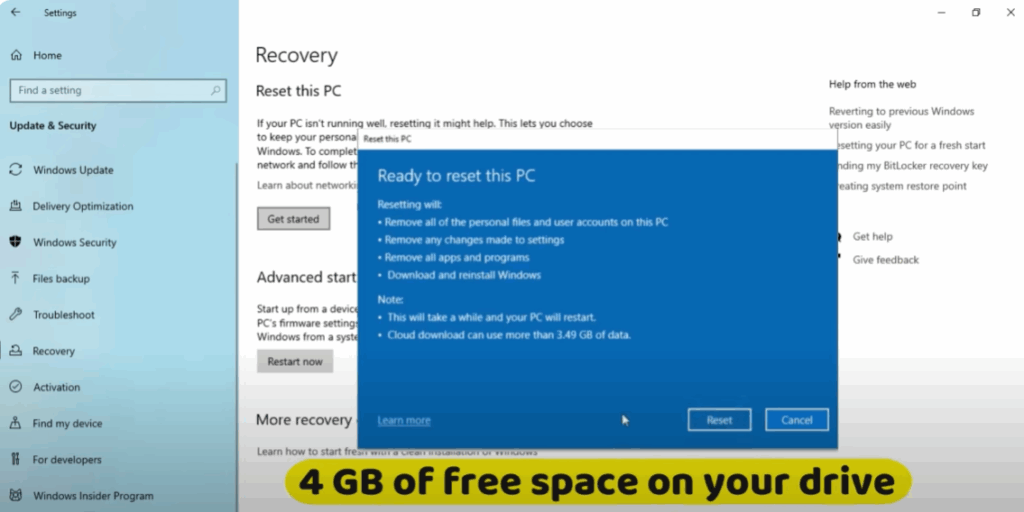
Step 7: Wait for the Installation to Complete
The reset process may take some time, and your computer will restart multiple times. Do not turn off your PC during this stage.
Step 8: Complete Windows Setup
Once the installation is complete, your PC will boot to the Windows setup screen. Follow the on-screen instructions to configure your:
- Region and language
- Wi-Fi connection
- Microsoft account
Your PC is now fully formatted and running a clean installation of Windows 10.
If you found this guide helpful, feel free to share it with others who may need it. For more tech tips, keep following Tech Gitter Official.






