
Hello friends, welcome back to my channel Tech Gitter Official. In today’s video, we’re going to fix a very common issue: Headphones plugged in but not detected on Windows 10.
So without wasting any time, let’s get started.
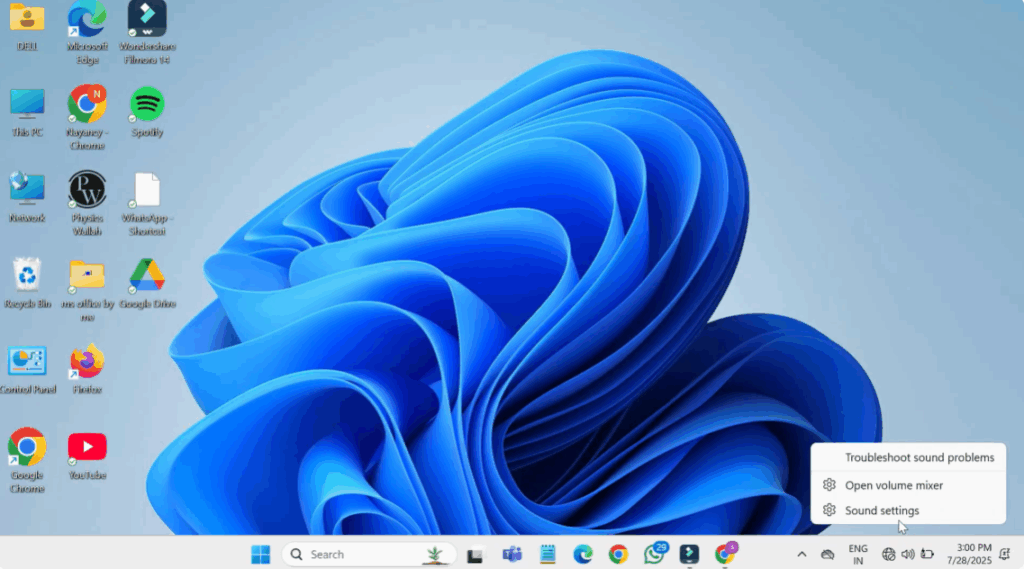
Go to your desktop and right click on the speaker icon in the bottom right corner of the taskbar. From the menu, click on sound settings. When the sound settings window opens, scroll all the way down and click on more sound settings.
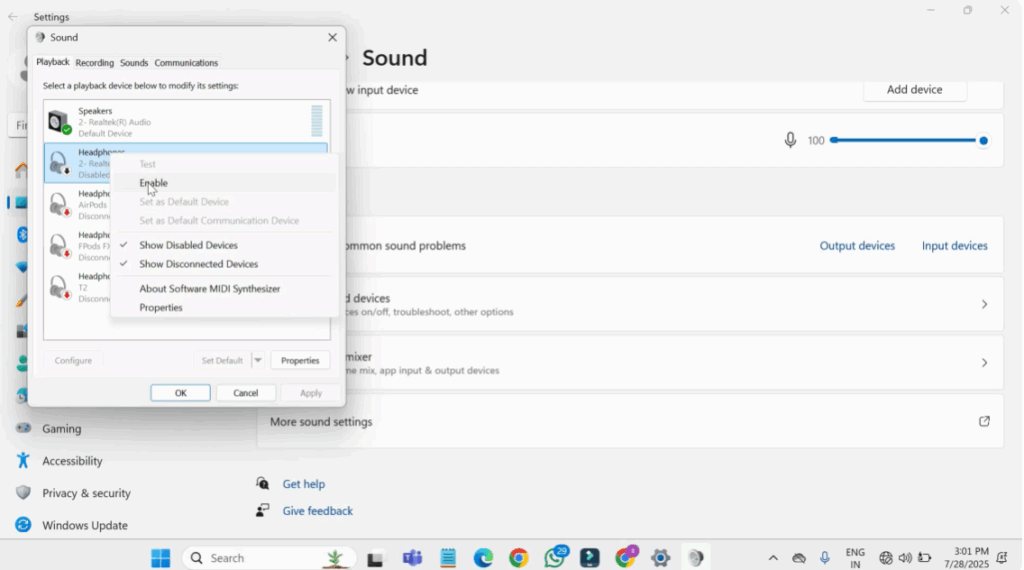
This will open them. Look for your headphones in the list of devices. If you see your headphone listed, right click on it and select enable. After enabling it, right click.
Now, to make sure your headphones are using the correct driver, select your headphones and click on properties in the bottom right corner. In the properties window, go to the driver tab. Click update driver to see if there’s a newer version available. Select search automatically for drivers and let Windows find any updates. Once the update is done, click okay, then close the window.
Next, click on the start button and type device manager in the search bar. Open device manager from the results. Inside device manager, scroll down and expand the section called sound, video, and game controllers. Locate your headphone device in the list. Right click on it and choose update driver. Again, select search automatically for updated driver software. Let the process complete. If it says the best driver is already installed, that’s okay. Once done, close device manager.
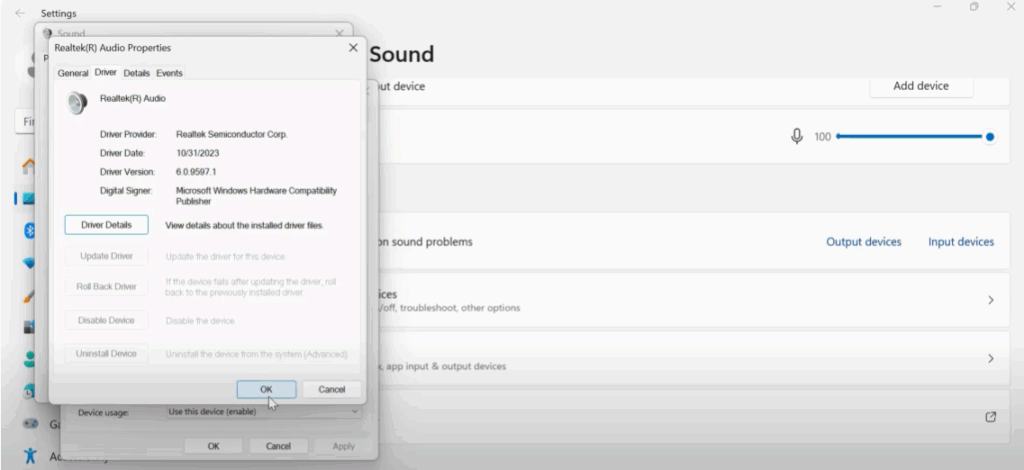
Sometimes the issue is caused by the Windows audio service not running properly. Here’s how to fix that:
Go back to the start menu and type services in the search box. Open the services app. In the list of services, click on any service name. Then press the W key on your keyboard to quickly jump to services starting with the letter W. Look for Windows audio. Right click on it and choose properties.
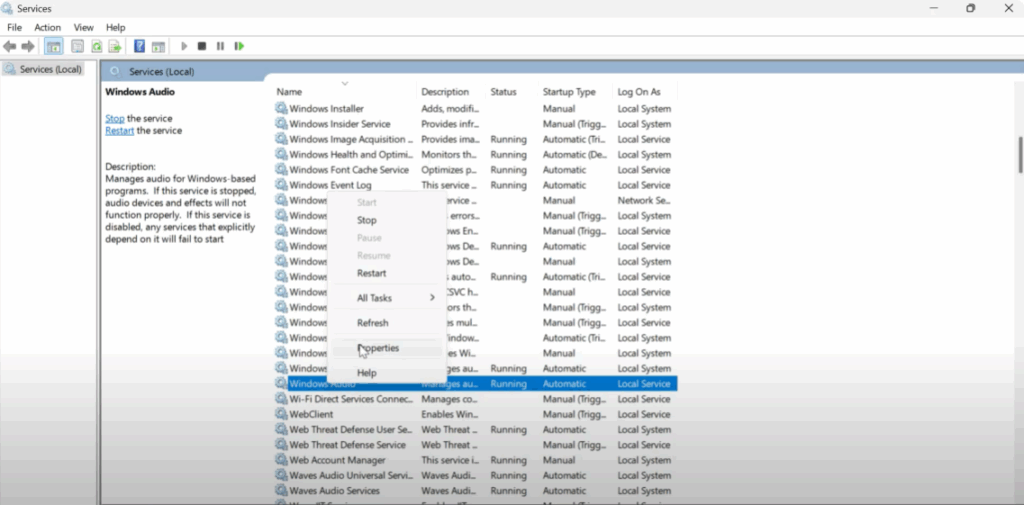
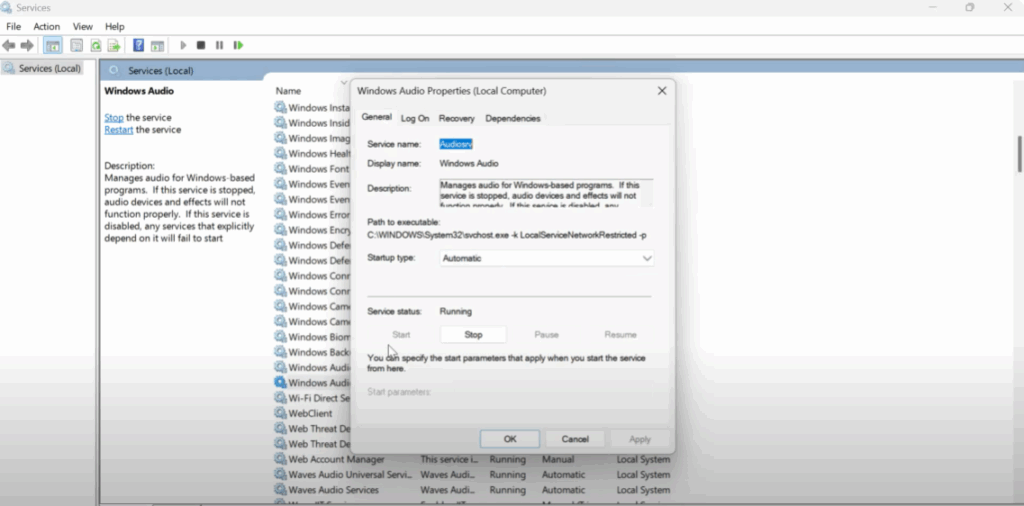
In the properties window, make sure the startup type is set to automatic. If the service is not running, click the start button under service status. Then click apply and okay.
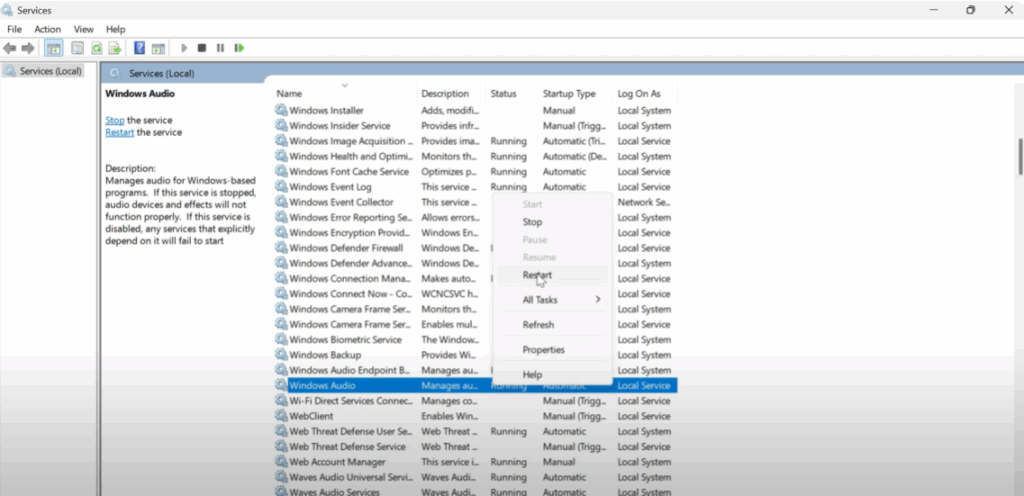
Now to make sure the audio service refreshes, right click on Windows audio again and choose restart. This will restart the audio engine and often resolves detection issues.
After completing all the above steps, close all the windows. Go back to your desktop. Right click and refresh the screen to make sure everything loads properly. Now try plugging in your headphones again.
I hope this video helped you. Thanks for watching.






