

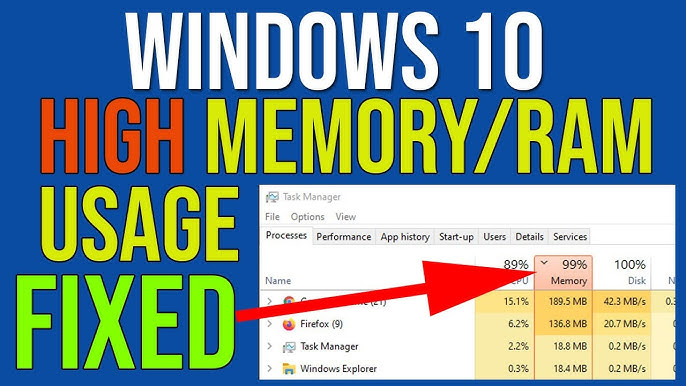
Welcome back to my channel Tech Gitter Official. In today’s guide, we will learn how to fix high memory or RAM usage in Windows 10 using six simple steps.
Step 1: Disable Unnecessary Services
- Press Windows + X, type services.msc, and press OK.
- A list of services will open.
- Find Background Intelligent Transfer Service (BITS) → Double-click it → Set Startup type to Disabled → Click Apply and OK.
- Next, find SysMain → Change the Startup type to Disabled → Click Apply and OK.
- Finally, fix Windows Search → Click Stop to stop it immediately → Set Startup type to Disabled → Click Apply and OK.
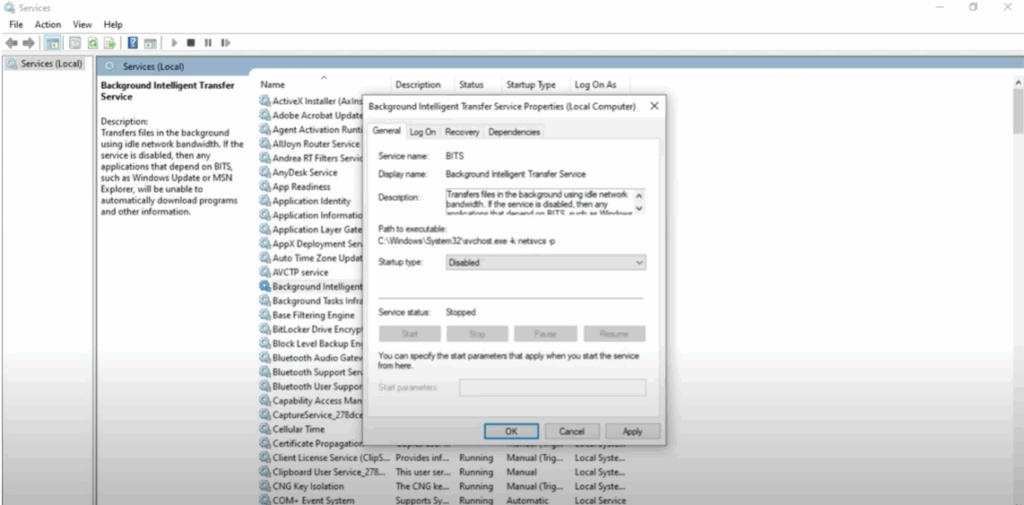
👉 Disabling these services prevents them from running in the background unnecessarily.
Step 2: Change Registry Settings
- Press Windows + X, type regedit, and press OK.
- Navigate through the following path:
HKEY_LOCAL_MACHINE→ System → CurrentControlSet → Control → Session Manager → Memory Management.
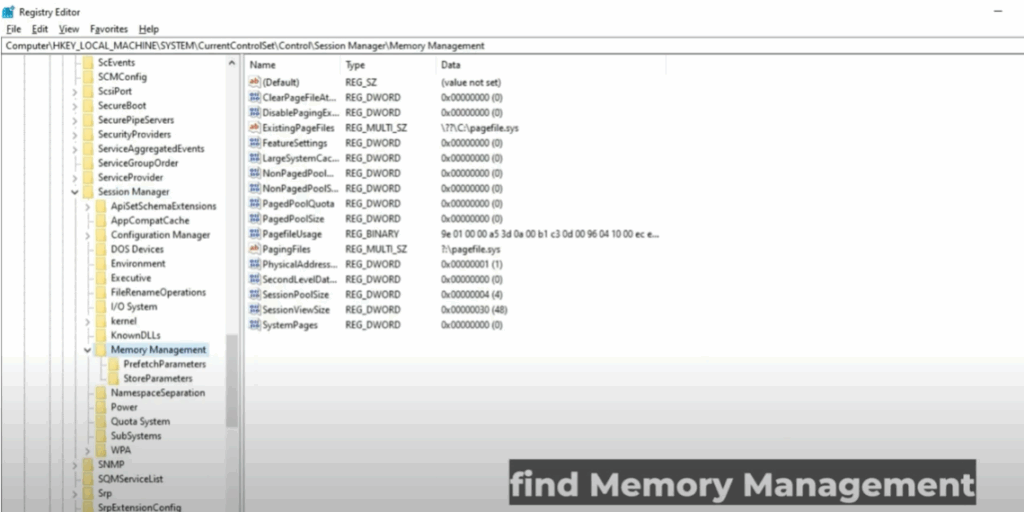
- On the right side, find ClearPageFileAtShutdown.
- Double-click it → Change the value from 0 to 1 → Click OK.
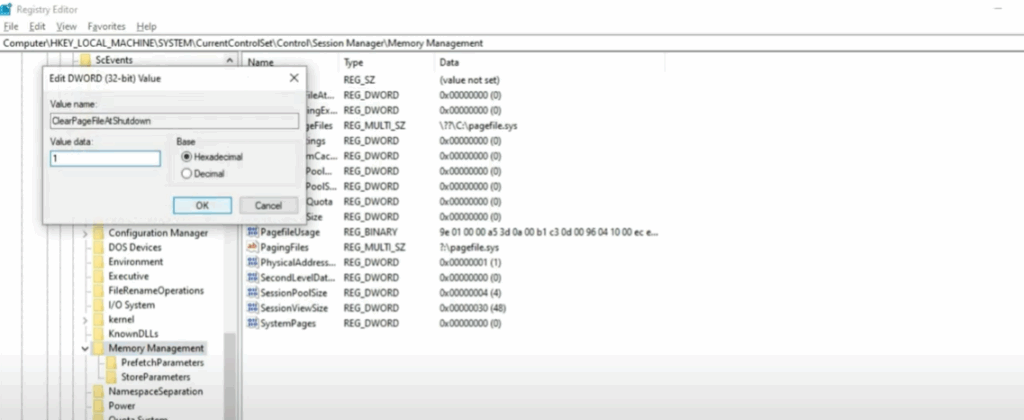
👉 This clears the page file each time you shut down your PC, freeing up extra memory.
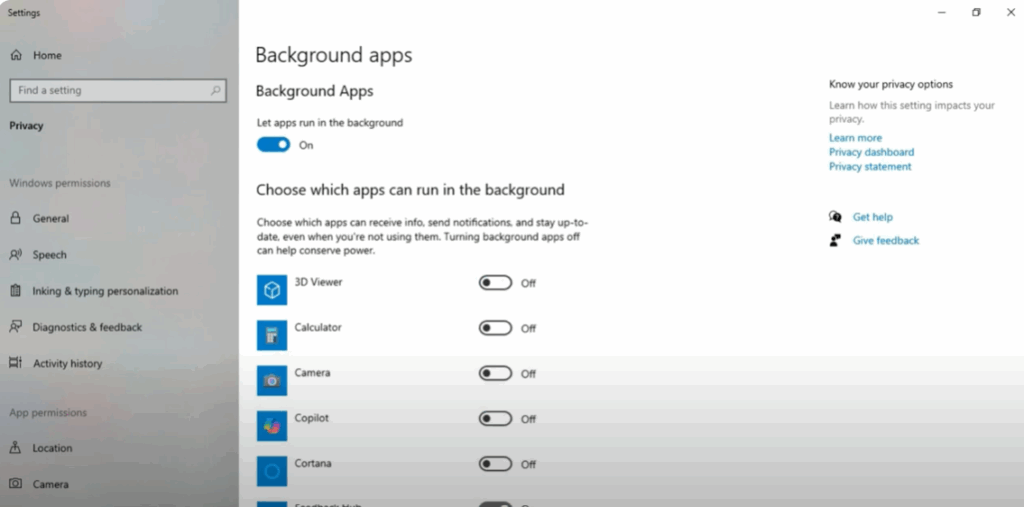
Step 3: Turn Off Background Apps
- Click on the Search bar, type Background Apps, and open it.
- You can either:
- Turn off apps one by one, or
- Simply toggle Let apps run in the background → Off (stops all background apps).
Step 4: Manage Startup Programs
- Press Shift + Escape to open Task Manager.
- Go to the Startup tab.
- Disable unnecessary programs like update tools, chat apps, or anything you don’t need to start automatically.
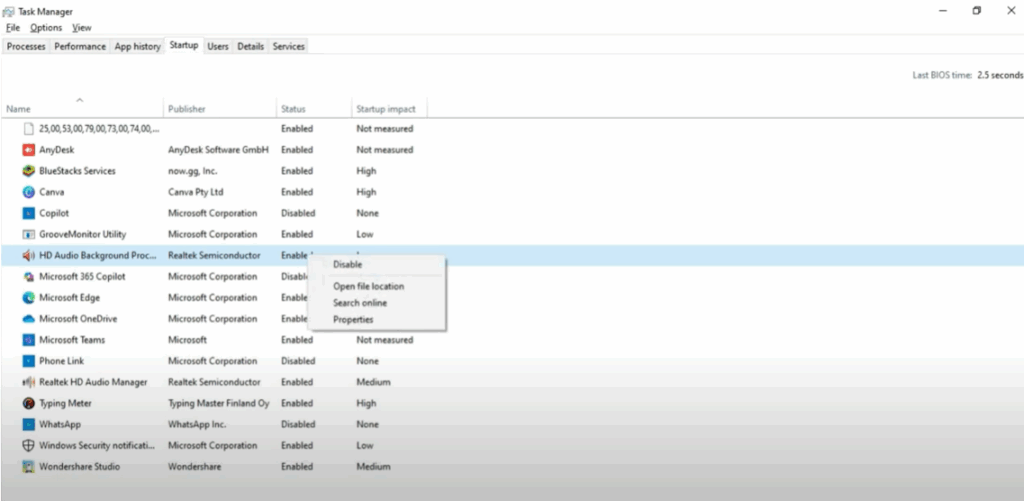
👉 This will make Windows boot faster and use less memory.
Step 5: Adjust for Best Performance
- Open File Explorer → Right-click on This PC → Select Properties.
- Click on Advanced System Settings.
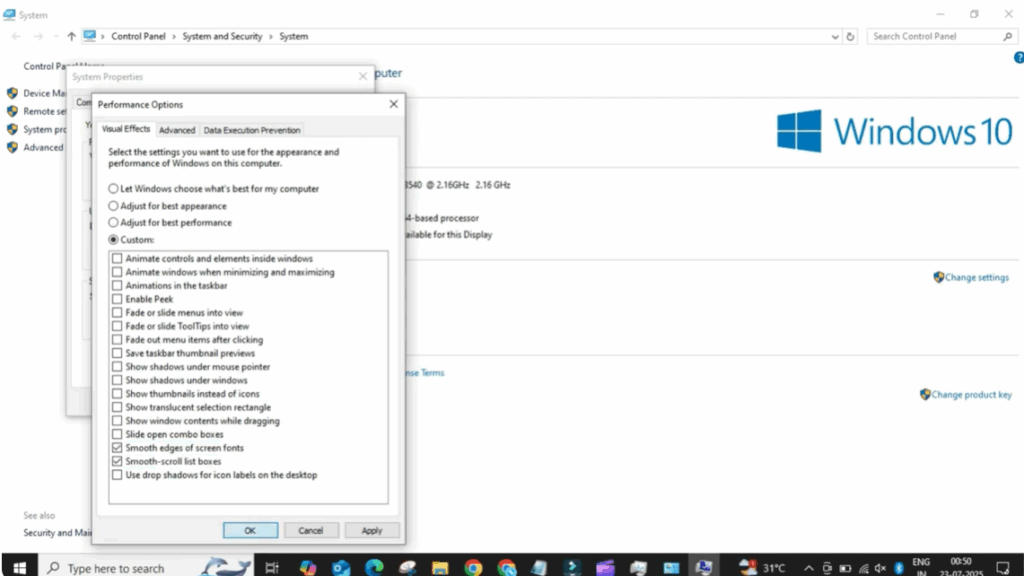
- Under the Performance section, click Settings.
- Select Adjust for best performance to disable extra visual effects.
- (Optional) Keep useful options like Smooth edges of screen fonts for better readability.
- Click Apply and OK to save changes.
Step 6: Update Windows
- Click on the Search bar and type Update Windows.
- Check for updates.
- Install all pending updates.
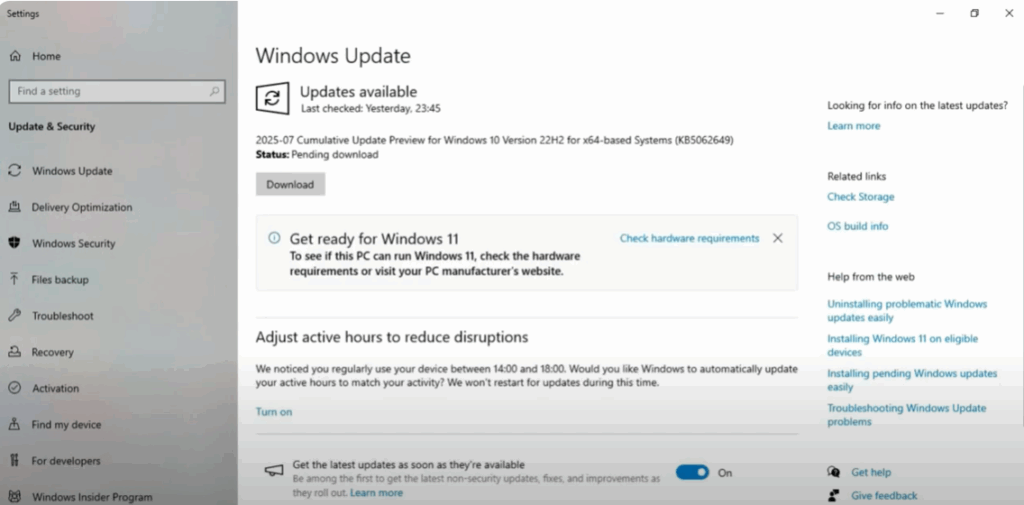
👉 Sometimes outdated system files cause memory leaks, and updates usually fix them.
Final Words
And that’s it! After following these six steps, your high memory or RAM usage issue in Windows 10 should be fixed, and your PC will run faster and smoother.
If you found this guide helpful, don’t forget to like, share, and subscribe to Tech Gitter Official.
Thanks for reading!






