
Hello friends, and welcome back to Tech Gitter!
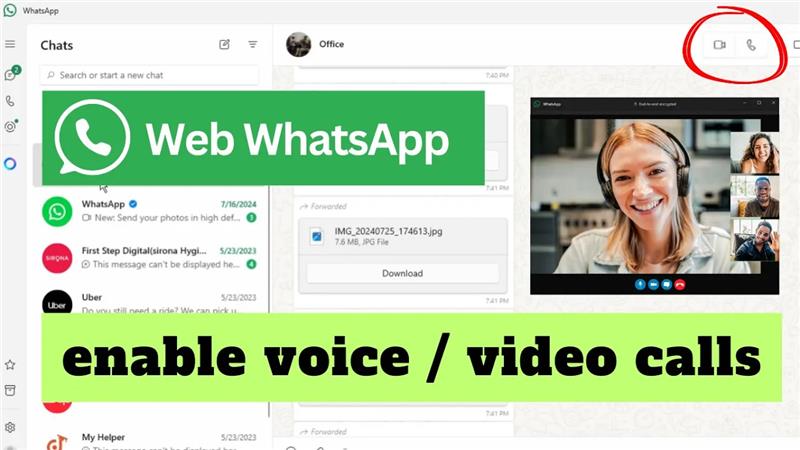
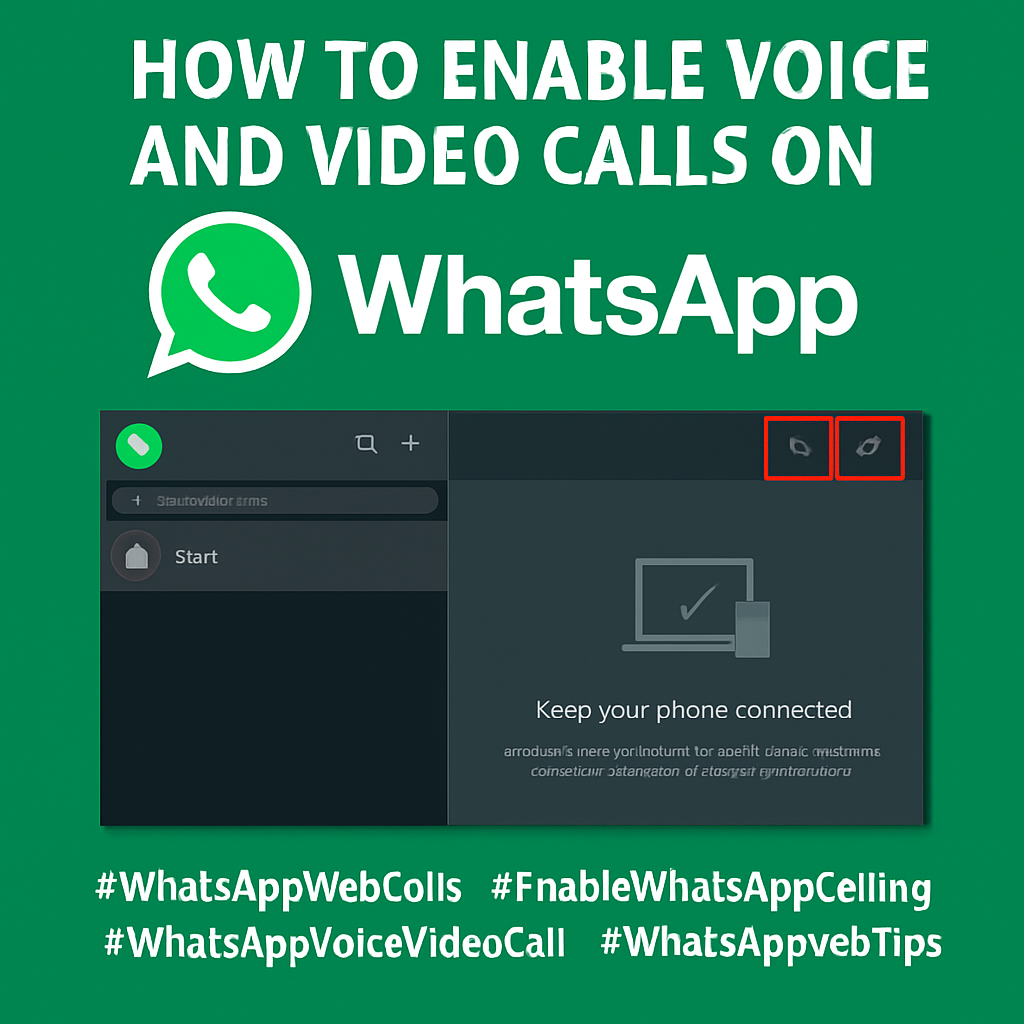
In today’s tutorial, we’re going to show you how to make video or audio calls on WhatsApp using your desktop or laptop. If you’re trying to use WhatsApp Web and don’t see the option for calls, don’t worry—we’ve got you covered with step-by-step instructions.
🔹 Step 1: Access WhatsApp Web on Your Browser
- Open Google Chrome or any browser of your choice.
- Go to web.whatsapp.com.
- You’ll see a QR code displayed on your screen.
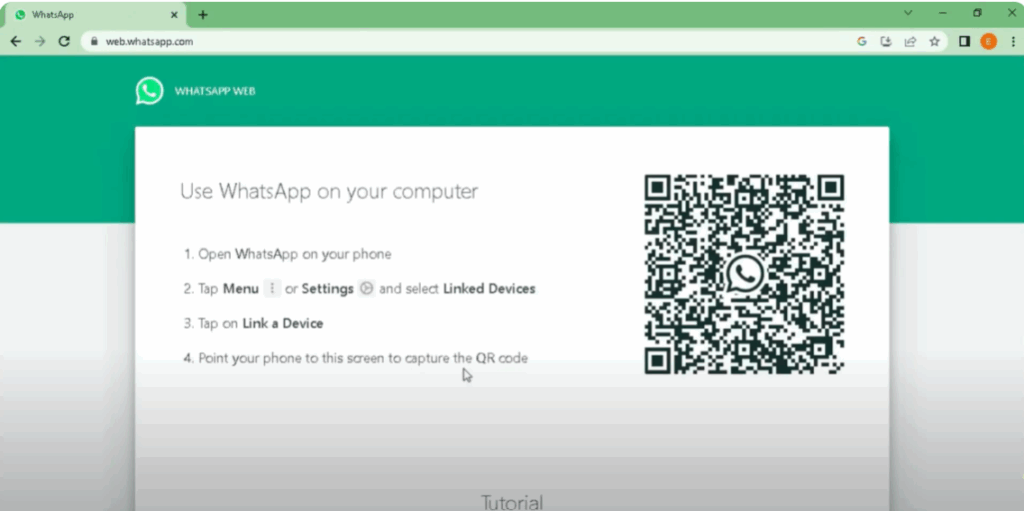
Now, take your smartphone:
- Open WhatsApp on your phone.
- Navigate to Settings > Linked Devices.
- Tap “Link a Device”, and scan the QR code shown on your PC screen.
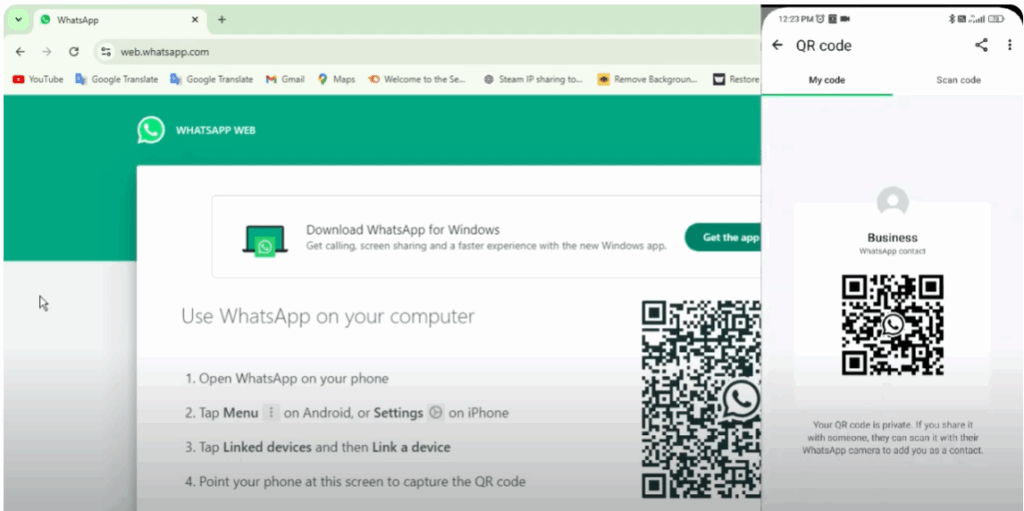
Once scanned, your WhatsApp will open on your desktop browser.
🔹 Step 2: Why You Can’t See Call Options on WhatsApp Web
After logging in, if you go to any contact and click the three-dot menu, you might notice that there is no option for audio or video calling.
Don’t worry—this is because browser-based WhatsApp Web does not support calling. To access voice and video call features, you’ll need to install the WhatsApp desktop app.
🔹 Step 3: Download and Install WhatsApp Desktop App
- Open a new tab and go to whatsapp.com.
- Click on the “Download” button for Windows or Mac.
- Download and install the WhatsApp desktop application.
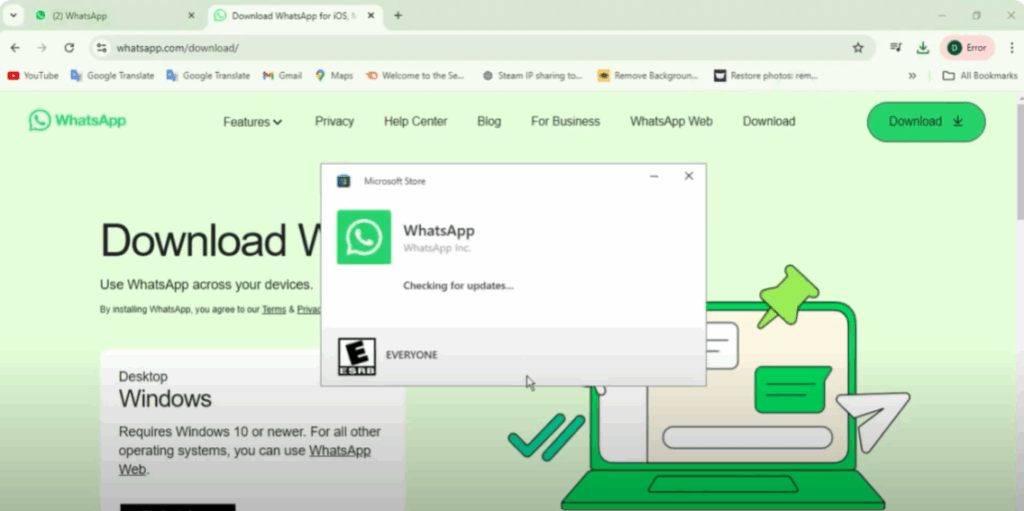
Once installed:
- Open the app and click “Get Started.”
- Open WhatsApp on your phone again and scan the new QR code displayed on the desktop app.
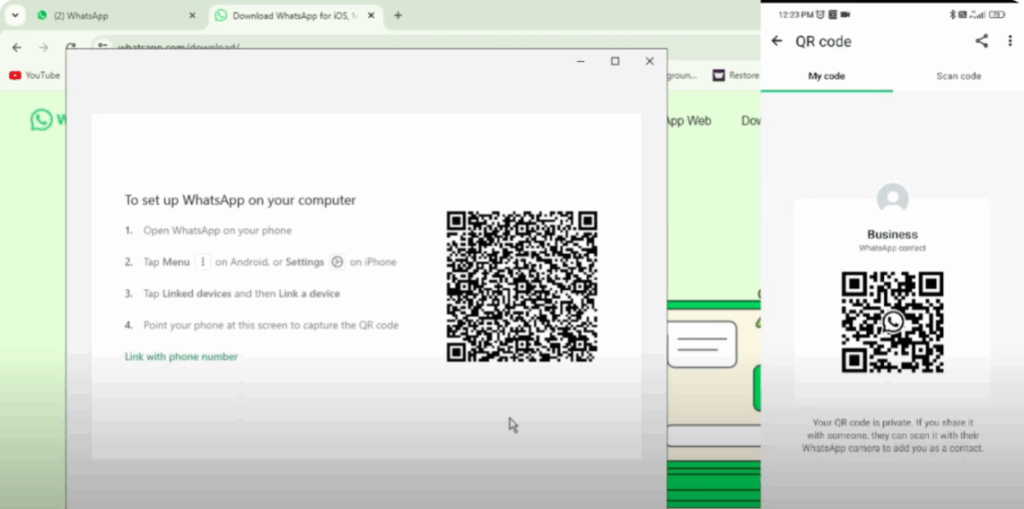
Your WhatsApp account will now be linked to the desktop application.
🔹 Step 4: Make Voice and Video Calls from PC
Now that you’re using the WhatsApp desktop app:
- Open any contact.
- You’ll see the audio and video call icons at the top right corner.
- Click on the video call icon to start a video call—your camera will activate.
- Use the on-screen buttons to mute/unmute your mic or turn your camera on/off.
- You can also click on the phone icon to make an audio-only call.
✅ Conclusion
By following these steps, you can easily enable and use voice and video calling features on WhatsApp via your desktop or laptop. The browser version doesn’t support calls, but the desktop app works perfectly.
If this tutorial helped you:
- ✅ Like the video
- 🔁 Share it with your friends
- 🔔 Don’t forget to subscribe to the TechTer channel for more helpful tech tutorials.
Thanks for reading, and have a great day!






