
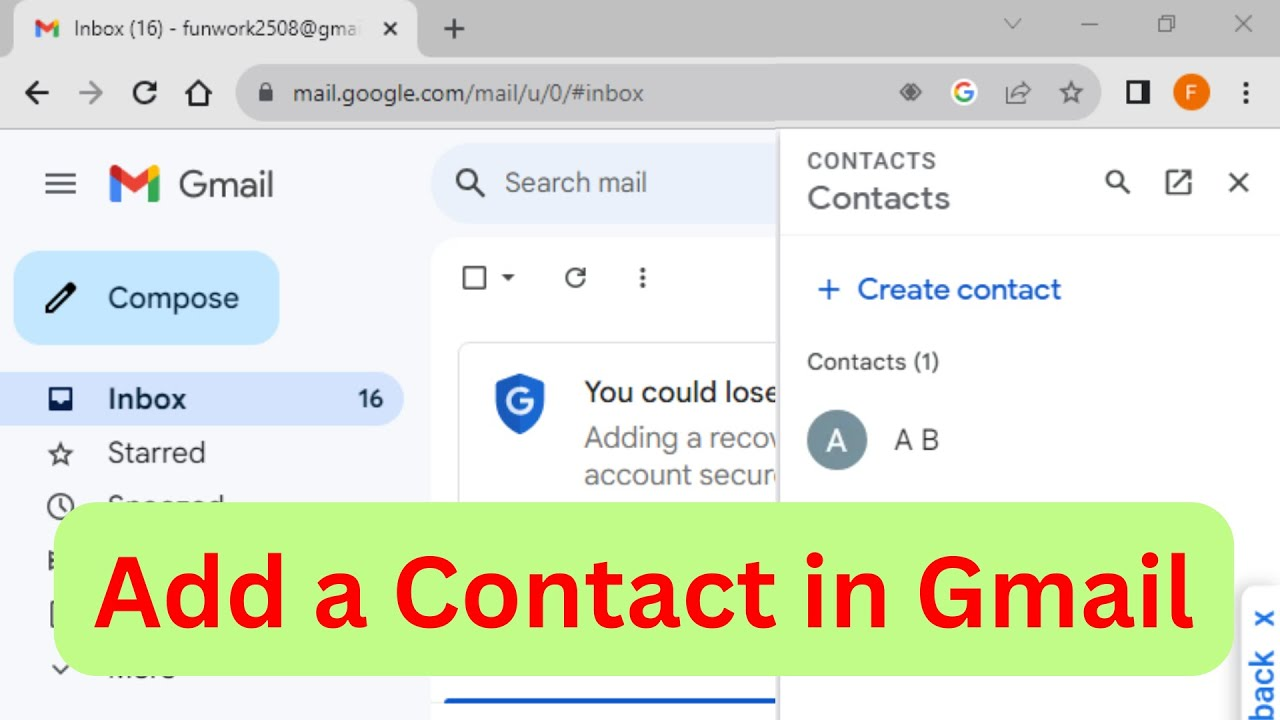
Adding a contact list in Gmail makes it super easy to send emails to a group of people without typing each address one by one. Whether you’re a student sharing notes with classmates, a professional sending updates to your team, or just organizing family contacts, Gmail lets you create and manage contact lists quickly. The good news is, setting up a list doesn’t require any technical skills—it’s simple and saves a lot of time. In this beginner-friendly blog, we’ll explain step by step how to add a contact list in Gmail, in easy language so anyone can follow along.
How to Add Contacts to Gmail — Step by Step
1. Open Google Contacts
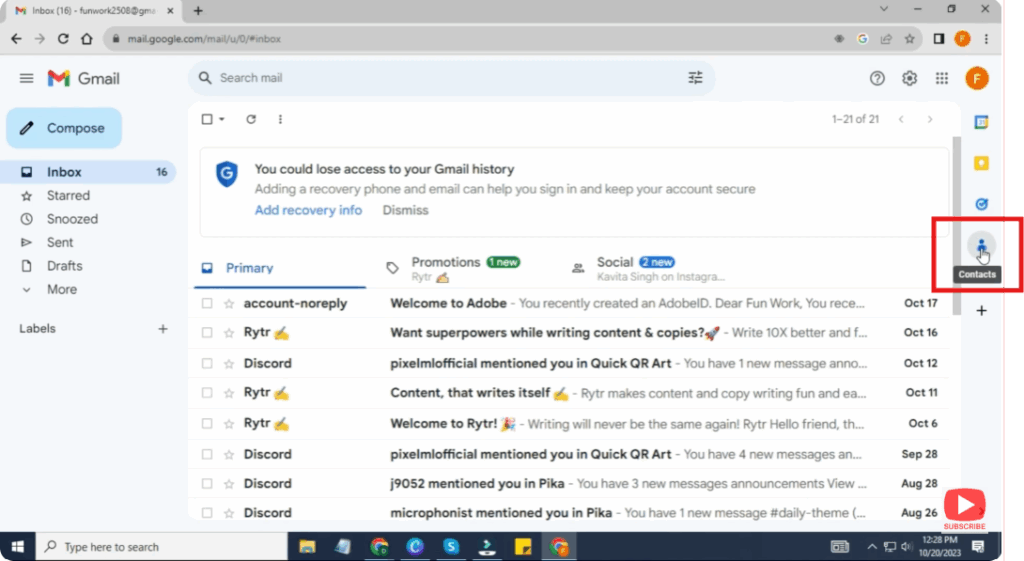
- Go to your Gmail account.
- Click the Google Apps grid (the nine-dot icon) in the top right → click Contacts.
- This will open the Google Contacts page, where you can manage all your contacts.
2. Add a Single Contact
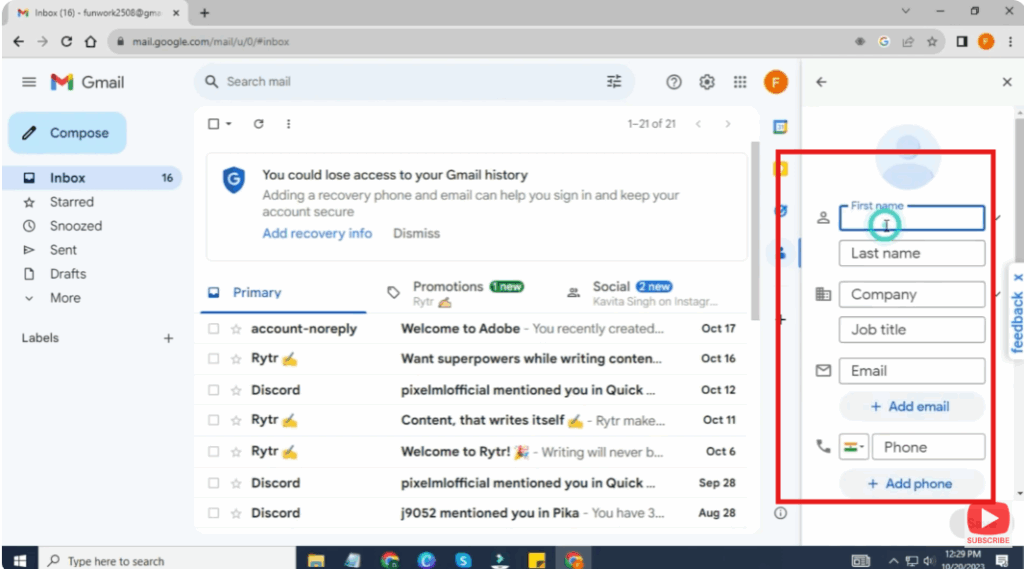
- In Google Contacts, click the “Create contact” button.
- You’ll get two options:
- Create a contact: for one person
- Create multiple contacts: to quickly add several at once
- Fill in the details: name, email address, phone number, etc.
- Click Save when done.
Conclusion
Adding a contact list in Gmail via Google Contacts is a powerful way to manage your contacts — whether you’re adding individuals or importing many at once. With labels, import functionality, and easy editing, you can keep your Gmail contacts organized and accessible.






