
The taskbar in Windows is like a quick-access shelf for your favorite programs. By adding icons to it, you can open apps faster without searching through menus. And if your taskbar feels cluttered, you can easily remove the ones you don’t use. Whether you’re on Windows 10 or 11, customizing the taskbar is simple and makes your computer more organized. In this blog, we’ll show you easy steps to add and remove program icons from the taskbar, so you can keep it neat and useful.
🛠 How to Pin (Add) an App Icon to the Taskbar
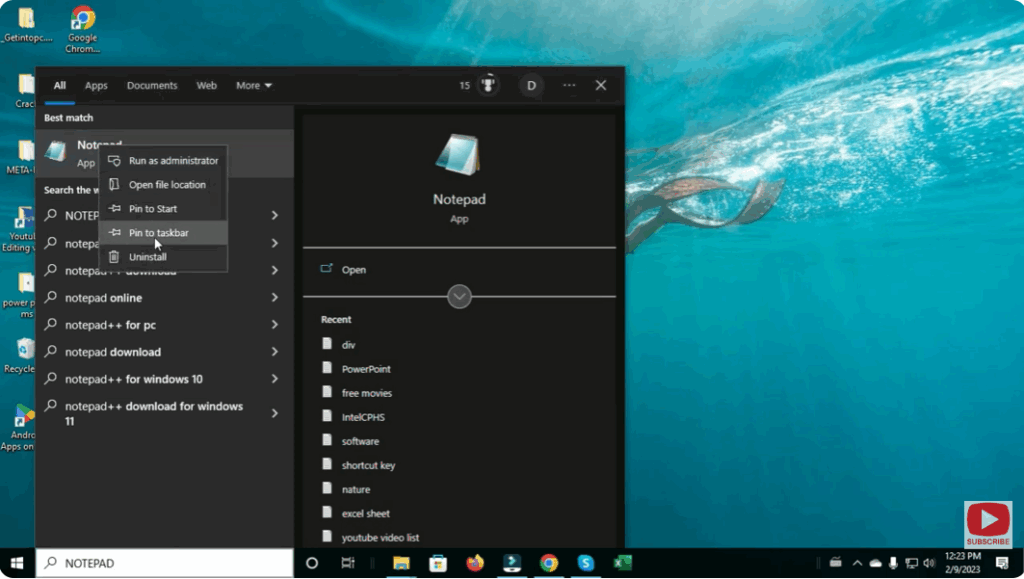
- Open the Start menu and locate the app you want to pin.
- Right-click the app icon (in Start or All Apps list).
- From the context menu, choose “Pin to taskbar”.
- The app’s icon will now appear on your taskbar.
- You can drag the icon along the taskbar to reorder it to your preferred position.
Alternatively, if the app is already open:
- Right-click its icon in the taskbar and select “Pin to taskbar” from the menu that appears.
🗑 How to Unpin (Remove) an App Icon from the Taskbar
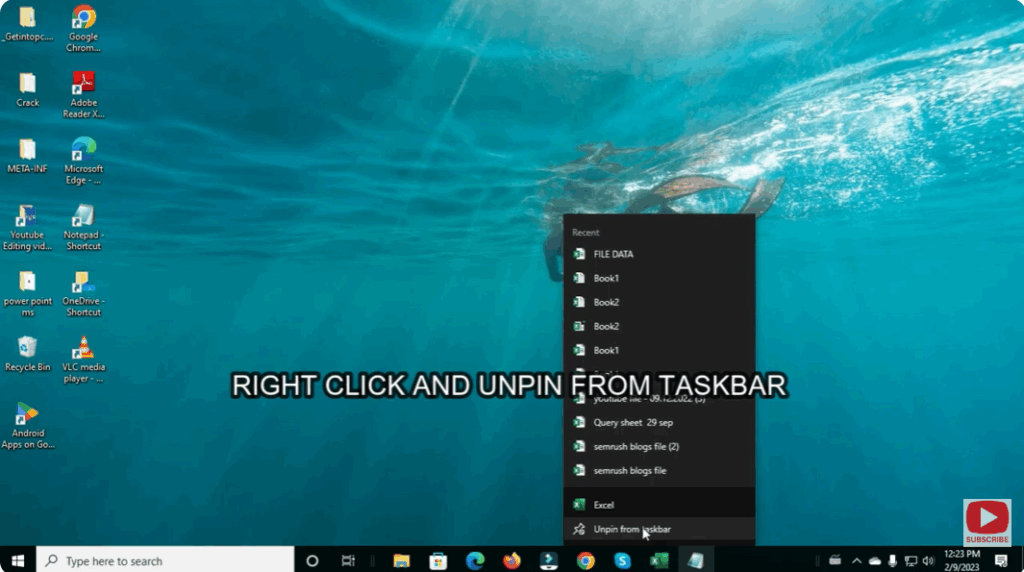
- Locate the app icon on the taskbar.
- Right-click it.
- Select “Unpin from taskbar” from the menu.
- The icon will immediately disappear from the taskbar.
📝 Summary
Pinning and un-pinning program icons to the Windows taskbar is a quick and effective way to make your workspace more efficient:
- Use Pin to taskbar for apps you use often.
- Use Unpin from taskbar to remove apps you don’t need there.
- Rearranging icons and managing system icons is easy too.






