
Adding, editing, or deleting payment information in Google Chrome is easy and keeps your online shopping smooth and secure. Chrome lets you save cards and payment methods for fast checkout, and you can update or remove them anytime in your browser settings. In this blog, you’ll learn simple steps to add a new card, edit details, or delete old payment information in Google Chrome on your computer, making payments easier to manage.
🛠 How to Add a New Payment Method
- Open Google Chrome on your computer.
- Click the three dots (⋮) in the top-right corner → Settings.
- On the left sidebar, click Autofill and passwords → then select Payment methods.
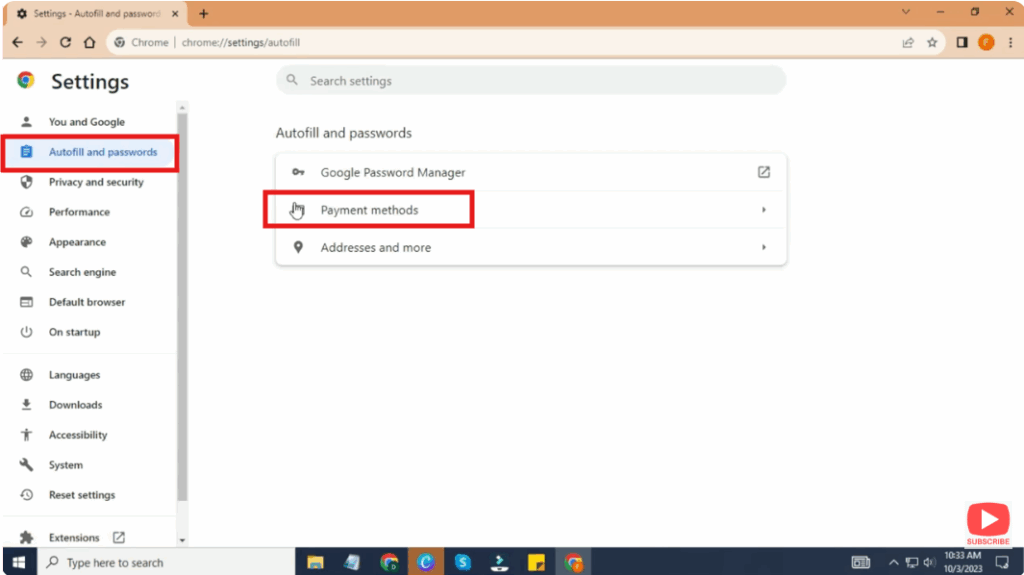
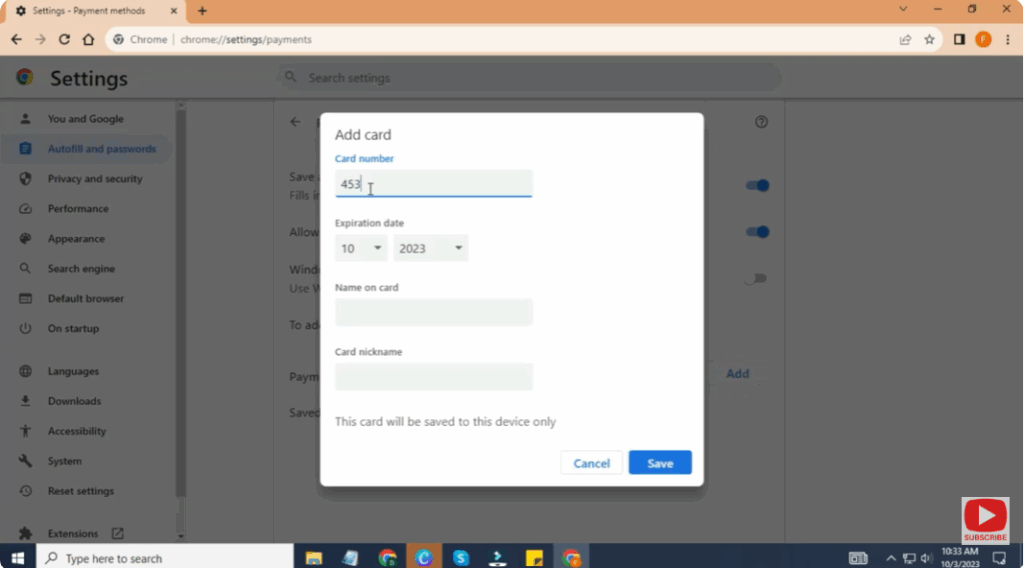
- Click Add next to “Payment methods.”
- Enter your credit or debit card details (number, expiry, name, etc.) and save.
✏️ How to Edit an Existing Payment Method
- In the same Payment methods section (Chrome Settings → Autofill → Payment methods), find the card you want to edit.
- Click the three dots next to that payment method → then Edit.
- Change details like card nickname, expiration date, or billing address. You can also give your card a Nickname to easily identify it later.
- Save your changes.
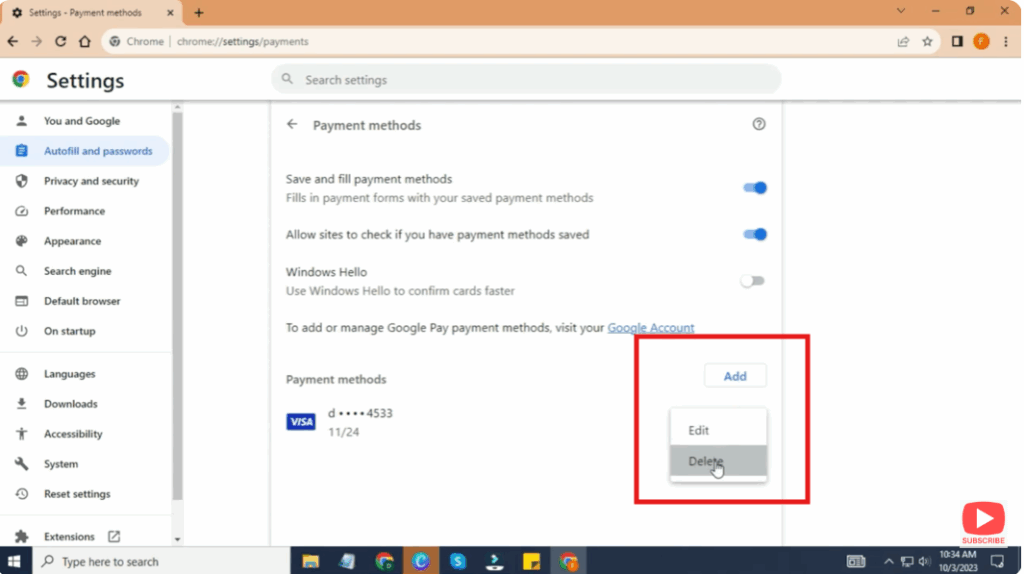
🗑 How to Delete a Saved Payment Method
- In Chrome Settings → Autofill → Payment Methods, locate the card you wish to remove.
- Click the three dots next to the payment method → Delete.
- Confirm the deletion.
- Optional: If you want to completely stop Chrome from asking to save card info in future, you can turn off Save and fill payment methods from the same screen.
✅ Final Thoughts
Managing your payment methods in Chrome gives you both convenience and control. You can add new cards for fast checkout, update existing ones, or remove old ones as needed. Plus, you can choose whether Chrome should even prompt to save new payment info.






