
Adding a GIF to PowerPoint is a fun way to make your presentation more lively and engaging. Instead of just using plain images or text, a moving picture can grab attention and explain ideas more clearly. The best part is, inserting a GIF in PowerPoint is very simple and doesn’t require any special skills. In this blog, we’ll show you step by step how to add a GIF to your PowerPoint slides, so your presentations look more creative and interesting.
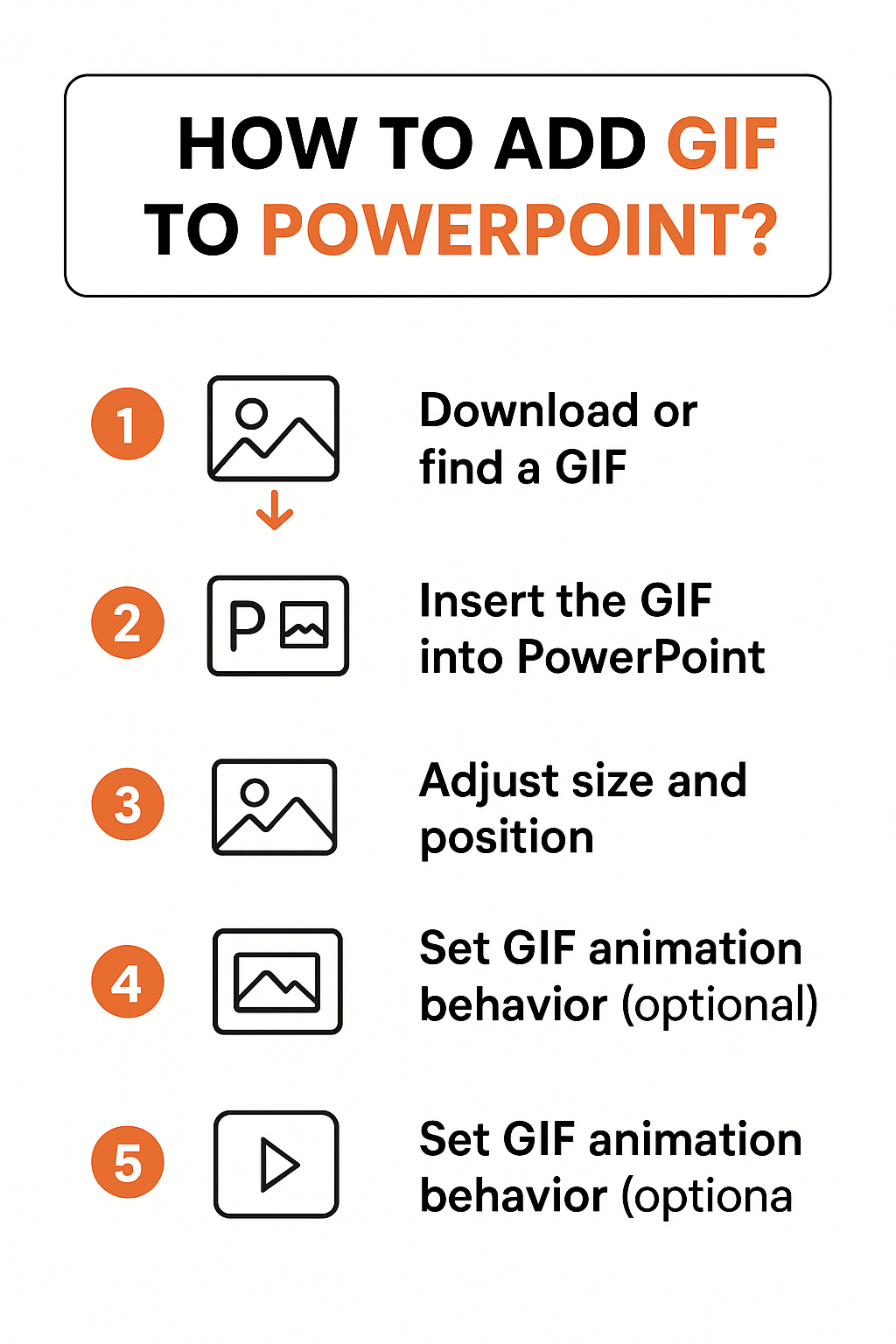
🛠 Step 1: Download or Find a GIF
- Visit a site like GIPHY or Tenor and search for a GIF matching your topic.
- Download the GIF file to your computer. Note where you save it.
- Alternatively, you may already have an animated GIF file ready in your images folder.
🖼 Step 2: Insert the GIF into PowerPoint
- Open your PowerPoint presentation or start a new one.
- Navigate to the slide where you want to add the GIF.
- Click on the Insert tab in the Ribbon.
- Click Pictures → This Device… (or “From File”) and browse to the downloaded GIF.
- Select the GIF and click Insert.
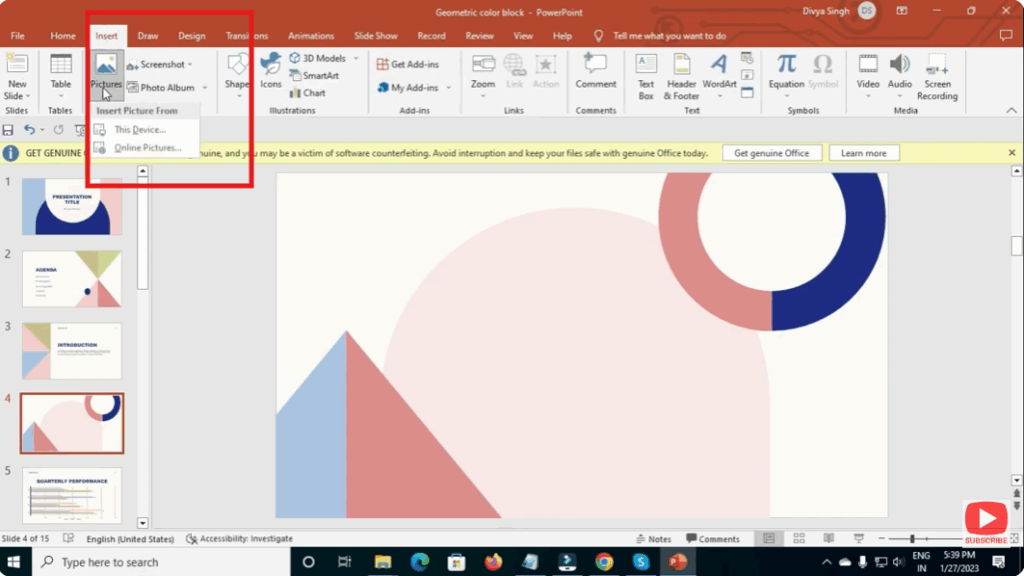
The animated GIF will appear on the slide. You’ll see the static first frame initially; when you go into Slide Show mode, the animation will play.
🎞 Step 3: Adjust Size and Position
- Click and drag the GIF to move it to your preferred location on the slide.
- Resize it by dragging a corner handle (preserves aspect ratio).
- Use the Format → Picture Tools tab to apply borders, shadows or other effects if needed.
🔁 Step 4: Set GIF Animation Behaviour (Optional)
PowerPoint handles GIF playback automatically during Slide Show mode, but you can refine its behaviour:
- While still in Normal view, click on the GIF, then go to Animations tab.
- If you want the GIF to start when the slide opens or on click, you can select Start With Previous or Start On Click.
- You can also set it to Loop until Stopped by going to Playback tab → Loop until Stopped (depending on PowerPoint version).
- Preview by clicking Slide Show to verify the animation works as you intended.
✅ Step 5: Test the Slide Show
- Press F5 (or Slide Show→From Current Slide) to start the presentation from the slide with the GIF.
- Observe that the GIF animates correctly, loops if set, and is timed right.
- If it looks off (jerky, delayed), consider reducing GIF file size (large file sizes may slow playback).
🏁 Final Thoughts
Inserting a GIF into PowerPoint is quick and simple—but when done right, it adds visual interest and engages your audience. Whether you’re creating a school project, a business deck, or a fun presentation, follow these steps: Download the GIF → Insert it → Adjust size/position → Set playback behaviour → Test.






