
Adding a signature in Gmail is a simple way to make your emails look more professional and personal. A signature is the text that automatically appears at the bottom of your emails, and it can include your name, job title, phone number, or even a favorite quote. Instead of typing this information every time, Gmail lets you set it up once so it shows up in all your messages. In this beginner-friendly blog, we’ll explain in easy language how to add a signature in Gmail step by step, so your emails always leave a polished impression.
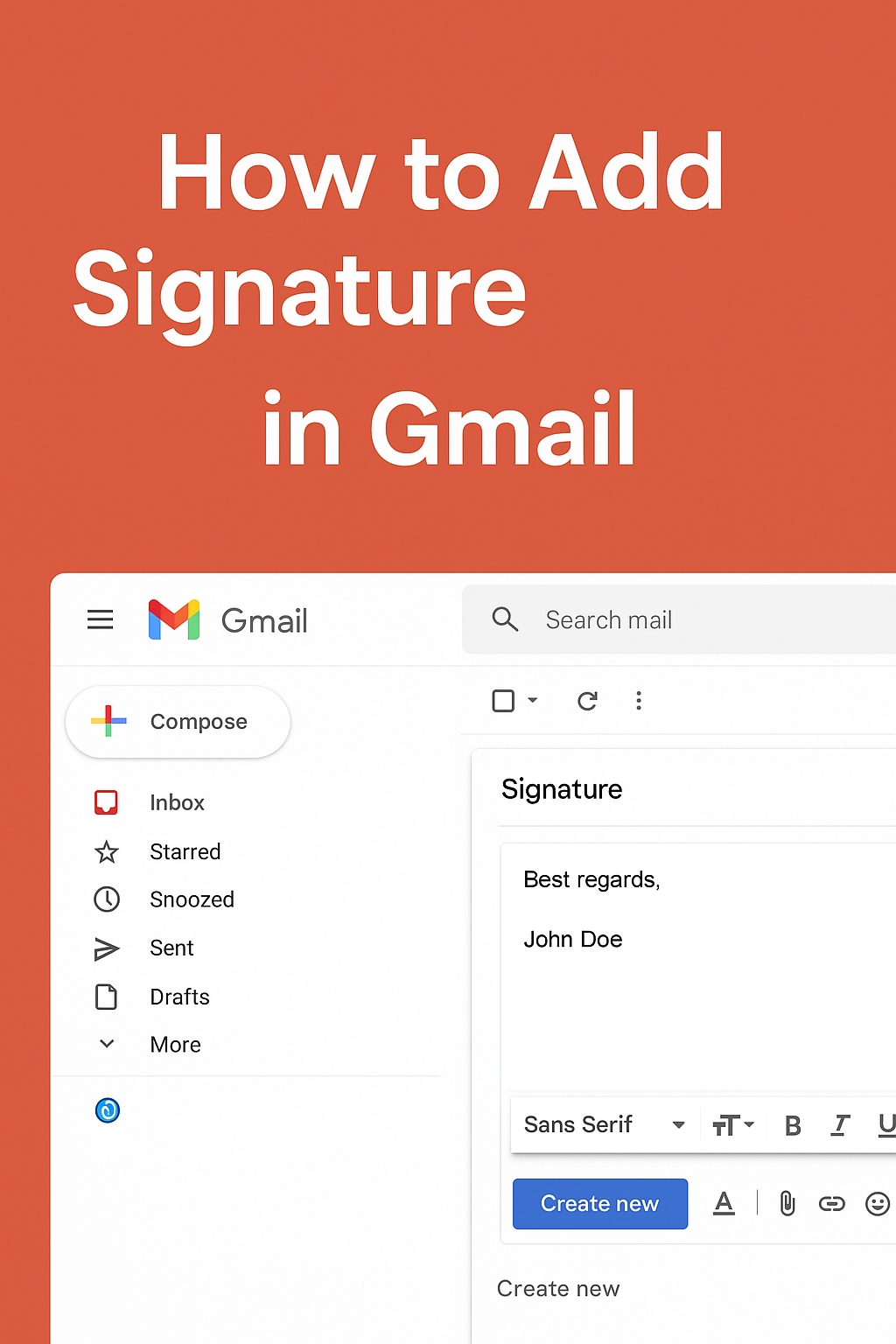
🛠️ How to Add / Edit Your Gmail Signature — Step by Step
- Open Gmail in your browser and log in.
- Click the gear icon ⚙️ (Settings) at the top-right → then click See all settings.
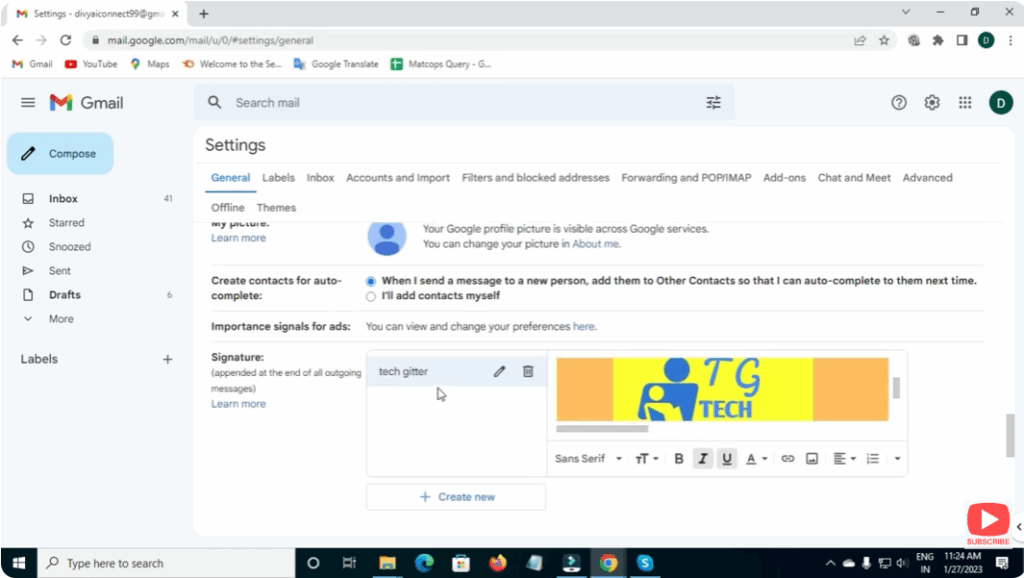
- In the General tab, scroll down to the Signature section.
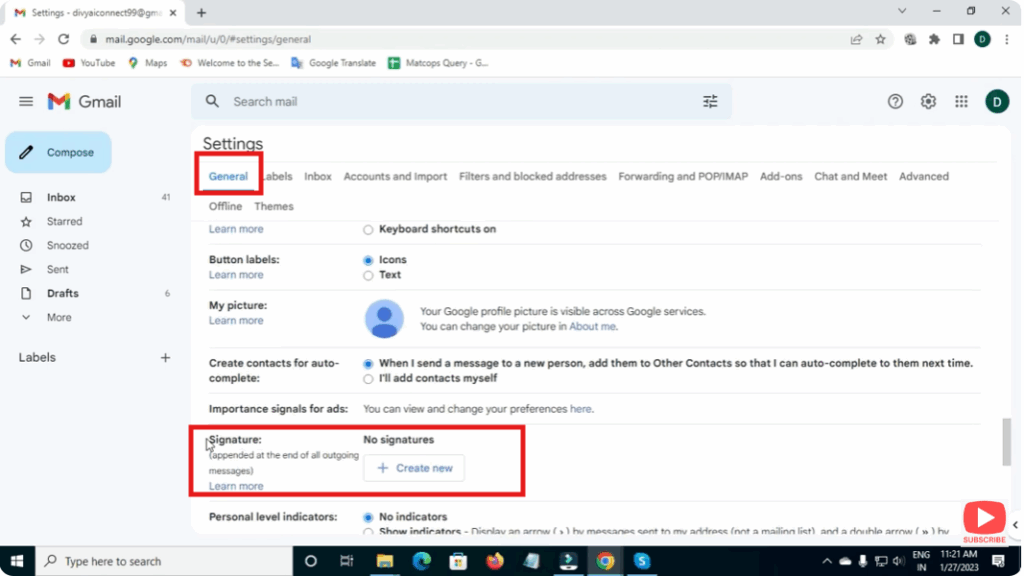
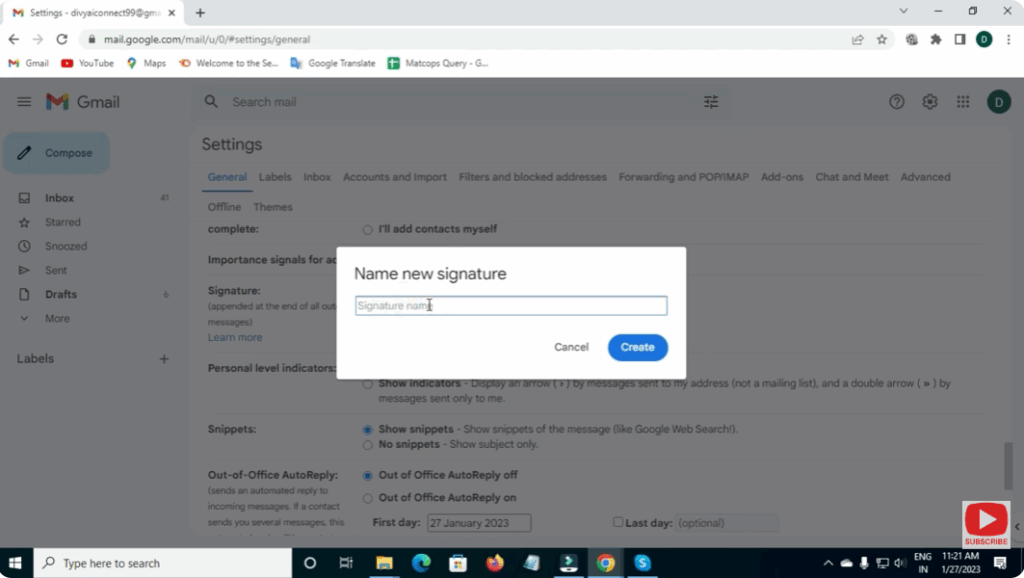
- Click Create new to make a new signature.
- Give your signature a name (useful if you plan to have multiple signatures, e.g. “Work”, “Personal”).
- In the text area that appears, type your desired signature. You can format text (bold, italic, font size), insert links, images, or even logos.
- Below, choose when to use the signature:
- For new emails
- For replies/forwards
(You can have the same or different signatures for each.)
- After finishing, scroll to the bottom and click Save Changes.
Now every new email (or reply/forward) you send from Gmail will automatically include your signature.






