
Changing the font size in Google Chrome is a quick way to make web pages easier to read. Whether the text looks too small or too large, adjusting the font size can improve your browsing experience and reduce eye strain. Chrome gives you simple options to increase or decrease text size, so you can customize it to your comfort. The good news is, it only takes a few clicks to set it up. In this beginner-friendly blog, we’ll explain how to change the font size in Google Chrome step by step, so you can enjoy smoother reading online.
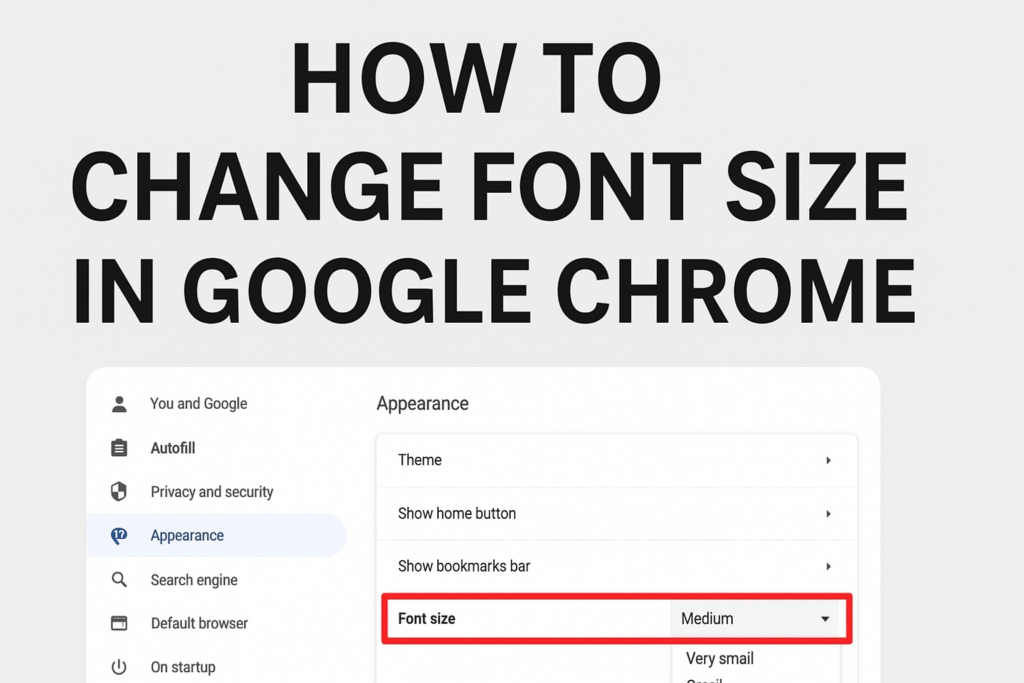
Steps to Change Font Size in Google Chrome
Follow these steps to quickly modify the font size:
Step 1: Open Google Chrome
Start by launching the Chrome browser on your Windows or Mac computer.
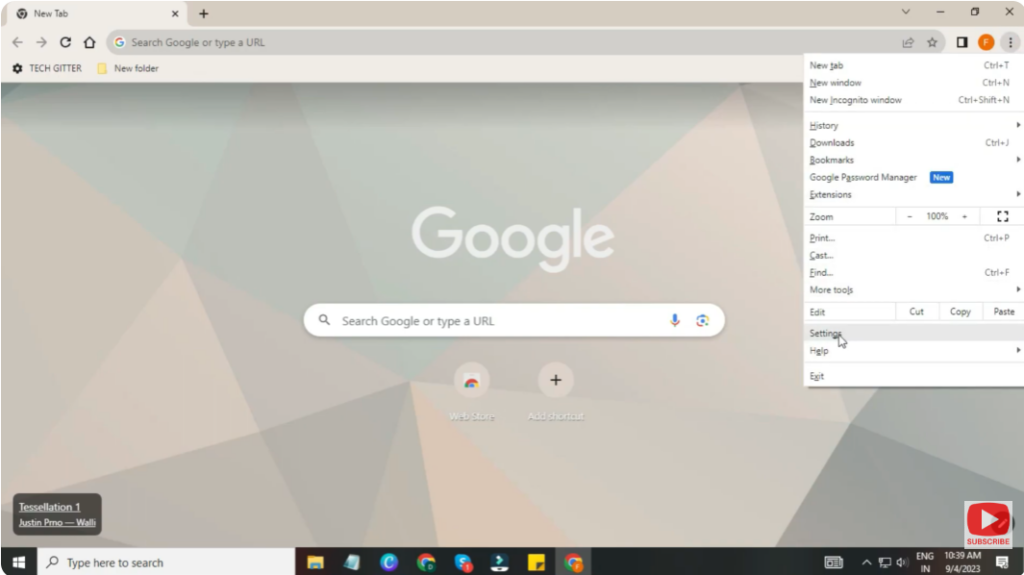
Step 2: Open Chrome Settings
- Click the three dots (⋮) located in the top-right corner.
- From the drop-down menu, select Settings.
Step 3: Go to Appearance Settings
- On the left panel, click Appearance.
- Here, you will see the option Font size.
Step 4: Select Your Preferred Font Size
Click the Font size dropdown menu and choose from these options:
- Very small
- Small
- Medium (Recommended)
- Large
- Very large
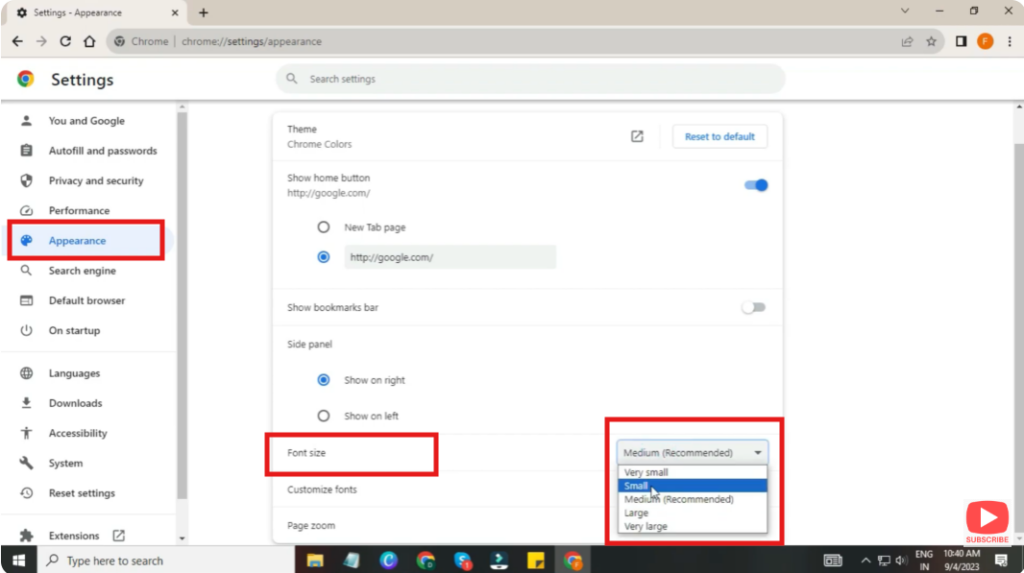
Chrome will instantly apply the new font size across webpages.
Conclusion
Changing the font size in Google Chrome is a quick and effective way to improve readability and enhance your browsing comfort. Whether you prefer bigger text or want more content on the screen, Chrome’s Appearance settings give you full control. Just follow the simple steps above and enjoy a customized online experience.






