
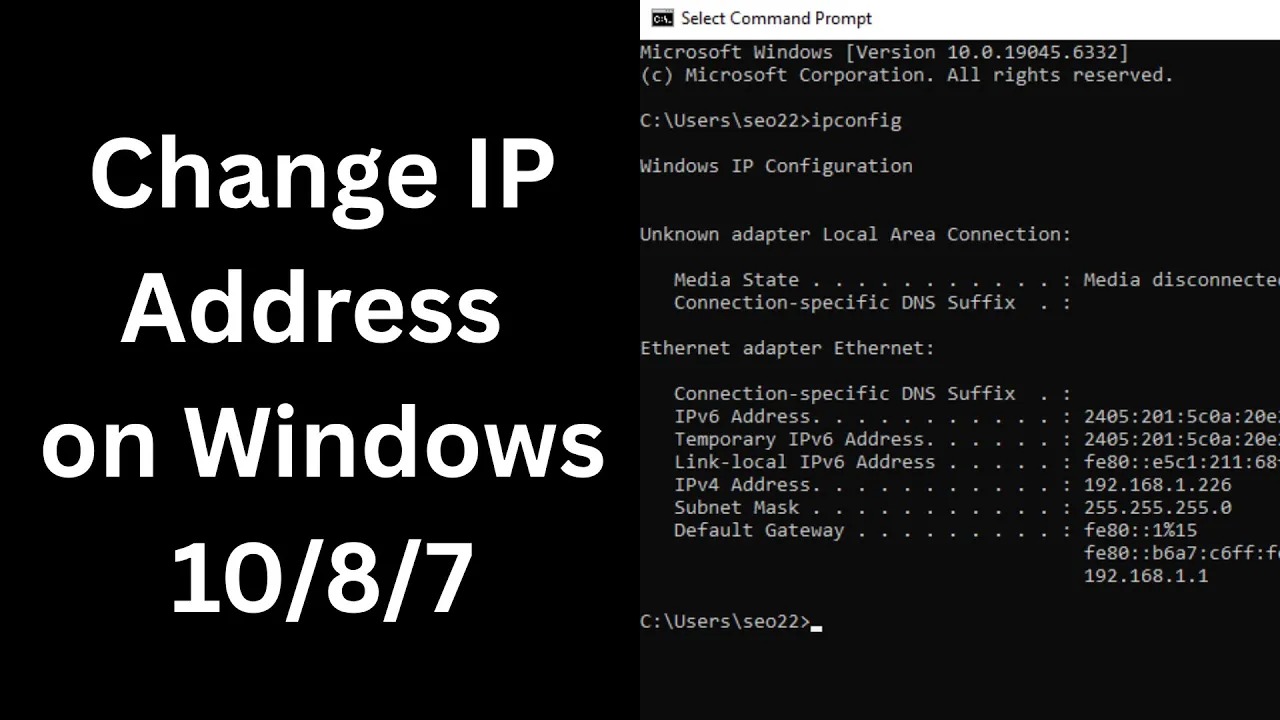
Want to change your IP address on Windows 10, 8, or 7 but not sure how? Whether you’re trying to fix network issues, improve privacy, or access restricted content, changing your IP can be helpful—and it’s easier than you might think! In this blog, we’ll guide you through simple ways to change your IP address, using built-in settings and tools. No tech skills needed—just follow along and you’ll be connected in no time!
Method 1: Change IP Address Using Control Panel (Windows 10/8/7)
Follow these steps:
- Open Control Panel
- Press Windows + R, type
control, and hit Enter.
- Press Windows + R, type
- Click on Network and Sharing Center.
- Select Change adapter settings (on the left panel).
- Right-click the active network connection (Wi-Fi or Ethernet) → Select Properties.
- Click on Internet Protocol Version 4 (TCP/IPv4) → Click Properties.
- To Change IP Automatically:
- Select Obtain an IP address automatically
- Select Obtain DNS server address automatically
- Select Use the following IP address
- Enter:
IP Address: 192.168.1.20 (example) Subnet Mask: 255.255.255.0 Default Gateway: 192.168.1.1 - Enter DNS Servers:
Preferred DNS: 8.8.8.8 Alternate DNS: 8.8.4.4
- Click OK and then Close.
✅ Your IP address has now been updated.
Method 2: Change IP Address Using Command Prompt
- Press Windows + R, type
cmdand press Enter. - To View Current IP Address, type:
ipconfig - To Release Current IP, type:
ipconfig /release - Then Renew IP Address, type:
ipconfig /renew
This refreshes your IP from the router/DHCP server.
Method 3: Reset Network Settings (Fix Network Issues)
If your IP is not changing correctly:
- Open Command Prompt as Administrator.
- Type:
netsh winsock reset netsh int ip reset ipconfig /flushdns - Restart your computer.
Method 4: Use a VPN (For Public IP Change)
If you want to change your public IP address, use any secure VPN software like:
- ProtonVPN
- ExpressVPN
- NordVPN
A VPN masks your real location and assigns a new regional IP address.
Conclusion
Changing your IP address on Windows 10, Windows 8, or Windows 7 is quite simple. Whether you’re troubleshooting network issues or configuring custom network settings, the methods shown above will help you manage your IP effectively. For privacy or global access, consider using a reliable VPN.






