

Want to keep your Steam account safe and secure? Changing your password is a smart way to protect your games, personal info, and login details—especially if you think someone else might have access or you just want a fresh start. Whether you’re using Steam on your PC or through the mobile app, updating your password is quick and easy. In this blog, we’ll walk you through how to change your Steam password step by step, using simple instructions anyone can follow. Let’s help you keep your gaming account safe!

✅ Steps to Change Steam Password
Step 1: Open Steam & Log In
- Launch the Steam client on your computer (Windows / macOS).
- Make sure you’re logged in to your Steam account.
Step 2: Open Account Details / Profile
- At the top menu, click “Steam” → “Settings” (on Windows).
- On macOS, go to Steam → Preferences.
- In Settings / Preferences, navigate to Account.
Alternatively, in the client header, click your username → Account details.
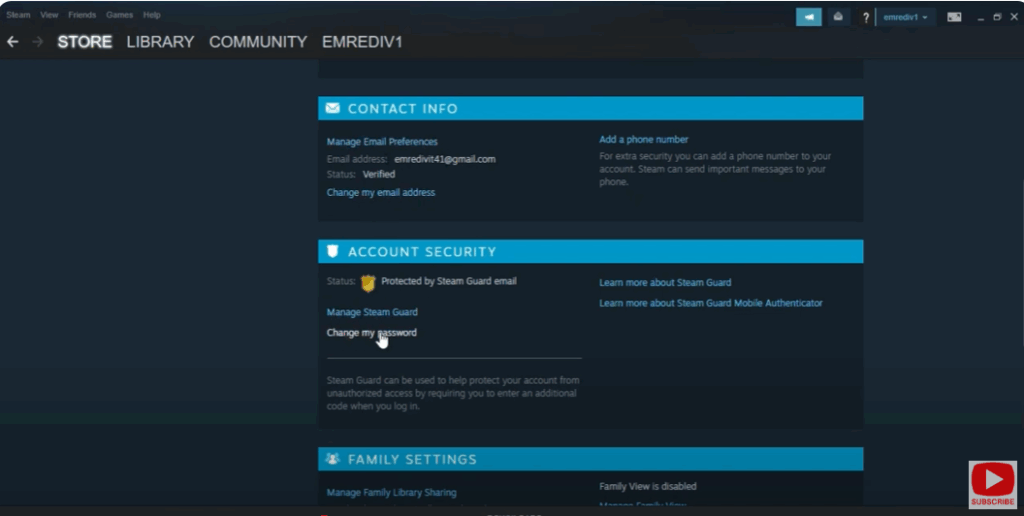
Step 3: Find the “Change Password” Option
- In the Account or Security section, look for “Change my password”.
- Click the option to change your password.
Step 4: Enter Current + New Password
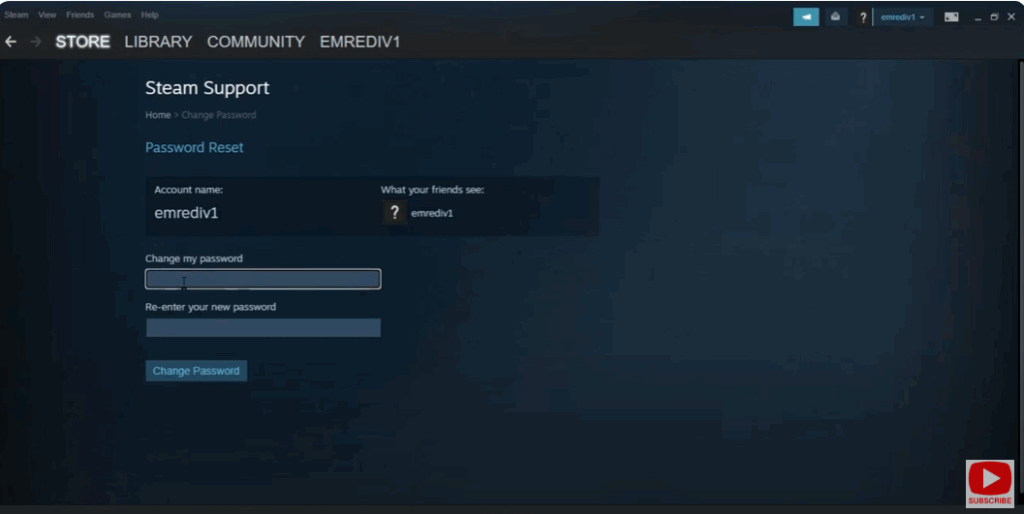
- Steam will prompt you to enter your current password to verify your identity.
- Then enter your new password (twice) for confirmation.
- The new password should be strong (mix of letters, numbers, symbols).
Step 5: Confirm & Save
- After entering the new password, click Save or Change Password.
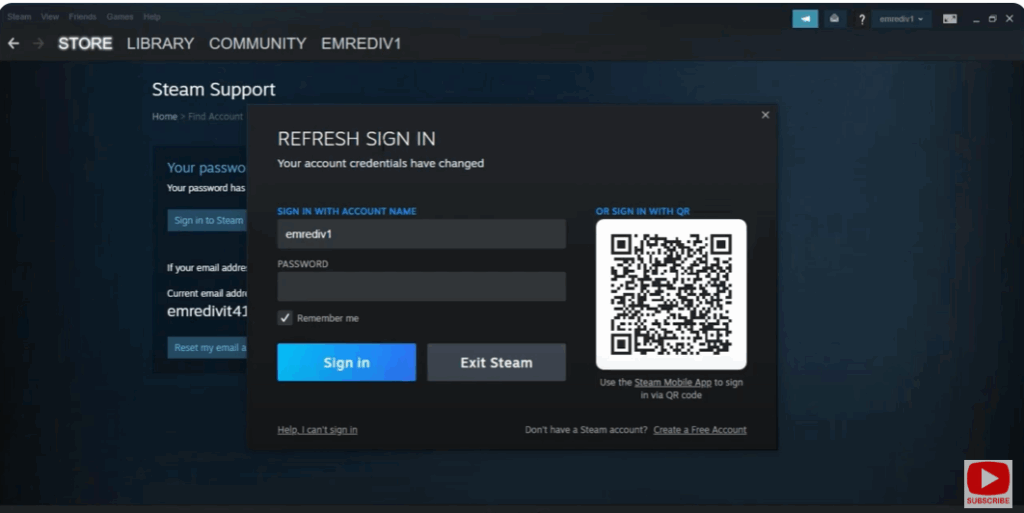
- Steam may require you to re-log in or verify via email/Steam Guard.
Step 6: Re-login and Test
- Log out of Steam and log in again using your new password to verify it works.
- If you have Steam Guard or mobile authenticator, ensure they still function.






