

Changing your Steam account name (profile name) is a quick and easy way to update how others see you in games and on your Steam profile. While the actual login username (SteamID) can’t be changed, you can freely edit your display name any time through your profile settings. This guide will show you step-by-step how to update your Steam account name on both PC and mobile, giving you a fresh identity and helping you stand out to your friends and in the gaming community. Changing your Steam account name is simple and lets you update how you appear to friends and other players. Although you can’t change your unique login username, you can easily update your profile name at any time in your account settings. This guide will walk through how to change your Steam account name quickly and safely, whether you’re using the desktop app or the mobile app, so you can show off your newest gaming identity in just a few steps.

✅ Step-by-Step: How to Change Your Steam Profile / Display Name
- Launch Steam & Sign In
Open the Steam client (Windows / macOS) and sign into your account. - Go to Your Profile
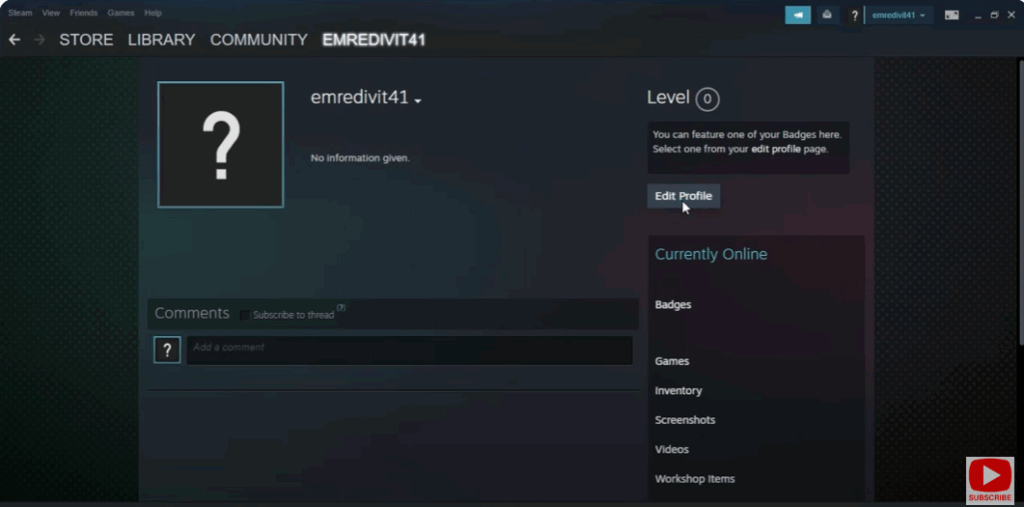
Click on your username in the top menu bar, then select “View my profile” from the dropdown.

- Edit Profile
On your profile page, click the “Edit Profile” button.
- Change Profile Name / Display Name
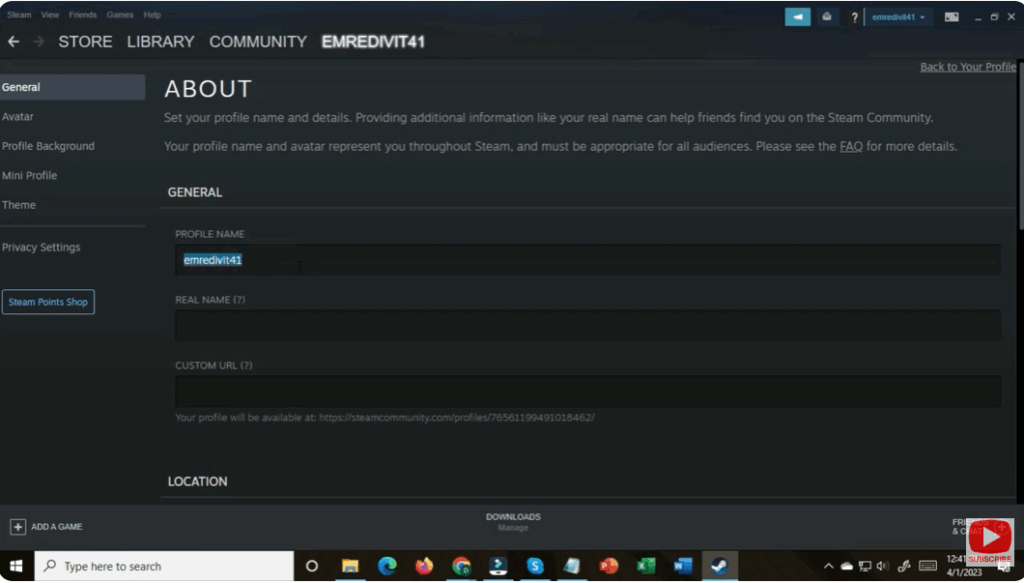
Under Profile Name (or similar field), replace your current name with the new display name you want.
- Save Changes
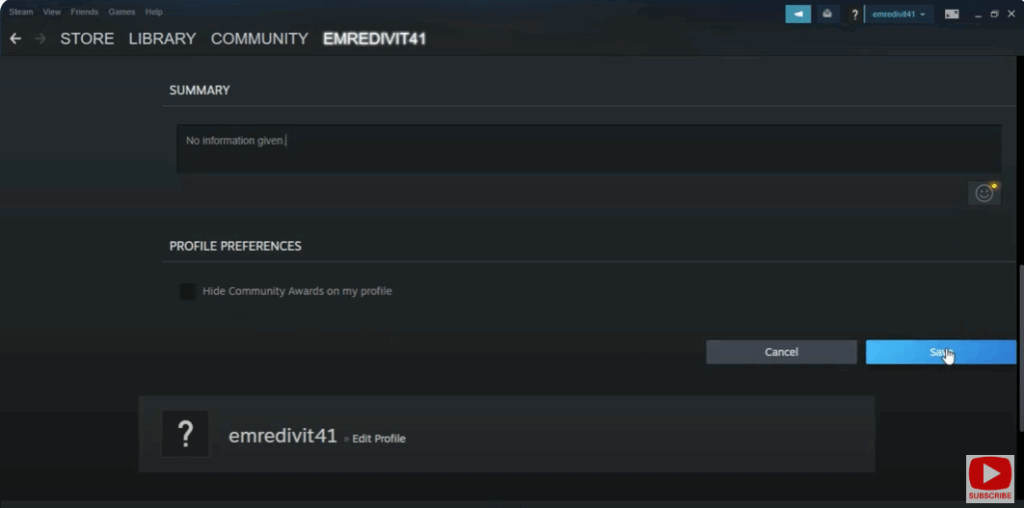
Scroll down and click “Save” (or equivalent) to apply your new name.
- Confirm the Change
Return to your profile page and verify that your new display name now appears.






