
Most WiFi routers today work on two bands: 2.4GHz and 5GHz. The 2.4GHz band gives you a wider range but slower speed, while 5GHz offers faster internet with less interference. If your device supports it, switching to 5GHz can make streaming, gaming, and browsing much smoother. The good news is that changing from 2.4GHz to 5GHz is easy and only takes a few steps. In this guide, we’ll show you how to switch your WiFi to 5GHz quickly so you can enjoy a faster and more stable connection.
If your router supports the 5 GHz band, you can easily switch to it for faster internet speed.
It’s very simple:
- First, click on the Windows search bar and type
npa.cpl. - Then, hit Enter. This will open the Network Connections window.
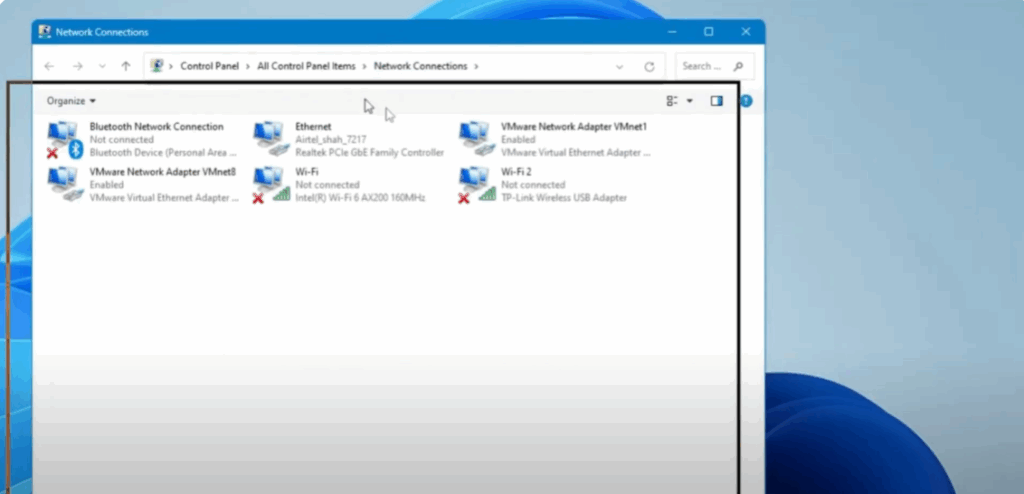
- You will see all of your network adapters. Look for your Wi-Fi adapter.
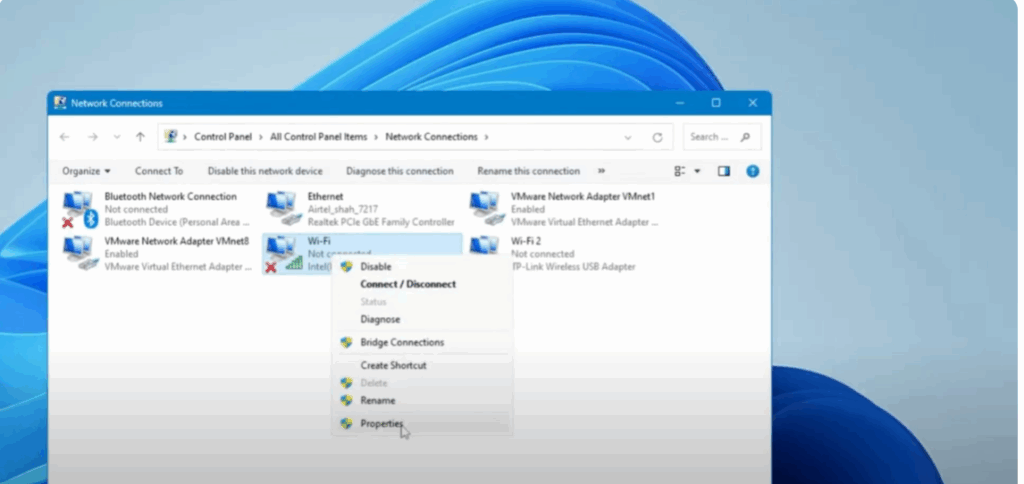
- Right-click on it and select Properties.
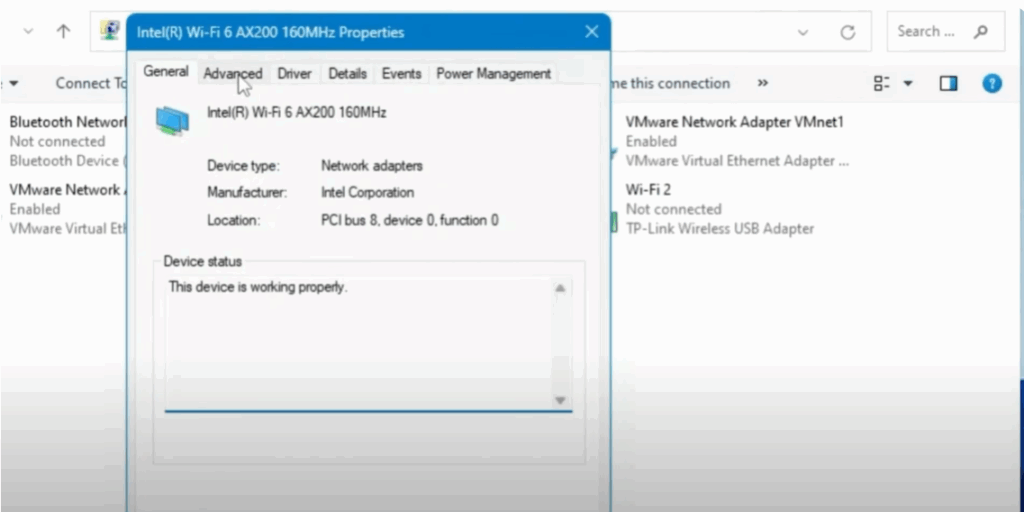
- Now click on Configure, and a new box will open.
- From the top menu, select the Advanced tab.
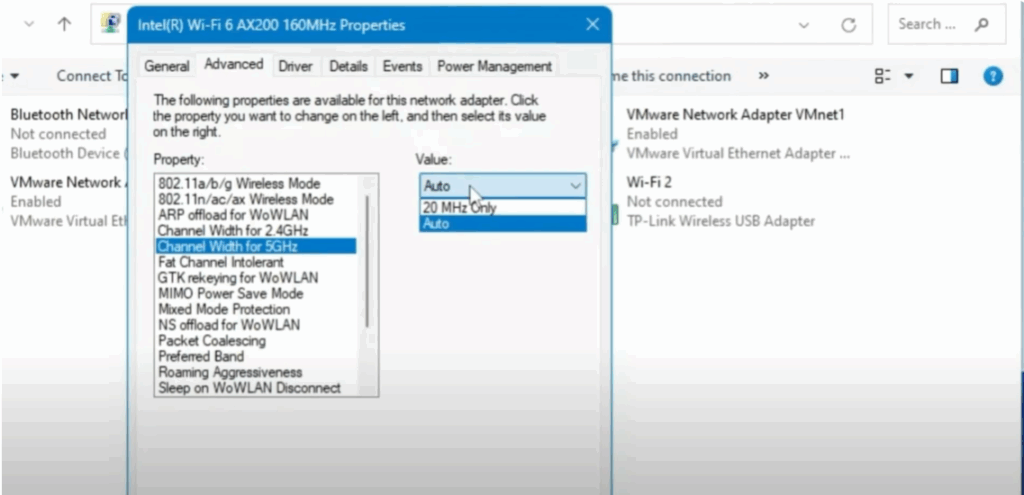
- In this section, scroll down and look for an option called Channel Width for 5 GHz. From the drop-down, make sure it is set to Auto.
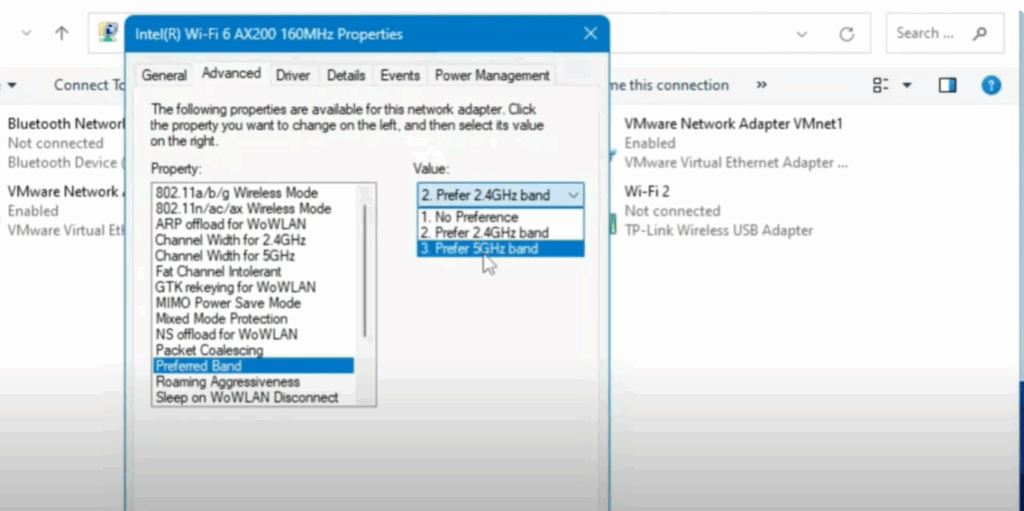
- Next, find the option called Preferred Band. By default, it might be set to 2.4 GHz. Change it to Prefer 5 GHz band.
- Then click OK to save the changes.
- After this, restart your computer.
If your router supports the 5 GHz frequency, your system will now automatically connect to it, giving you better speed and performance.






