
Changing your Steam profile picture is a great way to personalize your gaming identity and show off your style. Whether you want to upload a favorite photo, a game character, or a unique avatar, Steam makes it easy to update your profile image. You can do this directly from the Steam app on your PC or through the website, using simple steps to pick, upload, and save your new picture. In this blog, you’ll learn how to quickly change your Steam profile picture and make your account truly your own.
Method 1: Change Profile Picture Using the Steam Desktop App
Follow the steps below if you use Steam installed on your PC:
Step-by-Step Instructions:
- Open Steam on your computer.
- Look at the top-right corner and click on your profile name.
- Select View My Profile from the dropdown menu.
- Click on Edit Profile.
- From the left-hand menu, choose Avatar.
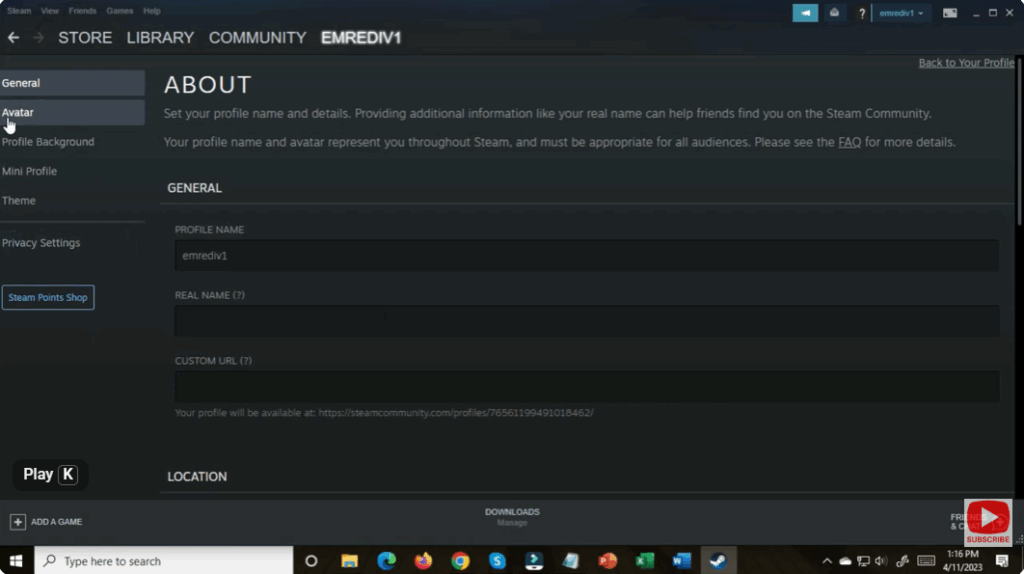
- Now you will see two options:
- Upload Your Own Image
- Choose from Steam’s Avatar List
- Click Upload, browse your PC, and select your new image.
- Once uploaded, click Save.
✅ Your Steam profile picture is now updated!
Method 2: Change Profile Picture Using Steam Web Browser
If you don’t have the Steam app, you can still update your profile picture online:
- Go to https://store.steampowered.com/
- Log in to your Steam account.
- Click your username (top right) → View Profile.
- Click Edit Profile.
- Select Avatar.
- Upload your custom image or select one from Steam.
- Click Save to apply.
🎯 Conclusion
Changing your Steam profile picture is simple and helps personalize your gaming identity. Just go to your profile → edit → avatar, upload your image, and click save—that’s it! Whether you choose a gaming character, anime avatar, logo, or a cool artwork—make it something that represents you.






