---Advertisement---

How To Close Google Chrome Without Closing The Tabs

Published On: November 14, 2025
How To Close Google Chrome Without Closing The Tabs
---Advertisement---

Sometimes when you close Google Chrome, all your open tabs disappear, and you have to reopen them one by one the next time. This can be frustrating, especially if you were working on something important or had multiple pages open. The good news is, Chrome has a simple setting that lets you close the browser without losing your tabs. In this blog, we’ll show you step by step how to close Google Chrome without closing the tabs, so you can pick up right where you left off.
Close Google Chrome Without Closing The Tabs

First, open Google Chrome.
Then click on the three dots in the top right corner.
Click on Settings.
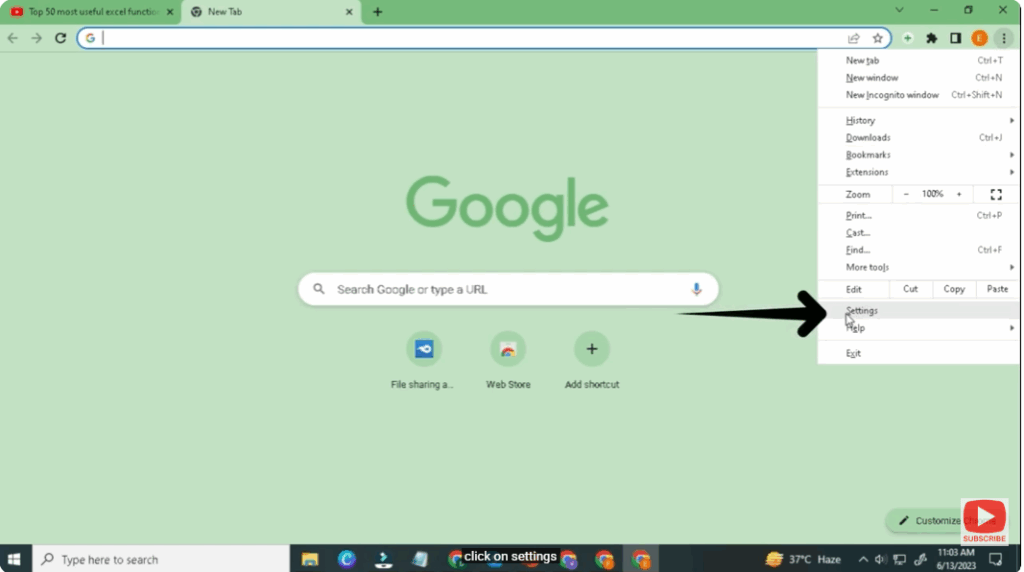
Click on Settings

Go to the “On startup” option.
And turn on the “Continue where you left off” option.
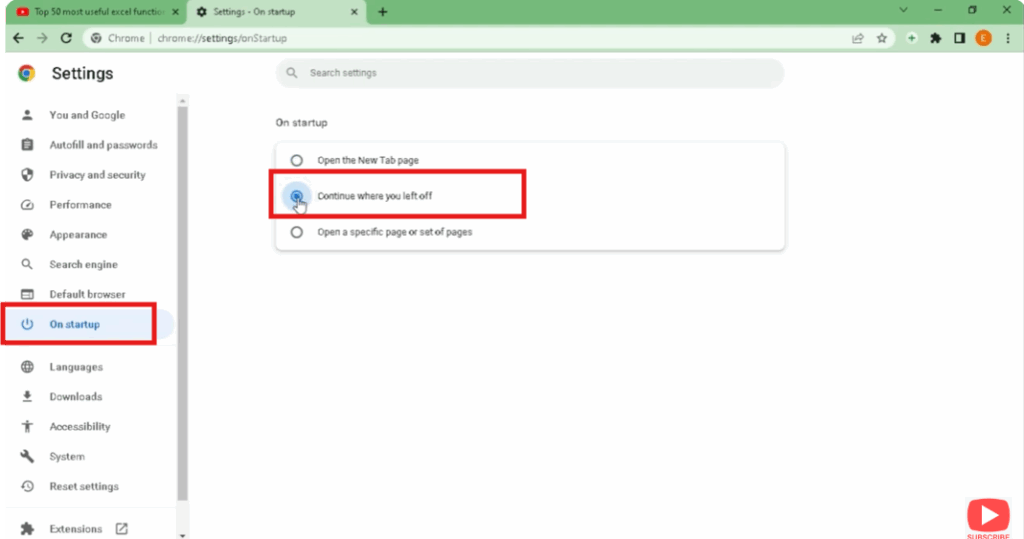
Continue where you left off

Now you can close Chrome directly.
And on restarting, all your tabs will come as they are.

---Advertisement---

Related Post

Enable New Windows 11 25H2 Features After December Update (KB5070311)
Enable/Disable Steam Networking IP Sharing – Step-by-Step Guide
Valorant Stuck on Loading Screen? Fix It Now!
Tips

Valorant Stuck on Loading Screen? Fix It Now!

By Tech Gitter
|
December 31, 2025
How to Increase or Decrease Font Size in Google Chrome
Solutions

How to Increase or Decrease Font Size in Google Chrome

By Tech Gitter
|
December 29, 2025

Leave a Comment

Join WhatsApp Join Telegram





