
Imagine you have a picture—maybe a scan or a phone snap—with paragraphs of text, and you want to edit that text in Word instead of retyping everything. Converting images to text (Optical Character Recognition, OCR) lets Word recognize characters in images so you can copy, edit, or search the text. Though Word itself doesn’t have a built-in fully featured OCR that directly converts every image automatically, there are workarounds using OneNote, saving as PDF, and online OCR tools that help you extract text and then paste or open it in Word. Here are several methods you can use.
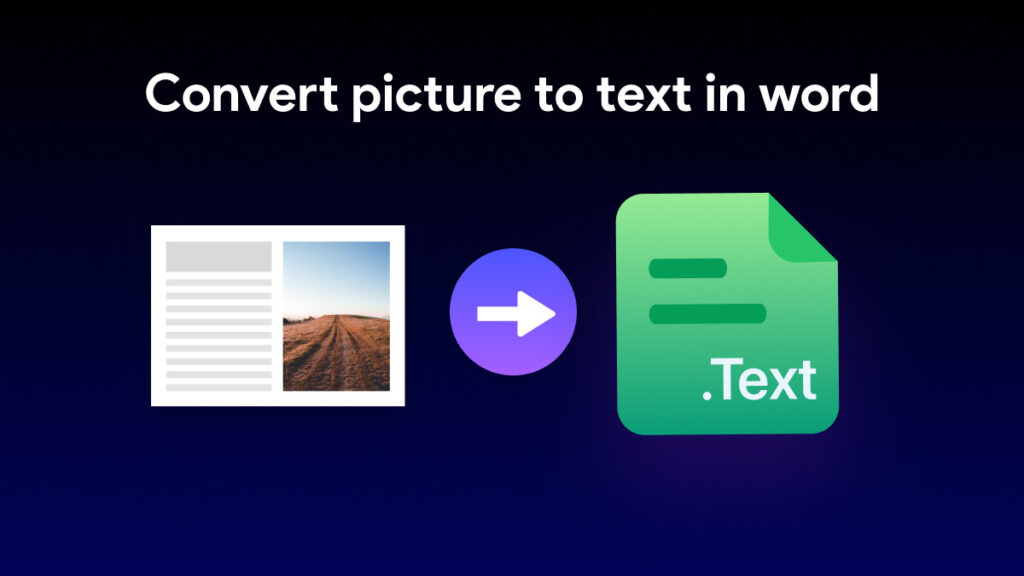
Ways to Extract Text From Images and Use It in Word
Below are different ways to convert images to editable text, then bring that text into a Word document.
1. Save Word Document with Image as a PDF, Then Open PDF in Word
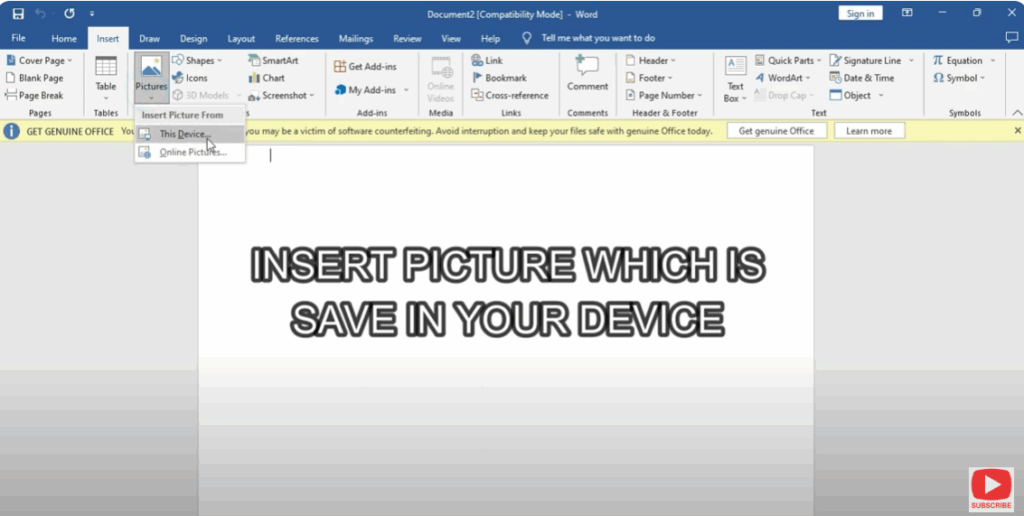
- Open Word and paste or insert your image into a new document.
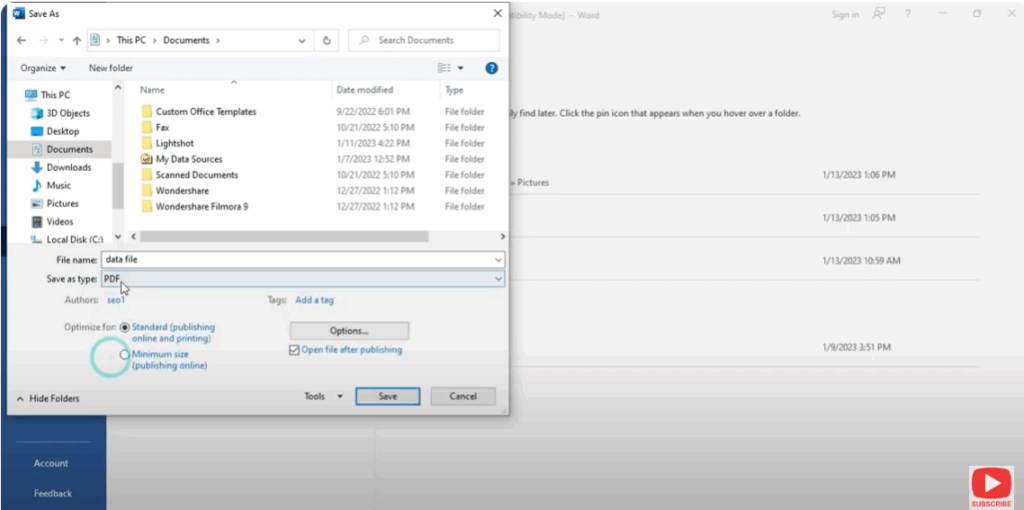
- Save that document as a PDF (File → Save As → select PDF format).
- Then open the saved PDF using Word itself (File → Open → choose the PDF). When you open a PDF that has image(s), Word will try to convert it to text. Accept the “convert” prompt.
- After Word’s conversion, you’ll get editable text (though formatting may need cleanup).






