
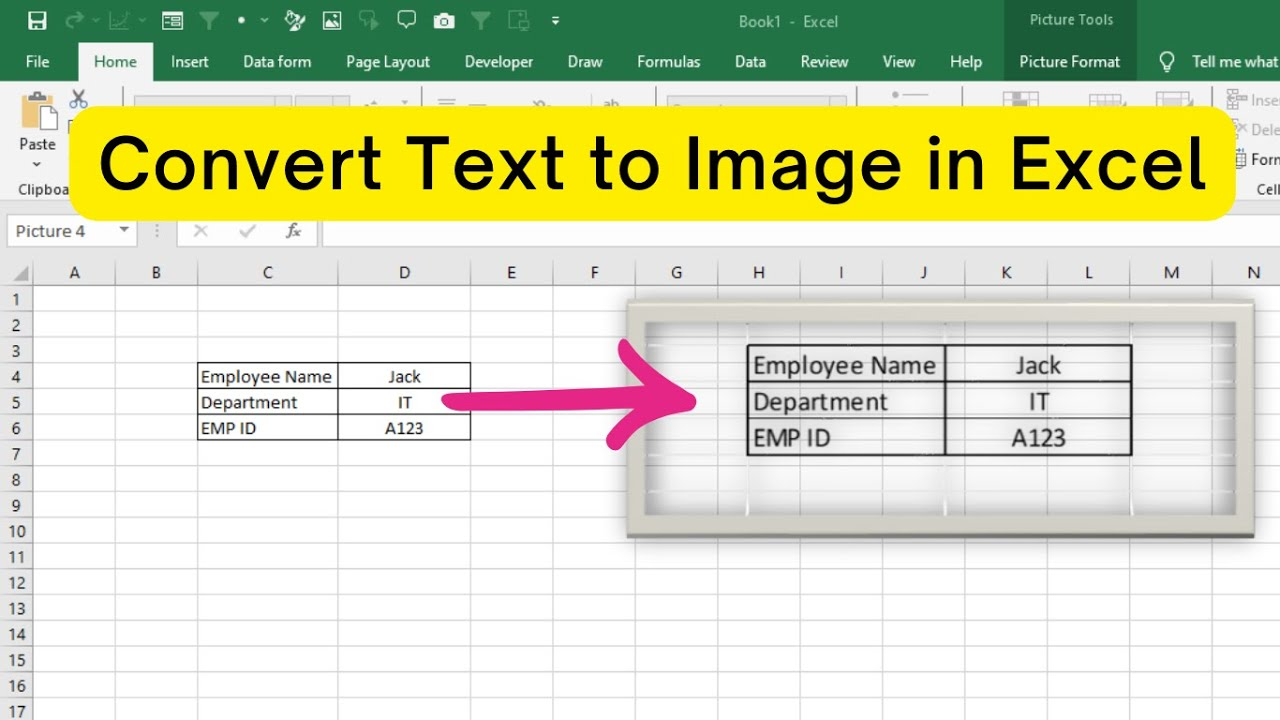
If there’s a need to turn text or data in Excel into an image, it’s easier than it sounds and doesn’t require extra software. Converting text to an image in Excel is helpful when sharing data as a picture to preserve its look on other platforms, like presentations or reports, or when you want a non-editable snapshot of your work. In this blog, you’ll learn simple methods to convert text or selected cell ranges into images using built-in Excel features like “Copy as Picture” and other easy tricks, so your data looks clear and professional wherever you use it.
Steps to convert text to image in Excel
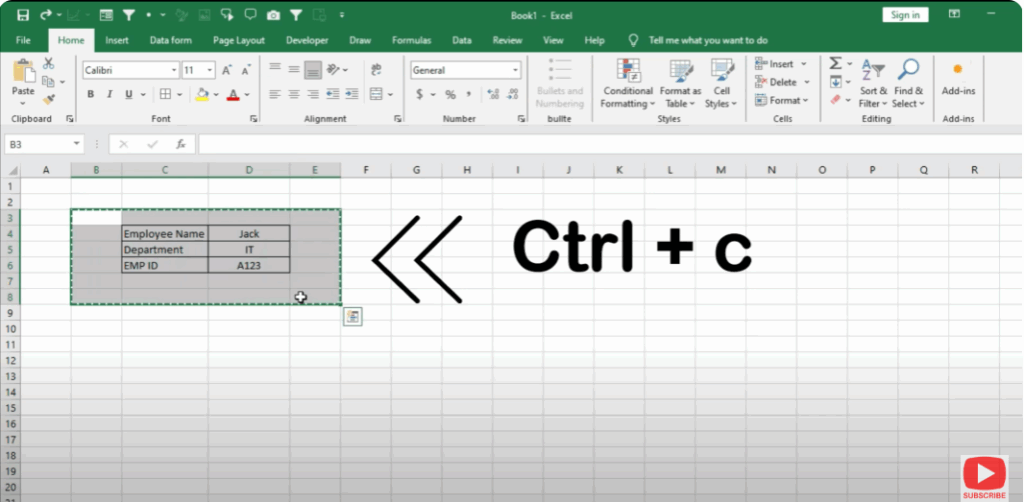
- Select the cell and copy it.
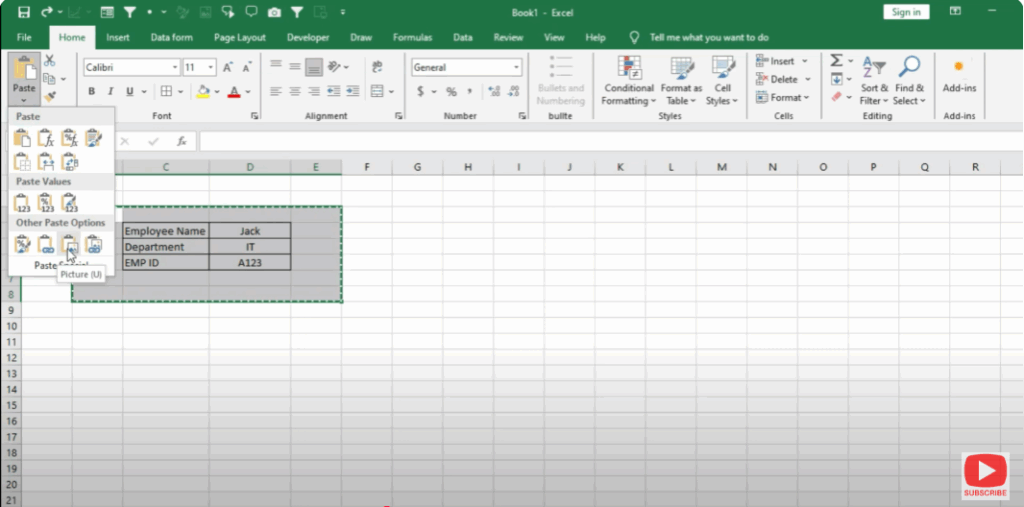
- Click on the Paste drop-down from the menu bar.
- Choose the Picture icon from other paste options.
- Place the cursor on the cell and now move it.
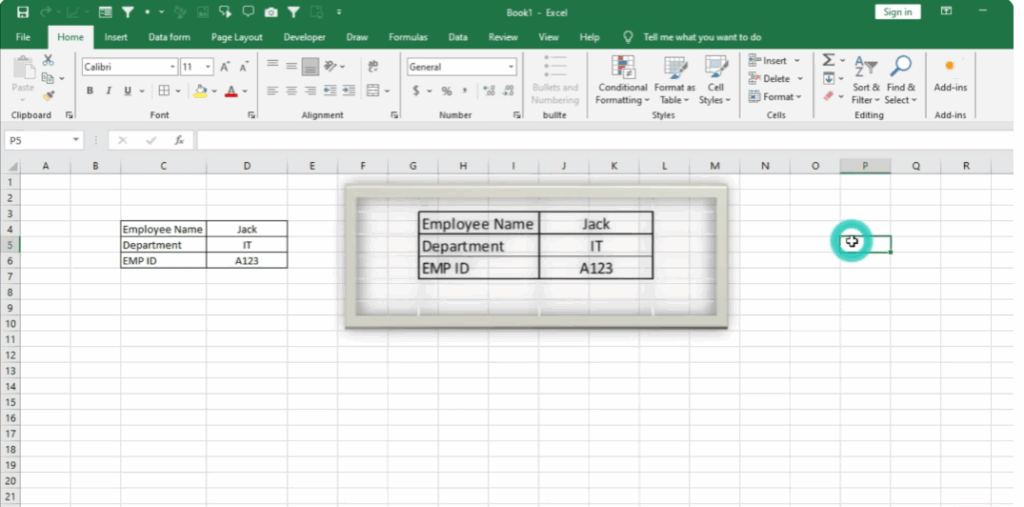
- You can choose any format from the menu bar.






