

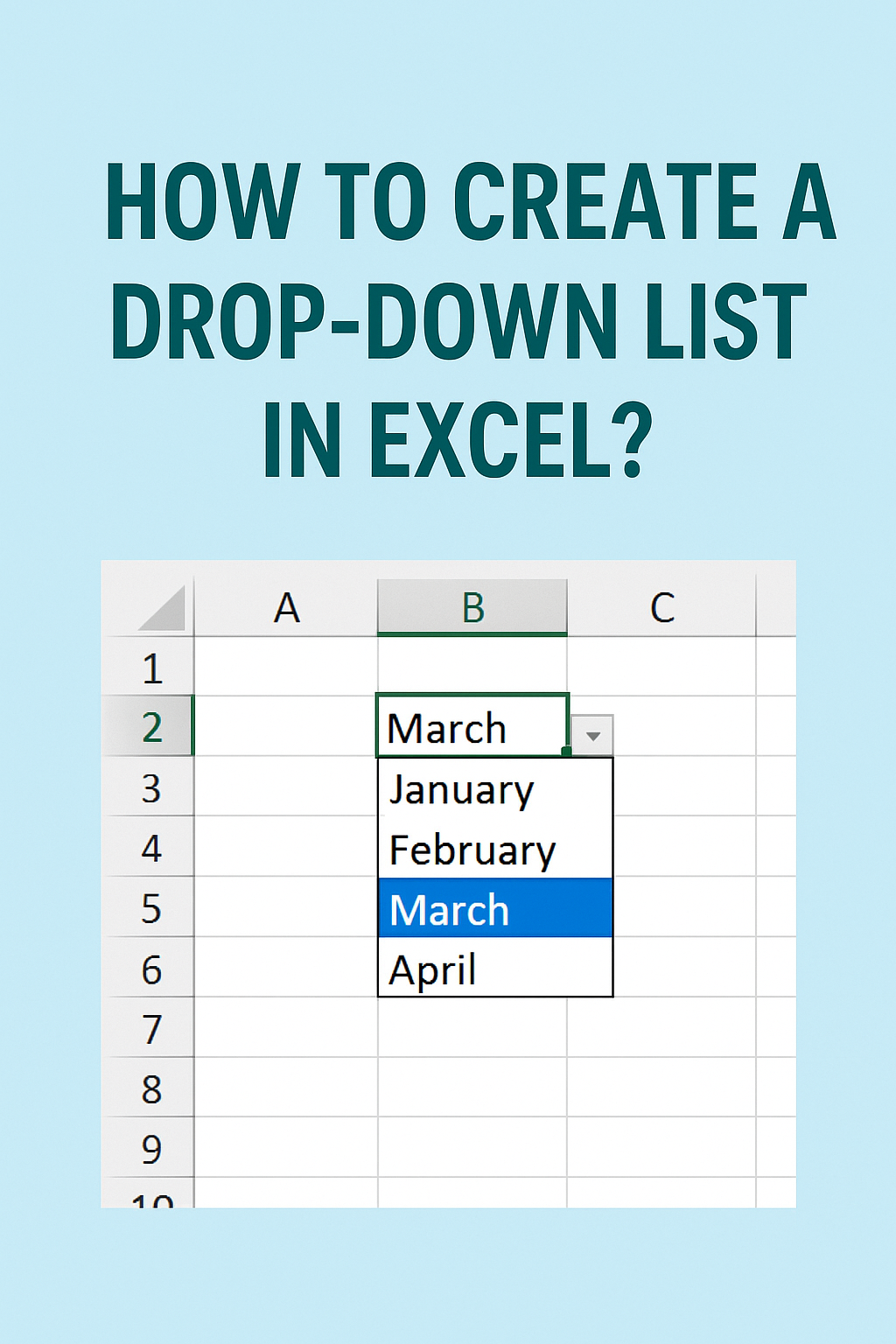
Creating a drop-down list in Excel is a simple way to make your spreadsheet more organized and easy to use. Instead of typing data manually every time, you can just pick an option from a ready-made list inside a cell. This helps avoid mistakes and saves time, especially when working with large sheets. The good news is, Excel has a built-in feature to create drop-down lists quickly. In this blog, we’ll explain step by step how to add a drop-down list in an Excel cell, using easy language so anyone can follow along.
🛠 Step-by-Step: Making a Drop-Down List
Here’s a clear guide to setting up a drop-down in a cell:
- Prepare the List Items
- First, create your list of options in a column or row in Excel.
- Alternatively, you can skip this and type your list items directly into the setup window later.
- Select the Cell for the Drop-Down
- Click the cell (or cells) where you want the drop-down arrow to appear.
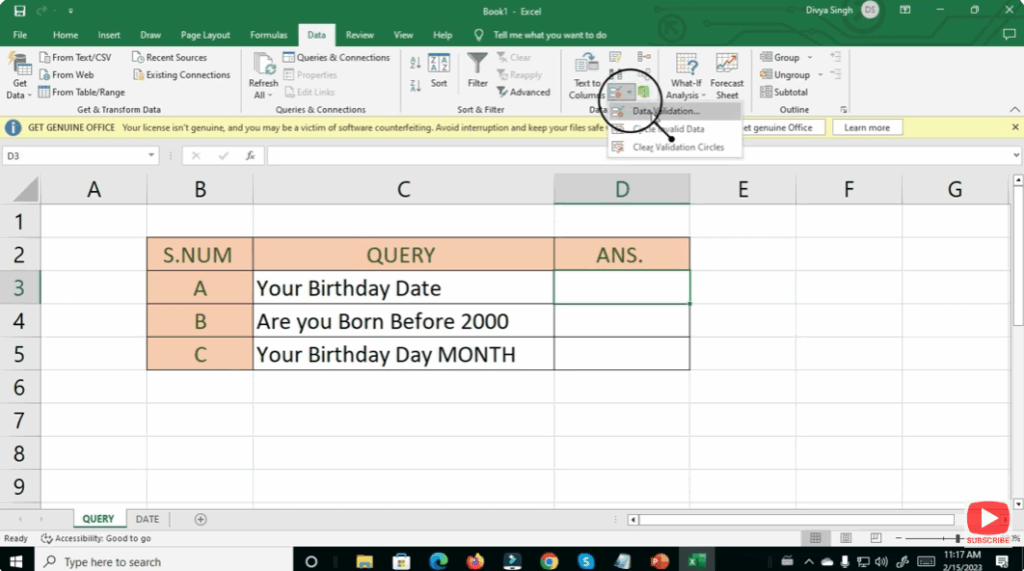
- Open Data Validation
- Go to the Data tab on the ribbon.
- In the Data Tools section, click Data Validation.
- Set Up the Validation Criteria
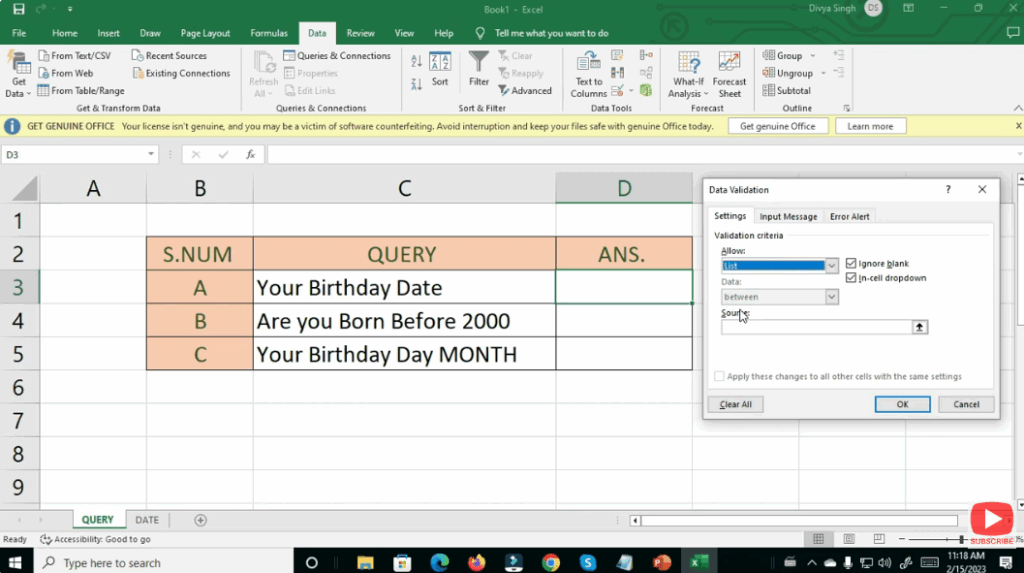
- In the Data Validation dialog, go to the Settings tab.
- In the Allow dropdown, select List.
- In the Source field, either:
- Type
=A1:A5(or wherever your list is). - Or, if manually entering: type
Yes,No,Maybeseparated by commas.
- Type
- Make sure the checkbox In-cell dropdown is checked so the arrow appears next to the cell.
- Optional: Add Input Message
- Switch to the Input Message tab.
- Enable Show input message when cell is selected, then type a title and message (max ~225 characters).
- This message appears when the user clicks the drop-down cell — great for instructions or guidance.
- Optional: Set an Error Alert
- Go to the Error Alert tab.
- Enable Show error alert after invalid data is entered.
- Choose a style (Stop / Warning / Information) and write a message.
- “Stop” prevents other entries.
- “Warning” or “Information” lets people enter custom values.
- Click OK
- After setting up, click OK to apply the validation.
- You should now see a small arrow in the cell — click it to choose from your list.
✅ Final Thoughts
Creating a drop-down list in Excel is a great way to improve your data entry process. It ensures consistency, reduces typos, and speeds up input. Using Data Validation with lists — whether from an existing range or custom entries — gives you powerful control over your workbook.
Try it out in your next spreadsheet — and once you get comfortable, you can explore more advanced tricks like dynamic lists or dependent drop-downs. Happy spreadsheet building!






