
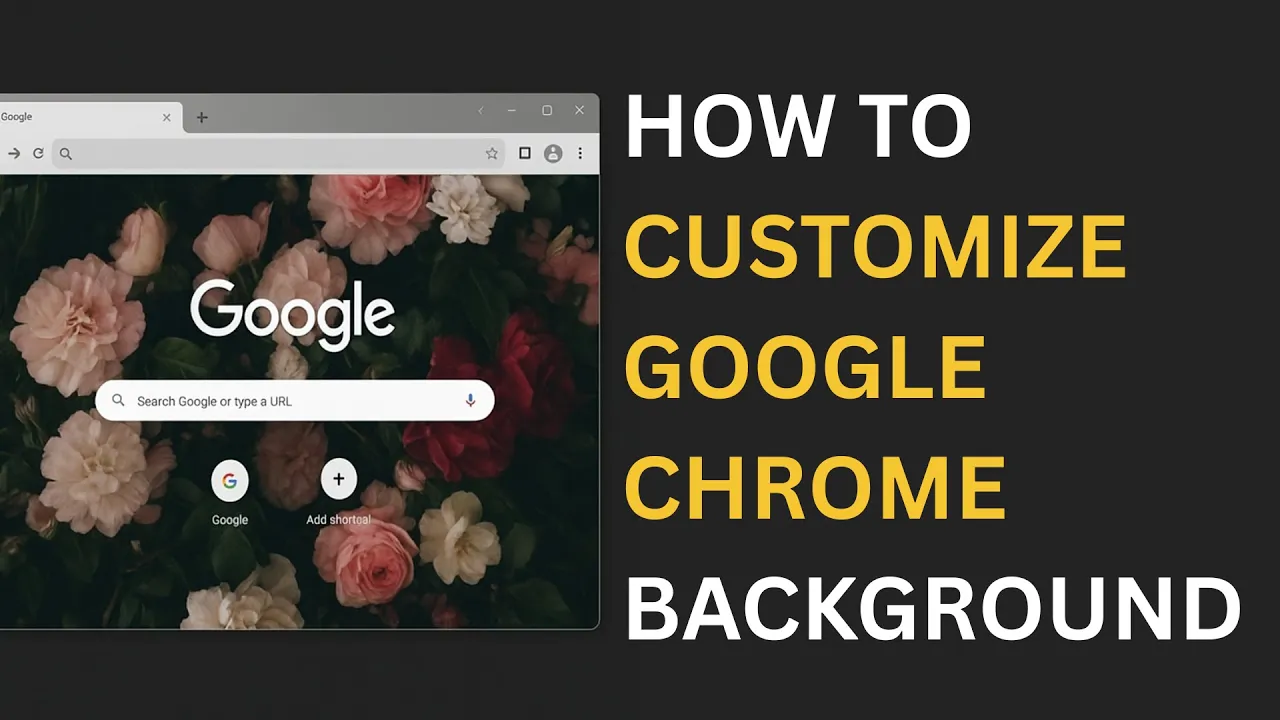
Customizing the background of your Google Chrome new tab page is a fun and easy way to make your browser more personal and enjoyable. You can choose from a wide range of beautiful images from Chrome’s built-in library, upload your own photos, or even apply different themes to change the colors of your browser. In this blog, you’ll learn simple step-by-step methods to change your Google Chrome new tab background and make your browsing experience uniquely yours.
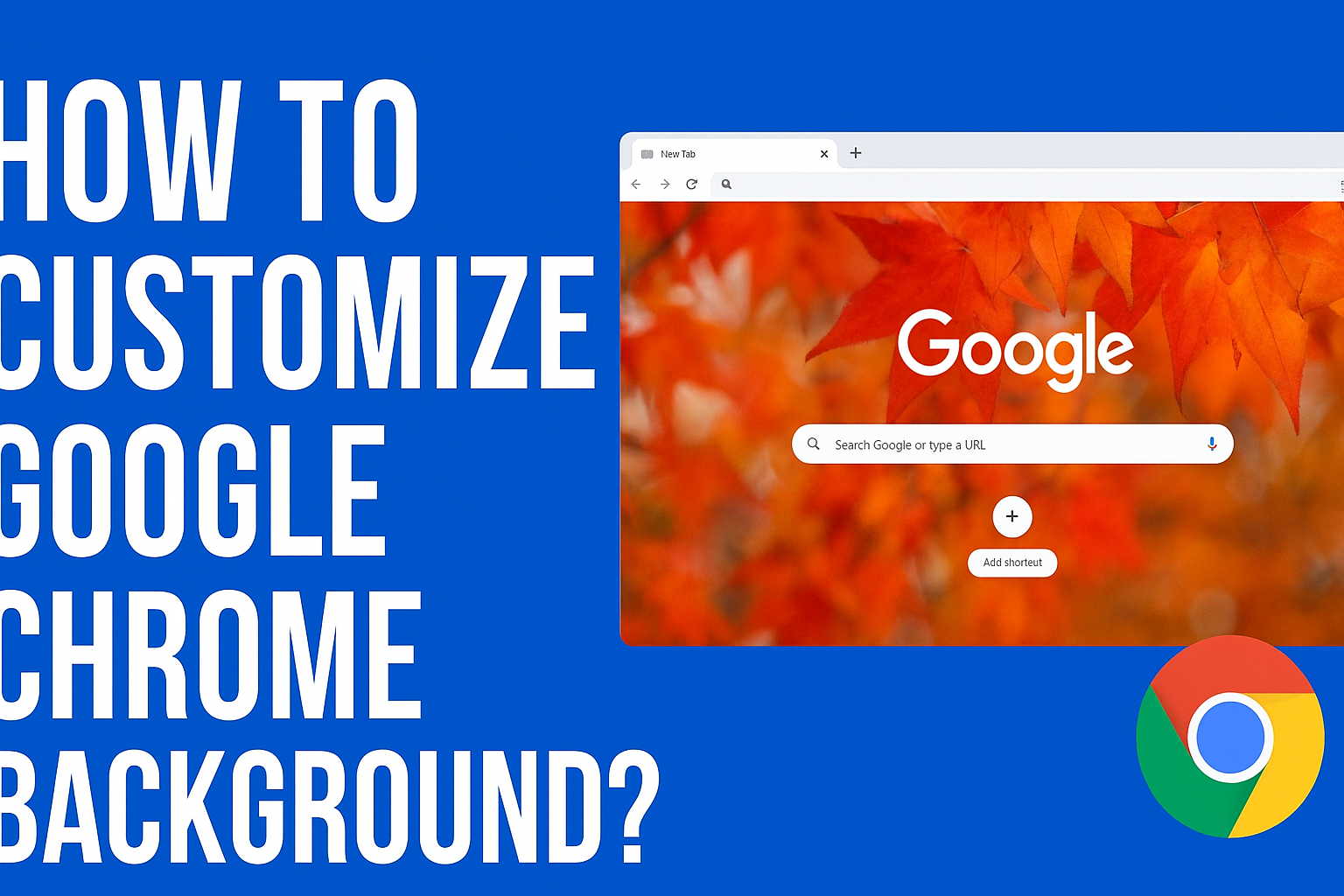
How to Change Google Chrome New Tab Background
Follow the simple steps below:
Step 1: Open Google Chrome
Make sure your Chrome browser is up to date.
Step 2: Open a New Tab
Press Ctrl + T (Windows) or Command + T (Mac).
Step 3: Click on the “Customize Chrome” Button
In the bottom-right corner of the new tab page, click:
Customize Chrome (or Customize this page)
Step 4: Choose a Background
You will see three options:
- Chrome Background Collection – Choose from categories like Nature, Landscape, Textures, Art, etc.
- Upload from Device – Use a photo saved on your computer.
- No Background – To keep it plain.
Select your favorite one and click Done.
How to Apply a Full Chrome Theme
If you want to change the browser color, tab color, and UI, install a theme from the Chrome Web Store.
Step 1: Visit Chrome Web Store
Go to:
https://chrome.google.com/webstore
Step 2: Click on “Themes” in the Sidebar
Step 3: Select Your Favorite Theme
When you click a theme, preview will show.
Step 4: Click “Add to Chrome”
Your Chrome window will change instantly.






