
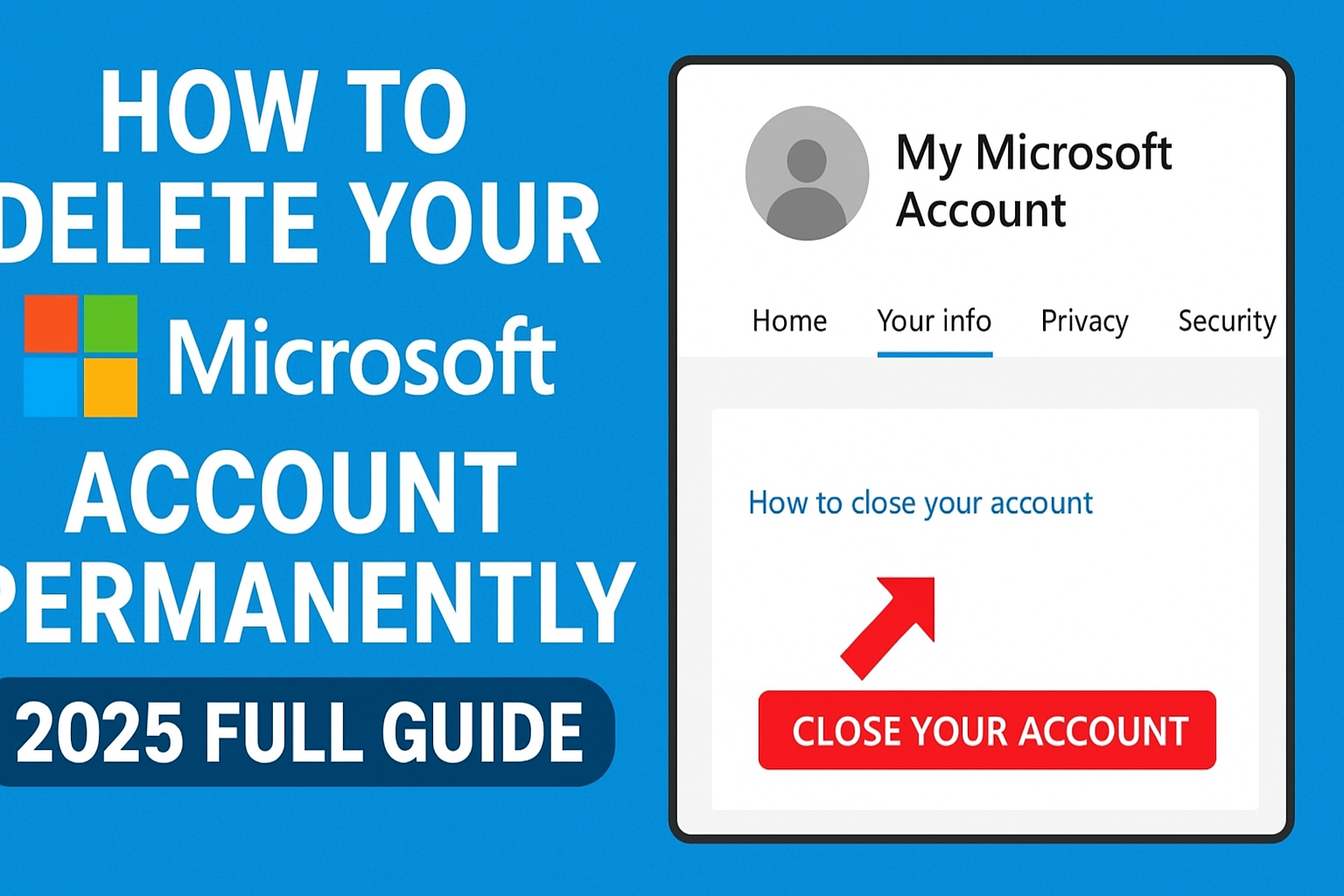
Deleting a Microsoft account permanently in 2025 is easier than many people think, but it’s important to follow a few simple steps to make sure personal files and information are safe first. When an account is deleted, access to Outlook, OneDrive, Xbox, and other Microsoft services is removed forever, so backup of all important data is a must before starting. This guide will show how to delete a Microsoft account step by step, ensuring the process is fast, clear, and worry-free for anyone ready to move on.
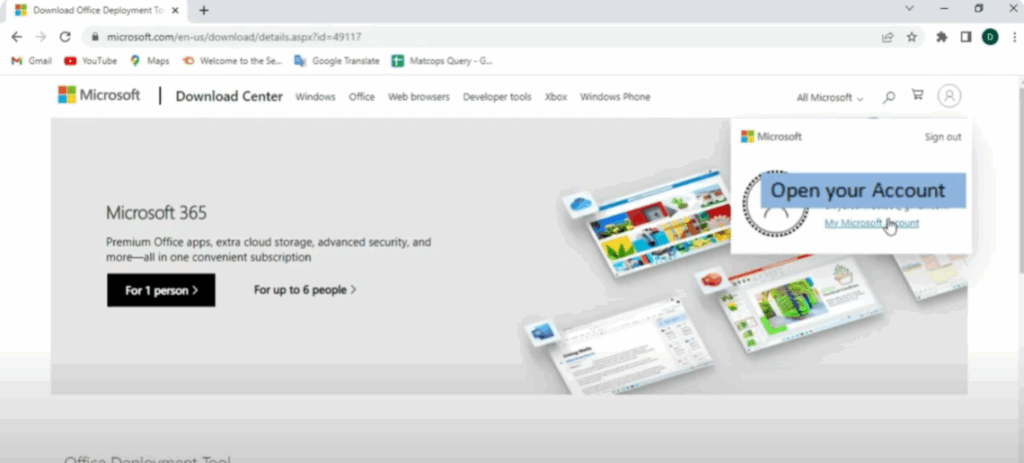
First, open Google Chrome and search for Microsoft.com. Once you’re logged in, click on your profile icon at the top right and then click on My Microsoft Account.
After the page opens, click on the Your Info tab at the top. Now, scroll down to the bottom and you’ll see an option that says How to Close Your Account. Click on it.
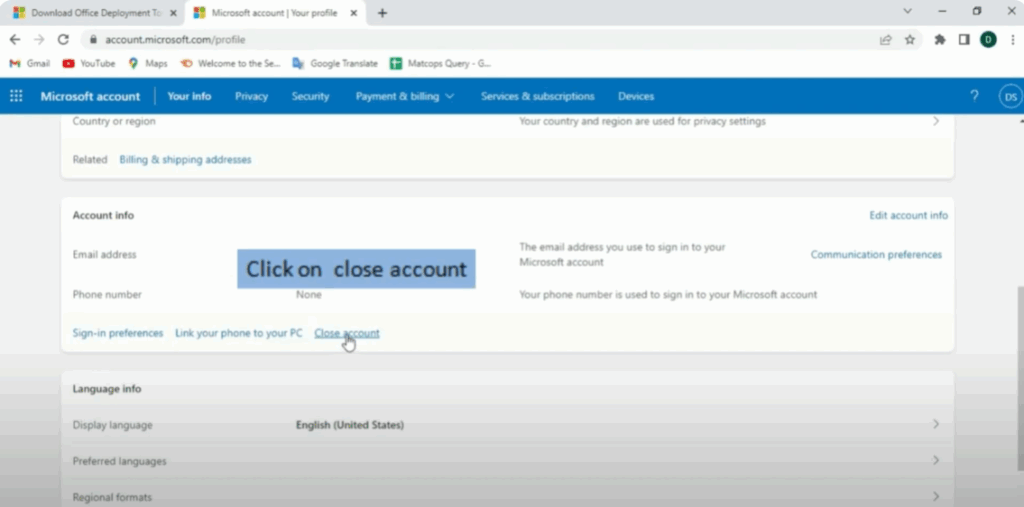
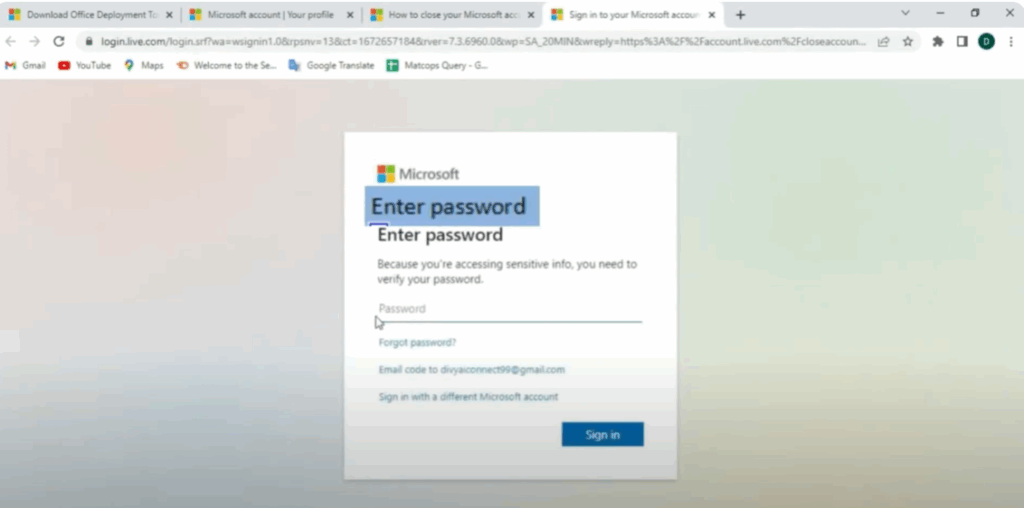
After that, scroll again and click on the button Close Your Account. You’ll be asked to enter your password again. Type it and click Sign In.
Once the new page opens, click on Next. Now, tick all the boxes one by one to confirm that you’ve read and accepted everything. Then, choose the reason why you’re closing the account. For example: I no longer need this account.
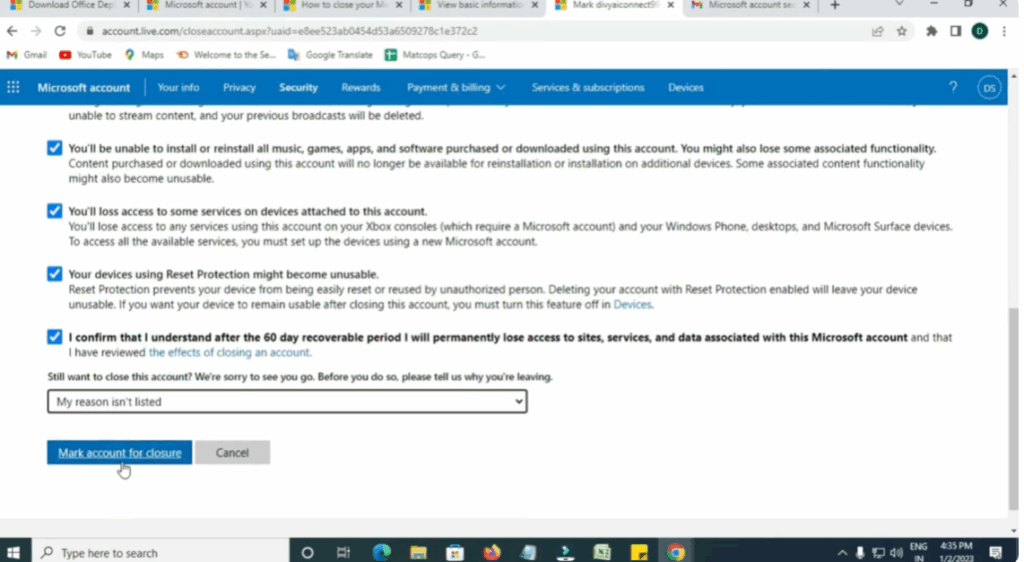
After that, click on the Mark Account for Closure button. Now, click on Done.
That’s it. Your Microsoft account is now scheduled for deletion. It will be deleted permanently after 60 days unless you log in again before that.






